
A soundboard that plays audio clips through your microphone in games and voice chat. Get and share clips on the Steam Workshop, keep your sound files in Steam Cloud, and find clips fast with picture icons and tags. For Windows, Linux and Steam Deck.
Release Date:
Jul 3, 2026
Developer:
Publisher:
Tags

Sign in to add this item to your wishlist, follow it, or mark it as ignored

Buy SoundRelay


About This Software

Play sound clips through your microphone

SoundRelay is a desktop soundboard. Press a clip's hotkey and the people in your voice chat or game hear it together with your voice. It works with any program that uses a microphone, such as Discord, in-game voice chat and streaming software.

Highlights

  • Steam Workshop. Upload and download clips straight from the Workshop, inside the app. Publish a clip with a picture and tags. Subscribe to a clip and it is downloaded and added to your library with its picture and tags. Sort the Workshop by rating, popularity or date, and filter it by tag.

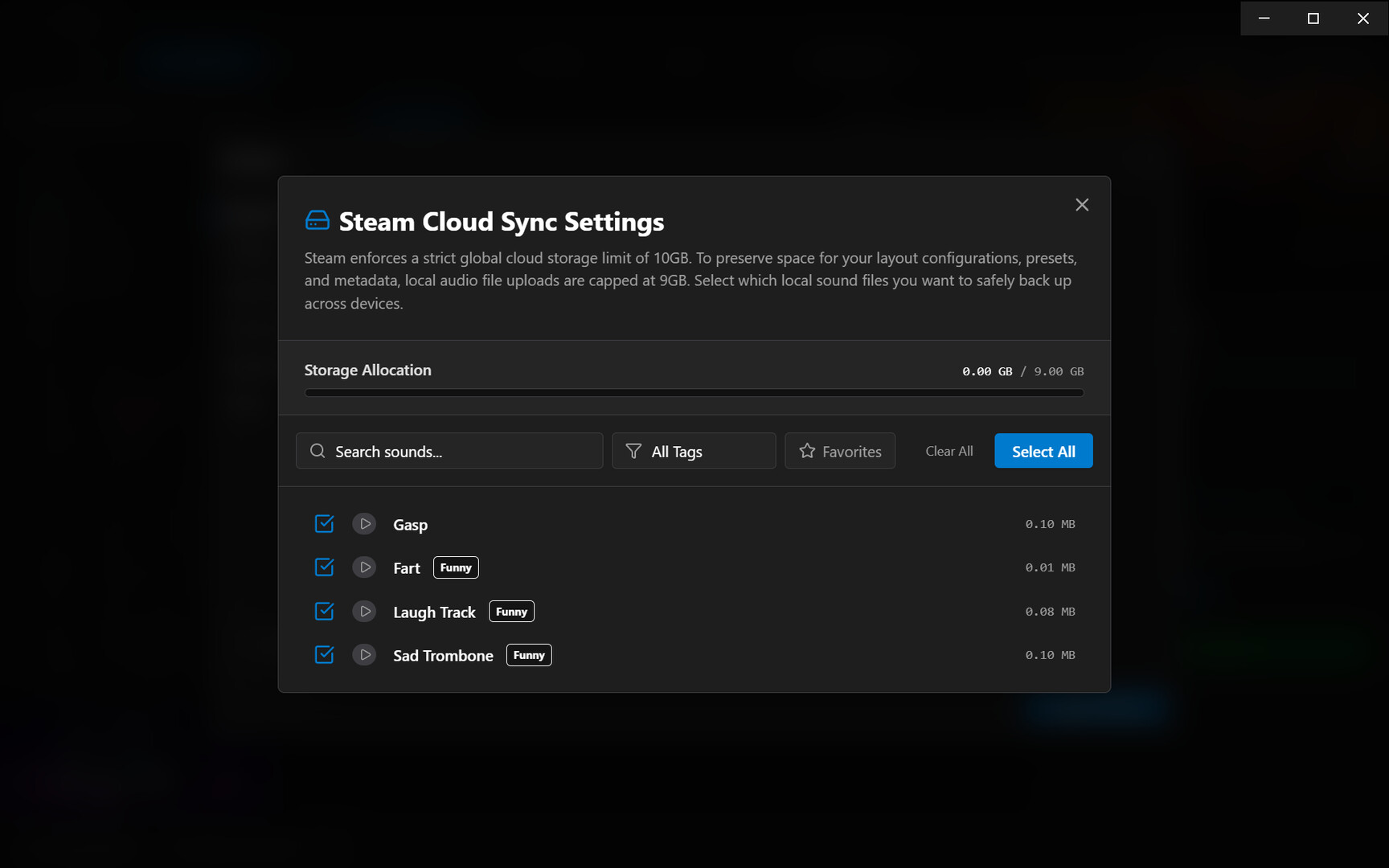
  • Steam Cloud. Your sound files are synced through Steam Cloud. Reinstall your system or move to another computer and your clips come back.

  • Picture icons. Give any clip its own picture, so you find it by sight in a long list. Workshop clips come with the picture their author chose.

  • Tags. Label clips with tags from a built-in list of 27 (Meme, Music, Hype, Reaction and more). Click a tag to show only clips that have it, click again to hide clips that have it. The same tags filter the Workshop.

Everything else

  • Microphone, speakers or both. Choose for each clip whether it plays to your microphone, your speakers, or both.

  • Global hotkeys. Give a clip a key or a key combination and trigger it while another window has focus. A separate hotkey stops playback.

  • Presets. Group clips into presets. Each preset has its own hotkeys, so the same keys can do different things in different games.

  • Built-in editor. Crop a clip, cut a section out of it, raise or lower its volume, reverse it, or speed it up and slow it down (pitch changes with speed). Undo and redo are included. Save over the original or as a new clip.

  • Recorder. Record your microphone, the sound your speakers are playing, or both, and add the recording to your library. Hotkeys can start and stop a recording.

  • Library. Search by name, mark favorites, filter by length, and sort by name or by how often you use a clip.

  • Your own files. Add MP3, WAV, OGG, FLAC, M4A and WebM files by drag and drop or from a file dialog. Export any clip back to a file.

  • Looks and behaviour. Dark and light themes, an accent color, adjustable text size, minimize to tray, and start with your computer.

Good to know

  • One clip plays at a time. Starting a clip stops the one that was playing. A clip can be set to repeat.

  • A key you assign as a hotkey is used by SoundRelay while the app is running, so pick keys your games do not need.

  • The app is in English. Parts of it are also translated into Spanish, French, German, Russian and Chinese.

Windows setup

Windows needs a virtual audio cable before a program can send sound into your microphone. SoundRelay includes VB-CABLE from VB-Audio and installs it from the setup guide. Windows asks for permission, and you need to restart the computer afterwards.

The setup guide then shows the Windows sound settings to change and how to pick the right microphone in Discord and in games. Without the cable, SoundRelay still plays clips on your speakers.

Linux and Steam Deck

SoundRelay creates its virtual microphone when it starts, through PipeWire or PulseAudio. There is no driver to install. In your voice app or game, pick SoundRelay_Microphone_Input as the microphone.

Tested on SteamOS, Bazzite and CachyOS. It is built on the standard Linux sound servers, so most Fedora-based and Arch-based systems are expected to work, but they have not all been tested.

Hotkeys depend on your desktop:

  • On X11, hotkeys work while any window has focus.

  • On Wayland, hotkeys always work while a game running through Proton has focus. On KDE Plasma, key combinations with Ctrl, Alt or Meta and the F keys also work in every other window. Plain letter and number keys work in every window only after you set "Legacy X11 App Support" to "Always" in KDE's System Settings.

AI Generated Content Disclosure

The developers describe how their game uses AI Generated Content like this:

AI was used throughout the development of this Application. Many aspects of the UI and audio optimization were created by AI tools.

System Requirements

Windows
SteamOS + Linux
    Minimum:
    • OS: Windows 10, 11
    • Processor: 2.0 GHz Dual-Core
    • Memory: 4 GB RAM
    • Graphics: DirectX 11 compatible graphics card
    • Storage: 500 MB available space
    Recommended:
    • OS: Windows 10, 11
    • Processor: 2.5 GHz Quad-Core Processor or better
    • Memory: 8 GB RAM
    • Graphics: DirectX 11 compatible graphics card
    • Storage: 2 GB available space
    Minimum:
    • OS: SteamOS 3.0+ (64-bit)/similarly packaged distros
    • Processor: 2.0 GHz Dual-Core
    • Memory: 4 GB RAM
    • Graphics: OpenGL 3.2+ / Vulkan compatible graphics card
    • Network: Broadband Internet connection
    • Storage: 500 MB available space
    Recommended:
    • OS: SteamOS 3.0+ (64-bit)/similarly packaged distros
    • Processor: 2.5 GHz Quad-Core Processor or better
    • Memory: 8 GB RAM
    • Graphics: OpenGL 3.2+ / Vulkan compatible graphics card
    • Network: Broadband Internet connection
    • Storage: 2 GB available space
Review Filters