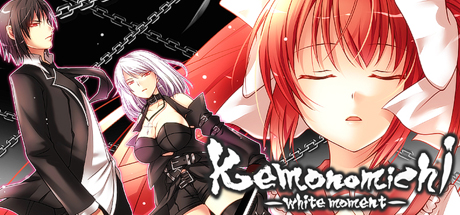

Adventure novel game. (English subtitles) Story synopsis: Large sword in hand, a man plans his escape from the organization. Running from his pursuers, he is forced to wander. Then, before his eyes… a girl appears. In the silver-haired girl’s hand, a long sword that seems otherworldly.

Zaloguj się, aby dodać tę pozycję do listy życzeń, zacząć ją obserwować lub oznaczyć jako ignorowaną

Polski język nie jest obsługiwany

Ten produkt nie obsługuje twojego lokalnego języka. Przed zakupem zapoznaj się z listą obsługiwanych języków, która znajduje się poniżej.

Kup Kemonomichi-White Moment-


Informacje o aktualizacji

[Some programs protrude from the screen and displayed]
Sorry for bothering with this phenomenon.

After disabling multi-monitor support, some programs may be displayed out of the screen.

Cause)
This phenomenon may occur if the program was displayed on a monitor other than the primary monitor before disabling multi-monitor support.

Solution)
To solve this problem, use one of the following methods.

Method 1)
Start the program.
Right-click the program on the task bar and click Maximize.
Right-click a blank area on the task bar and click [Overlay].
Change the window of the program to the appropriate size.

Method 2)
Start the program.
Right-click the program on the task bar and click [Move].
Move the mouse pointer to the center of the screen.
Use the arrow keys on the keyboard to move the program's window to the screen display area.
Press the Enter key.
Change the size of the window as necessary.

Method 3)
Note: The following method can not be used if the display adapter of the secondary monitor has been deleted from the computer.
Click the [Start] button, point to [Settings], click [Control Panel], and double-click [Display].
Click the Settings tab.
In the Display box, click the secondary display adapter.
Deselect the Allow Windows desktop to move on this monitor check box and click OK.


This phenomenon may also occur when you change the placement of the monitor on the [Settings] tab of [Display Properties].

O tej grze

Adventure novel game.
(English subtitles)

Story synopsis:
Large sword in hand, a man plans his escape from the organization.
Running from his pursuers, he is forced to wander.
Then, before his eyes… a girl appears.
In the silver-haired girl’s hand, a long sword that seems otherworldly.
The moment she sees him, she attacks at blinding speed.

Despite his artificially enhanced body, the girl’s attacks move with god-like speed
slowly closing in on him…
One can only wonder why she is after him
as she glares with glowing red eyes that pierce the shadows…

“Kemono Michi” is the story of a man who lost his memory
and his grueling fight against a sinister organization.
※“Kemono Michi” means beast road.


Software Usage Instruction Manual:
————————————————————————
We would like to thank you very much
for purchasing “Kemonomichi ~White Moment~”.
————————————————————————
Game functions and explanations:
————————————————————————
Upon game start:
-NEW GAME — Select to start a new game.
-LOAD GAME — Select to continue your game (from a save point).
-EXIT — Select to quit the game.
During game play (Click on the icon in the lower right to access the options):
-Save — Saves your progress.
-Load — Quit your current game and restart from a save point.
-Hide the Messages — Temporarily hides the message window. (When viewing CG sequences.)
-Skip Reading — Will automatically skip past scenarios that you have already read.
-Return to Top Menu — Quit your current game and return to the top menu.
*Click on the X button in the upper right corner of the menu to return to the game.
Buttons within the game window:
-SAVE button — Allows you to access the Save menu screen.
-LOG button — Allows you to look over dialogue you’ve already read. This will allow you to read anything you may have accidentally skipped.
-AUTO button — Allows you to progress through the game without clicking. The game will pause at selection screens until a choice has been made.

---------------------------------------------------------------

[Some programs protrude from the screen and displayed]

After disabling multi-monitor support, some programs may be displayed out of the screen.

Cause)
This phenomenon may occur if the program was displayed on a monitor other than the primary monitor before disabling multi-monitor support.

Solution)
To solve this problem, use one of the following methods.

Method 1)
Start the program.
Right-click the program on the task bar and click Maximize.
Right-click a blank area on the task bar and click [Overlay].
Change the window of the program to the appropriate size.

Method 2)
Start the program.
Right-click the program on the task bar and click [Move].
Move the mouse pointer to the center of the screen.
Use the arrow keys on the keyboard to move the program's window to the screen display area.
Press the Enter key.
Change the size of the window as necessary.

Method 3)
Note: The following method can not be used if the display adapter of the secondary monitor has been deleted from the computer.
Click the [Start] button, point to [Settings], click [Control Panel], and double-click [Display].
Click the Settings tab.
In the Display box, click the secondary display adapter.
Deselect the Allow Windows desktop to move on this monitor check box and click OK.


This phenomenon may also occur when you change the placement of the monitor on the [Settings] tab of [Display Properties].

Wymagania systemowe

    Konfiguracja minimalna:
    • System operacyjny *: Windows 7/8/8.1/10
    • Procesor: Intel Core i3 2GHz or better
    • Pamięć: 2 GB RAM
    • Karta graficzna: Intel HD Graphics 5000, Geforce 9500GT, Radeon HD 3650 or above
    • DirectX: Wersja 9.0c
    • Miejsce na dysku: 1000 MB dostępnej przestrzeni
    • Karta dźwiękowa: DirectSound compatible
* Począwszy od 1 stycznia 2024, klient Steam będzie obsługiwał wyłącznie system Windows 10 i jego nowsze wersje.

Recenzje klientów dla produktu Kemonomichi-White Moment- O recenzjach użytkowników Twoje preferencje

Ogólne recenzje:
Recenzje użytkowników: 2 (2)


Aby zobaczyć recenzje w wybranym zakresie dat, kliknij i przeciągnij zaznaczenie na powyższym wykresie lub kliknij na wybrany słupek.


Filtruj recenzje według czasu gry użytkownika w momencie publikacji recenzji:


Bez minimum do Bez maksimum

Pokaż recenzje w wybranej kolejności wyświetlania


Dowiedz się więcej
Filtry
Wyłączanie okresów występowania recenzji nie na temat
Czas gry:
Głównie Steam Deck
Brak recenzji pasujących do filtrów ustawionych powyżej
Dostosuj filtry powyżej, by zobaczyć inne recenzje
Wczytywanie recenzji…