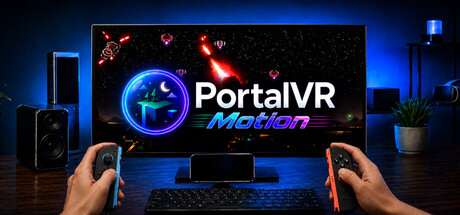

Wii-style motion controls for SteamVR. PortalVR Motion turns your smartphone into a fully tracked motion controller, or use Joy-Cons tracked by your iPhone, or the VR controllers you already own. Play Beat Saber, Half-Life: Alyx, VRChat, and thousands more SteamVR titles right on your monitor.

Sign in to add this item to your wishlist, follow it, or mark it as ignored

This game is not yet available on Steam

Planned Release Date: Jul 3, 2026

This application will unlock in approximately 7 days

Interested?
Add to your wishlist and get notified when it becomes available.
 

Reviews

“It's undeniably impressive.”
Beardo Benjo

“Once you get used to the controls [...] this works really incredibly well.”
H ngamers

About This Software

PortalVR Motion — Your PC, now in Motion.

PortalVR Motion brings Wii-style motion controls to thousands of SteamVR games and creative apps — a brand-new way to control the SteamVR content you already own. The easiest setup is the phone already in your pocket: it tracks itself in full 6 DoF and becomes the controller, on Android or iOS. Joy-Cons and VR controllers work too.

No headset, base stations, or extra trackers required. SteamVR simply sees a pair of normal tracked controllers, so Beat Saber, Half-Life: Alyx, VRChat, Gravity Sketch, and the long tail of indie experiments all respond to natural motion — on the screen you already have.

  • Your phone is now a motion controller — fully 6 DoF tracked, on Android and iOS.

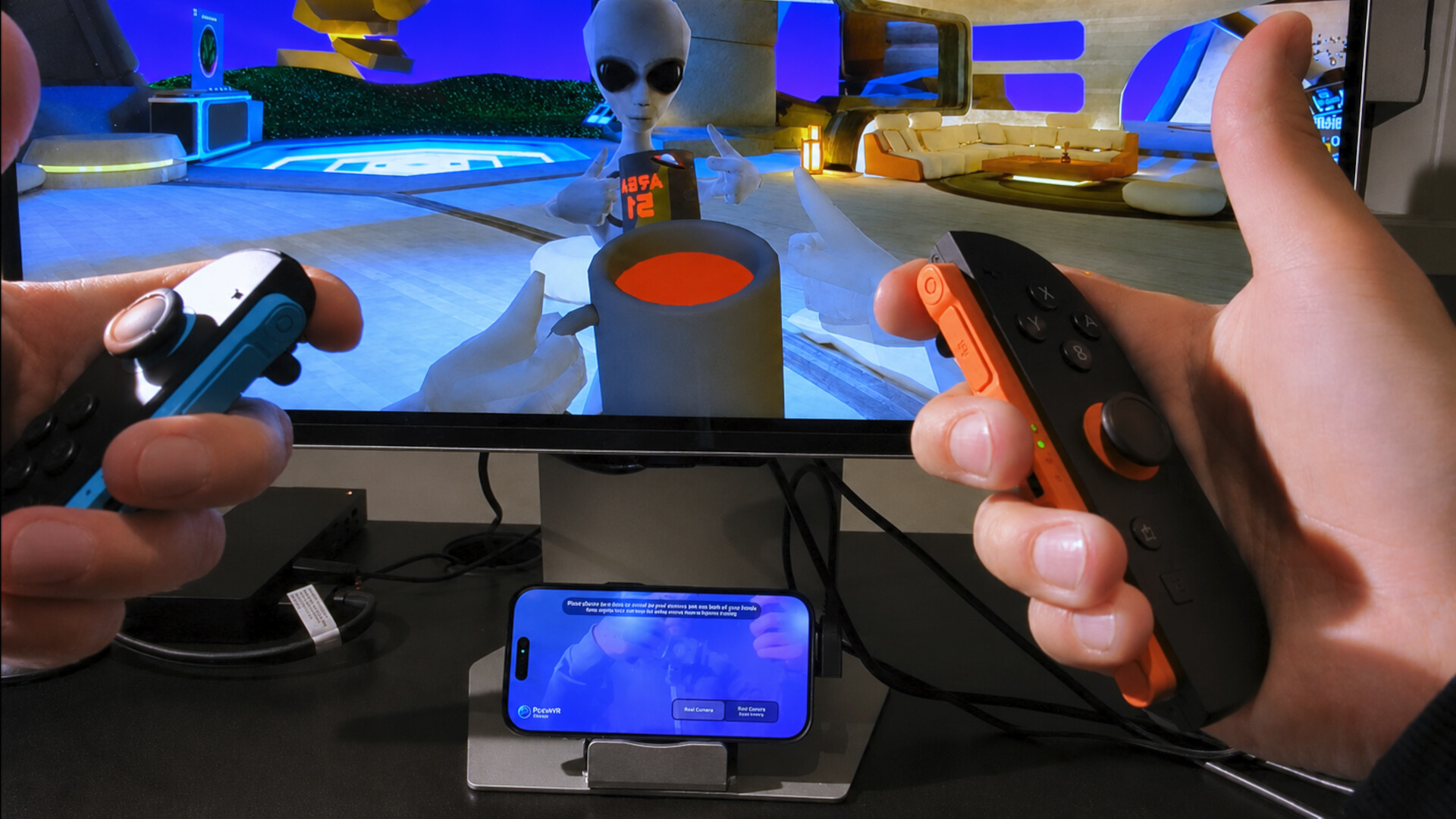
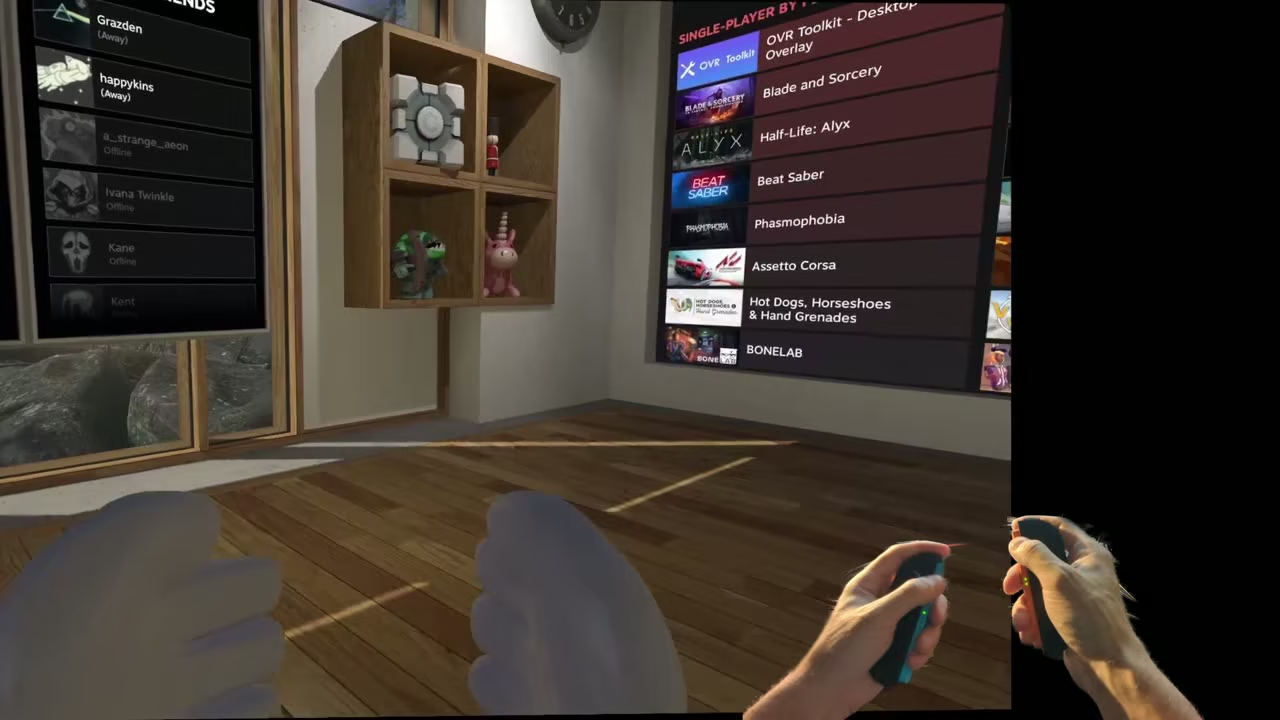
  • Joy-Cons ready — an iPhone's FaceID camera tracks Joy-Con 1 or 2, with finger tracking.

  • Works with VR controllers — already have a Quest, PICO, or Valve Index? Use their native controllers.

  • No controllers? No problem. A novel mouse + keyboard scheme drives both hands from your desk.

  • True 3D output — XREAL & VITURE AR glasses, the Samsung Odyssey 3D, or any side-by-side (SBS) display.

  • Works with every SteamVR title — registers as a standard SteamVR runtime.

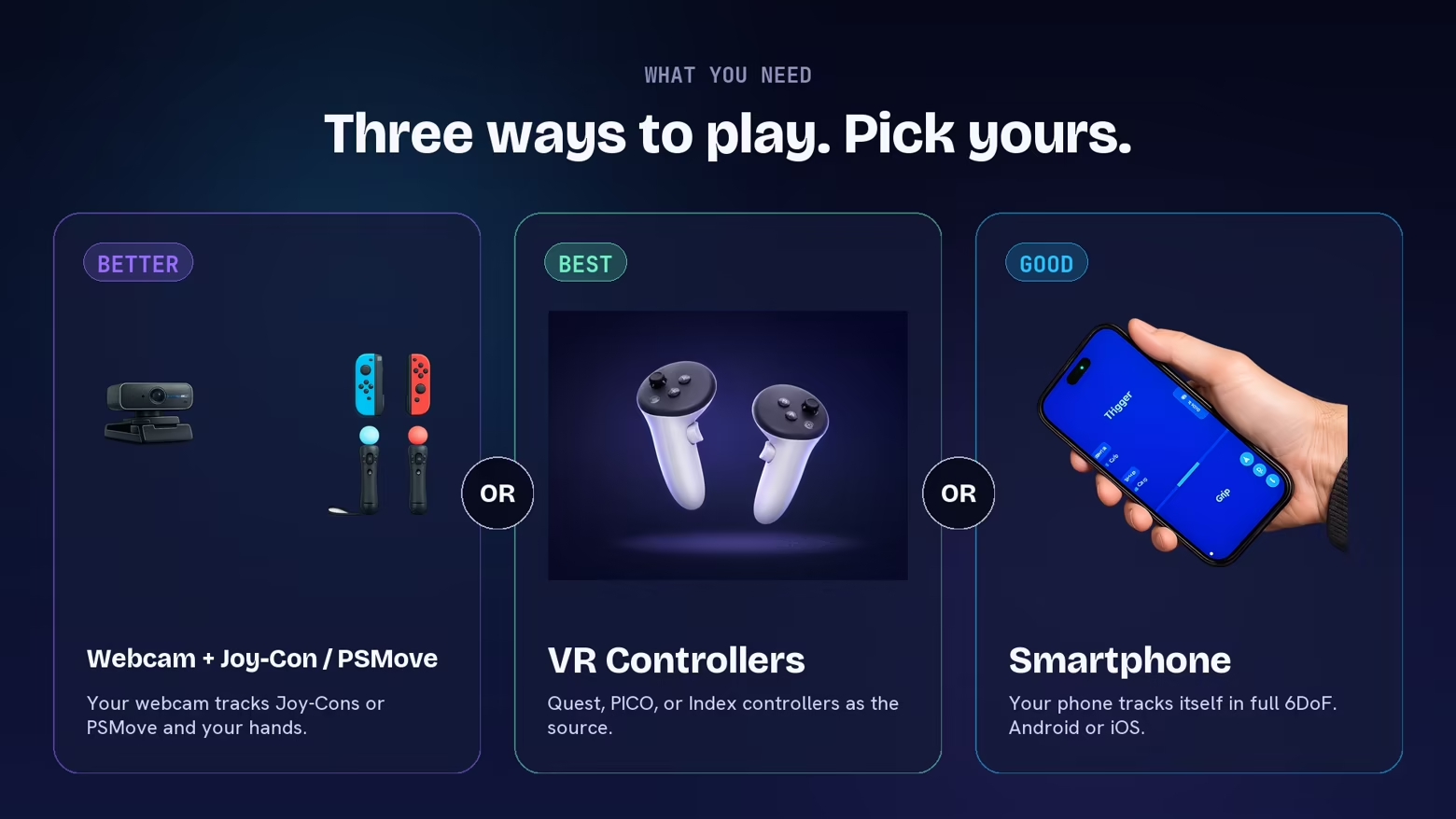
Three ways to play. Pick yours.

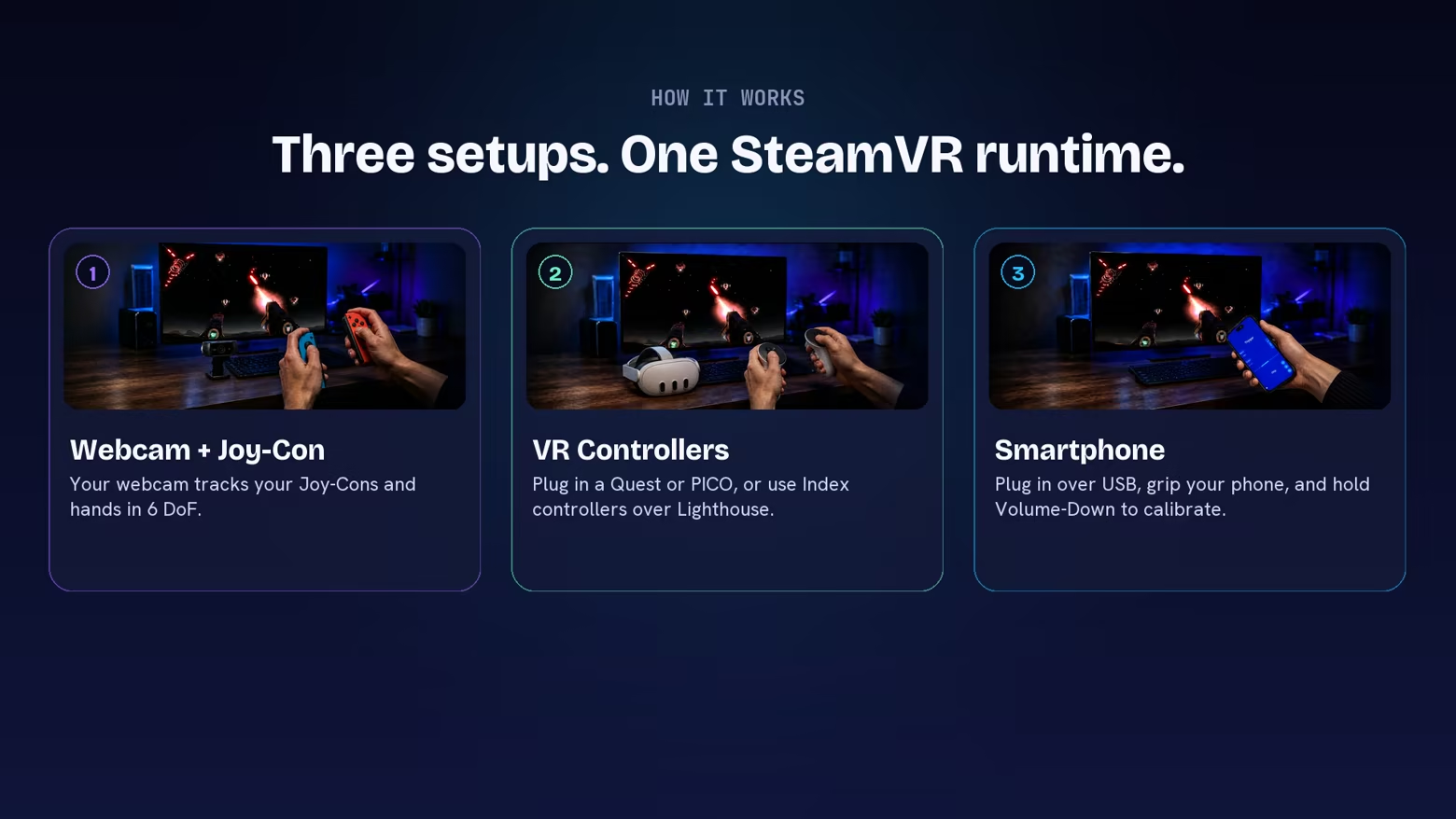
Motion runs on hardware you probably already own. Easiest of all: just your phone — now a fully tracked 6 DoF controller. Prefer Joy-Cons or VR controllers? Those work too.

Good · Smartphone

Your phone tracks itself in full 6 DoF and becomes the controller — held in a grip, with a trigger, grip, and buttons on the screen. Plug it into your PC over USB and play. Works on Android and iOS.

  • Any modern Android phone or iPhone

  • A Windows PC that can already run SteamVR

  • That's it — no Joy-Cons, no stand, no headset

Better · iPhone + Joy-Con 1 or 2

Your iPhone's FaceID camera tracks the Joy-Cons — and your hands — in 6 DoF, so full finger articulation comes through. No base stations, no headset.

  • Any iPhone with FaceID (front-facing depth camera)

  • A pair of Joy-Con 1 or Joy-Con 2 controllers

  • A Windows PC and a small iPhone stand

Best · VR Controllers

Use a VR headset's native tracked controllers as the source — a Quest or PICO over USB, or paired Valve Index controllers and Vive wands over Lighthouse base stations. Sub-millimeter precision.

  • A Quest or PICO headset, or Index controllers / Vive wands

  • Quest / PICO: developer mode and a USB cable to your PC

  • A Windows PC that can already run SteamVR

No controllers? Start with mouse + keyboard.

Don't have controllers yet? A novel mouse and keyboard scheme drives both hands from your desk, so you can fire up any SteamVR title without buying anything new.

How It Works

However you set up, Motion registers as a SteamVR runtime and hands the game a standard tracked controller. Grip your phone and plug in over USB, let an iPhone's camera track your Joy-Cons, or bring your own VR controllers — then launch any SteamVR title.

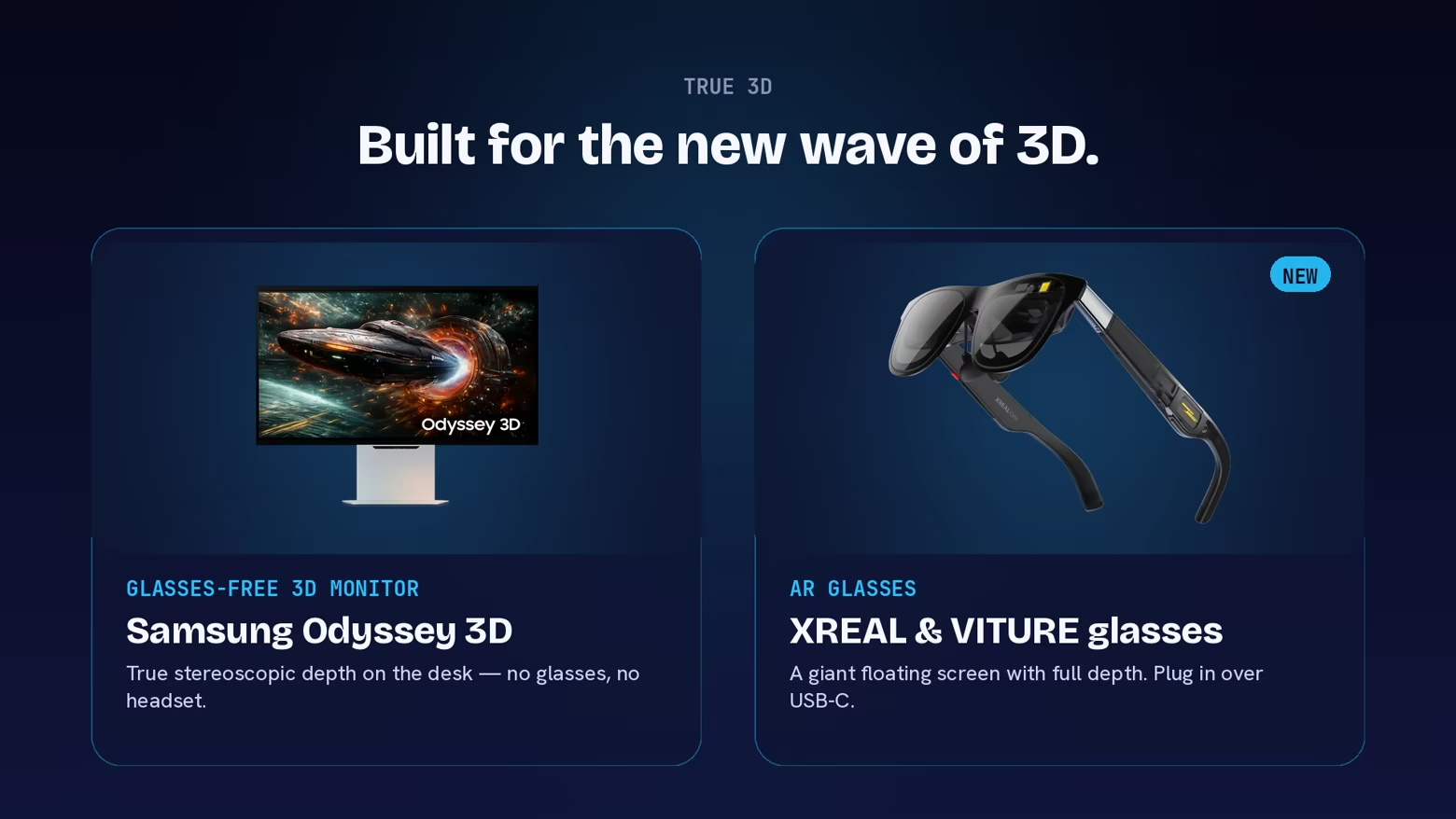
Built for the new wave of 3D.

Motion renders genuine stereoscopic depth, so the latest glasses-free 3D monitors and AR glasses show every SteamVR title in real 3D. Wear XREAL or VITURE AR glasses (we read their built-in IMU for head tracking), sit at a Samsung Odyssey 3D, or use any display that supports side-by-side (SBS) 3D.

Every SteamVR title now in Motion

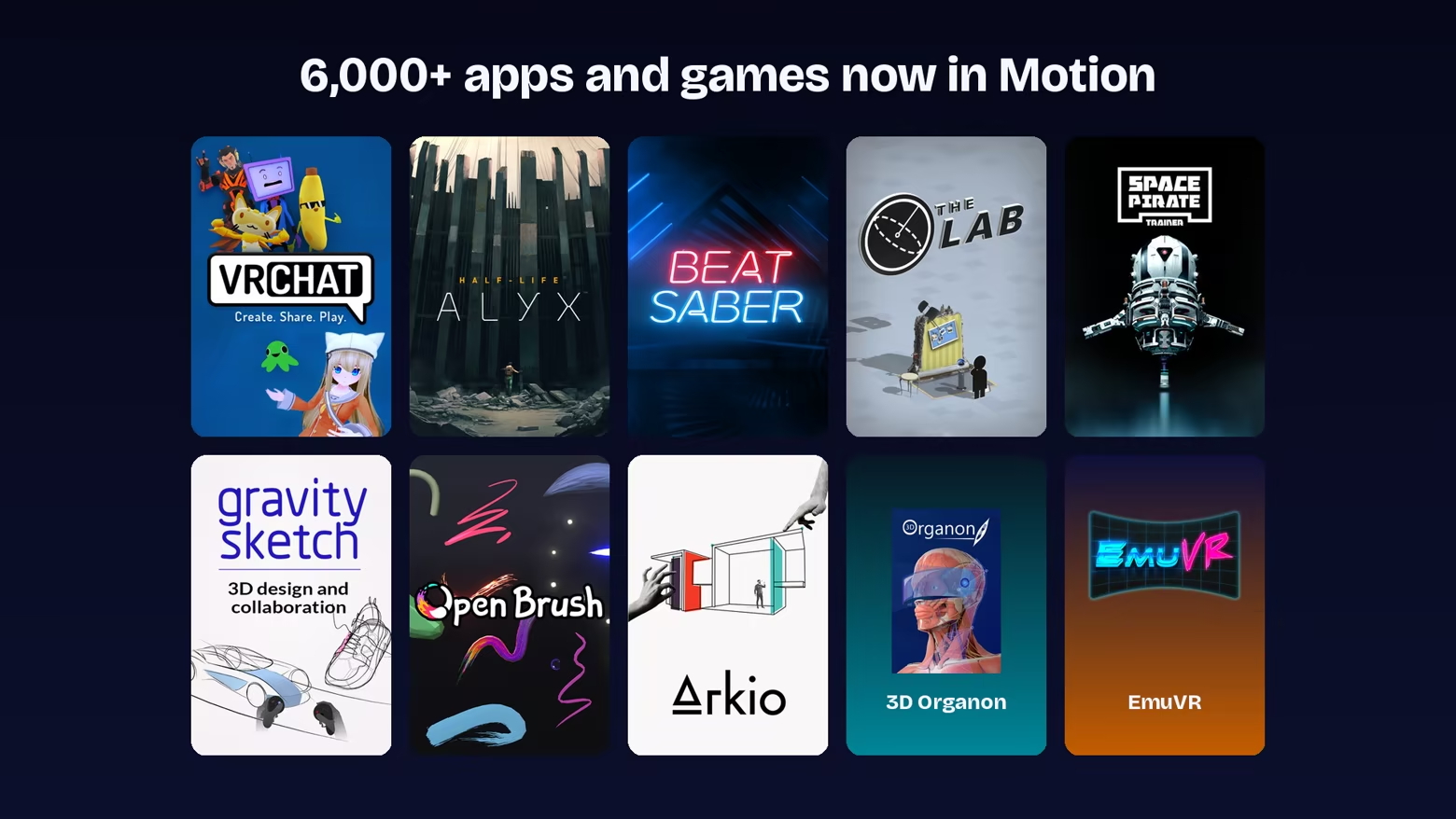
Motion registers as a SteamVR runtime, so any title that runs in SteamVR sees standard tracked controllers and launches normally — from Beat Saber and Half-Life: Alyx to VRChat, Gravity Sketch, and the long tail of indie experiments.

  • No per-game patching

  • Standard tracked controllers

  • Same launchers, same saves

Introducing Camera Drag

Press and hold the shoulder button on your controller and the in-game camera locks to its motion. Your hand now spins a virtual 3D trackball that lets you reach and frame any SteamVR content seamlessly.

  • Turn. Yaw and pitch your controller to turn the camera.

  • Flick. Once you have the hang of it, flick the view around like a trackball.

  • Reach. Move forward to reach faraway objects. Drag the camera with one hand, pick things up with the other.

6,000+ apps and games now in Motion

From action and rhythm to creative tools and sketchpads — Motion plugs into SteamVR, so anything that runs there runs here. 6,000+ titles in the SteamVR catalog respond to natural motion on your desk.

We're still mapping which titles work best — join our Discord to help us find the gems.

Questions, answered.

What is PortalVR Motion?

A SteamVR add-on that brings natural, Wii-style motion controls to thousands of SteamVR games and apps. The easiest way to play is with the phone in your pocket — it tracks itself in full 6 DoF and becomes the controller, on Android or iOS. You can also use Joy-Cons (tracked by an iPhone's camera) or a VR headset's controllers. SteamVR just sees standard tracked controllers, on the screen you already have.

How does the smartphone controller work?

Plug your phone into your PC over USB, hold it in a grip, and press and hold Volume-Down to calibrate. From there your phone tracks itself in full 6 DoF and appears in SteamVR as a tracked motion controller, with an on-screen trigger, grip, and face buttons. It works on both Android and iOS — no Joy-Cons, no stand, and no headset.

What hardware do I need?

A Windows PC that can already run SteamVR, plus a phone. The simplest setup is just your phone — it tracks itself in full 6 DoF and becomes the controller, on Android or iOS. Prefer Joy-Cons? Use an iPhone on a stand facing you plus a pair of Joy-Con controllers. Want the highest precision? Use a VR headset's native controllers — a Quest or PICO over USB, or Valve Index controllers over Lighthouse. And if you have no controllers at all, a novel mouse + keyboard scheme drives both hands from your desk. For true stereoscopic 3D, wear XREAL or VITURE AR glasses, sit at a glasses-free 3D monitor like the Samsung Odyssey 3D, or use any display that supports side-by-side (SBS) 3D.

Is Android supported?

Yes. Your Android phone works as a fully 6 DoF-tracked controller, exactly like an iPhone — plug it in over USB and play. (The camera method, where a phone's depth camera tracks Joy-Cons, requires an iPhone with a FaceID depth camera.)

Which AR glasses and 3D displays are supported?

For true stereoscopic 3D, Motion supports XREAL and VITURE AR glasses — a big virtual screen with full depth on glasses you wear, connected over USB-C; we read the glasses' built-in IMU for head tracking. Glasses-free 3D monitors like the Samsung Odyssey 3D are fully supported too, and any display that supports side-by-side (SBS) 3D can be used by activating SBS mode.

Should I use Joy-Con 1 or Joy-Con 2?

Joy-Con 2 is recommended. Its built-in magnetometer measures direction relative to Earth's magnetic field, giving noticeably steadier rotational tracking. Joy-Con 1 still works great — its forward heading can drift a bit during rapid motion.

One of my Joy-Con 1 controllers is laggy.

Some PC Bluetooth radios queue packets in a way that adds noticeable lag with Joy-Con 1. Joy-Con 2 doesn't trigger this. To fix it, either switch to Joy-Con 2, or add a small USB Bluetooth dongle to bypass the built-in radio.

How do I get the best Joy-Con tracking?

Place your iPhone directly in front of you, not off to one side — the depth camera tracks best when it's facing you head-on. Make sure your hands are well lit. For wider, full-body titles like Beat Saber, use the rear LiDAR camera on iPhone Pro models for noticeably better depth at distance. Use Joy-Con 2 if you can — its magnetometer keeps rotation steadier.

Can I really play any SteamVR game?

Motion registers as a SteamVR runtime, so any SteamVR title sees standard tracked controllers and launches normally. The catch: titles that demand extremely precise fast motion or sharp full-body movement (spinning to face an enemy behind you) can be awkward to translate onto a flat screen. That said — we've cleared Hard levels in Beat Saber through Motion, so it's not too bad.

Does this support hand tracking?

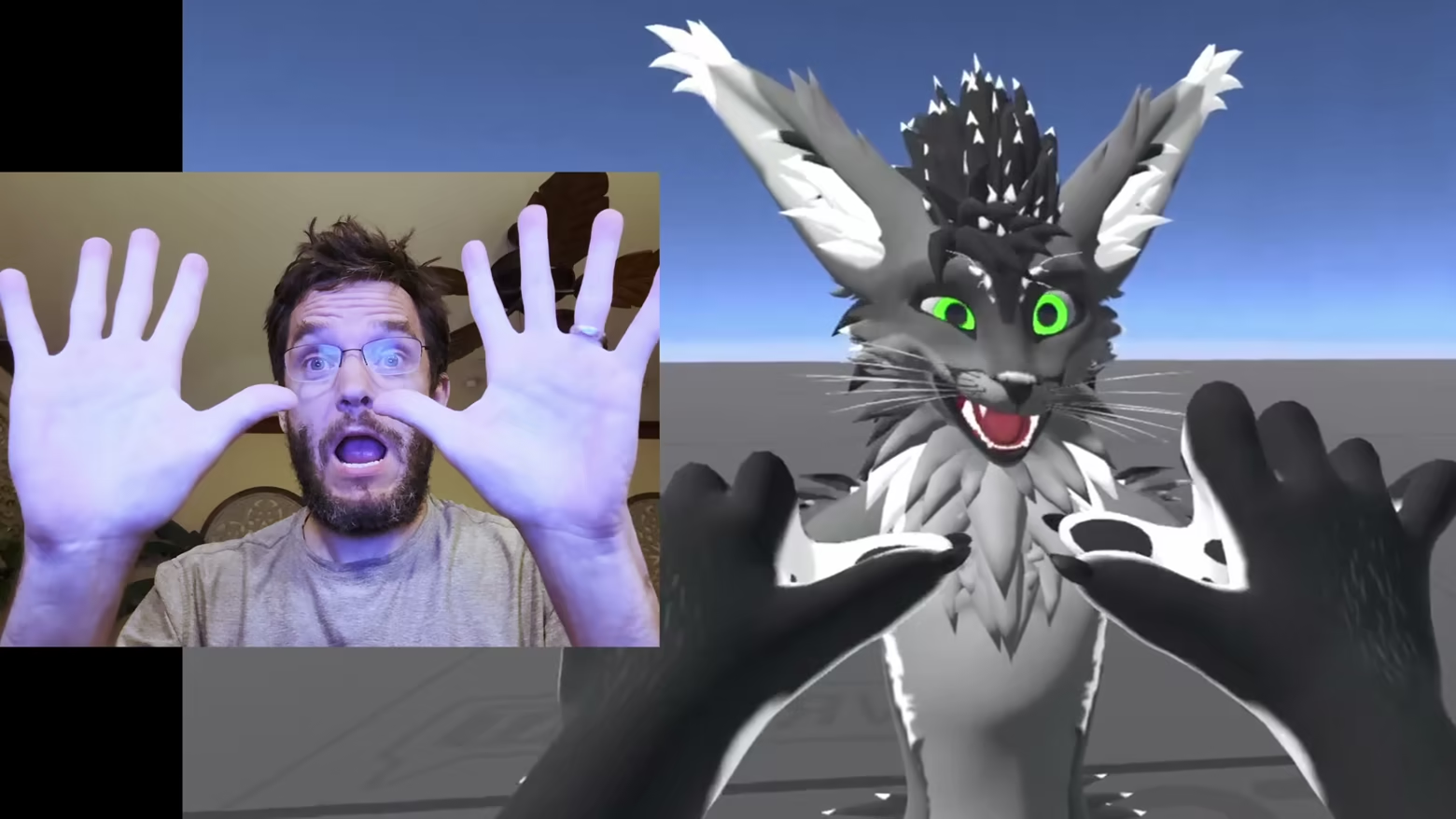
When you play with Joy-Cons (tracked by the iPhone camera) or Index controllers, your fingers are tracked in addition to the controller — full finger articulation comes through, which is great for expression, gestures, and natural object interaction. Additional hand-tracking support for other setups is coming soon.

Does this support face tracking?

Yes — your webcam tracks your head in real time, adding 3D parallax when you lean side-to-side or forward, plus the ability to dodge obstacles and duck under enemy fire during gameplay.

How does Camera Drag work?

Hold the shoulder button — or one of the SL/SR side buttons — and the in-game camera locks onto your controller's motion. Your hand spins a virtual 3D trackball, dragging the view in 6 DoF; reach forward and the camera reaches with you, which makes picking up far-away objects feel natural. Release to anchor the view.

Do I need a powerful PC?

If your PC can already run a given SteamVR title, it can run it through Motion. Tracking happens on your phone (or the iPhone camera) — your PC just sees tracked controllers.

What about latency?

Tracking data streams over USB from your phone to the PC (no Wi-Fi hop), the phone is configured for maximum tracking speed and precision, and IMU readings are fused with the tracking data in real time — so you get near-instant responsiveness from your wrists.

Can I use it for streaming and content?

Yes. Motion brings motion controls to SteamVR content on a flat screen, which makes it a great fit for streaming, live demos, marketing shoots, trade-show kiosks, and capture setups where a head-mounted display is awkward. Camera Drag also makes framing shots far easier than steering by stick.

What's the difference between PortalVR Motion and PortalVR Cast?

Motion is a SteamVR add-on that runs any SteamVR content with motion controls on a flat screen. Cast takes a different angle — it streams VR content directly into the browser from a Quest, PICO, or Galaxy XR headset, and is limited to sideloaded or pushed APKs.

System Requirements

    Minimum:
    • Requires a 64-bit processor and operating system
    • VR Support: Meta Quest 1, 2, 3, PICO 4 Ultra, Valve Index, HTC Vive Wands, Nintendo Joy-Con 1 and 2
    • Additional Notes: Joy-Con tracking (optional) requires either an iPhone 12 or newer, and VR controller tracking (also optional) a Meta Quest or PICO 4 Ultra VR headset, or Valve Index or HTC Vive Wands
    Recommended:
    • Requires a 64-bit processor and operating system
There are no reviews for this product

You can write your own review for this product to share your experience with the community. Use the area above the purchase buttons on this page to write your review.

Review Filters