
Place a virtual dummy head microphone in SteamVR and turn your voice into real-time binaural audio that follows where you are and which way you face in VR. Attach it to the VRChat camera so what viewers hear matches what they see, then capture the output in OBS or any streaming app.
Release Date:
Coming soon
Developer:
Publisher:
Tags

Sign in to add this item to your wishlist, follow it, or mark it as ignored

This game is not yet available on Steam

Coming soon

Interested?
Add to your wishlist and get notified when it becomes available.
 

About This Software

Your voice, heard from where you are in VR

OVR-DummyHeadMic is a SteamVR overlay app for Windows that places a virtual dummy head microphone in your VR space. It turns your microphone input into real-time binaural audio based on where you are, and which way you face, relative to the dummy head.

Speak from its right and your voice comes from the right. Step behind it and you are heard from behind. It is built for streams and videos that should feel like the audience is in the room with you: ASMR, chatting, role-play, theater, and filming in VRChat.

Match the camera view with what viewers hear

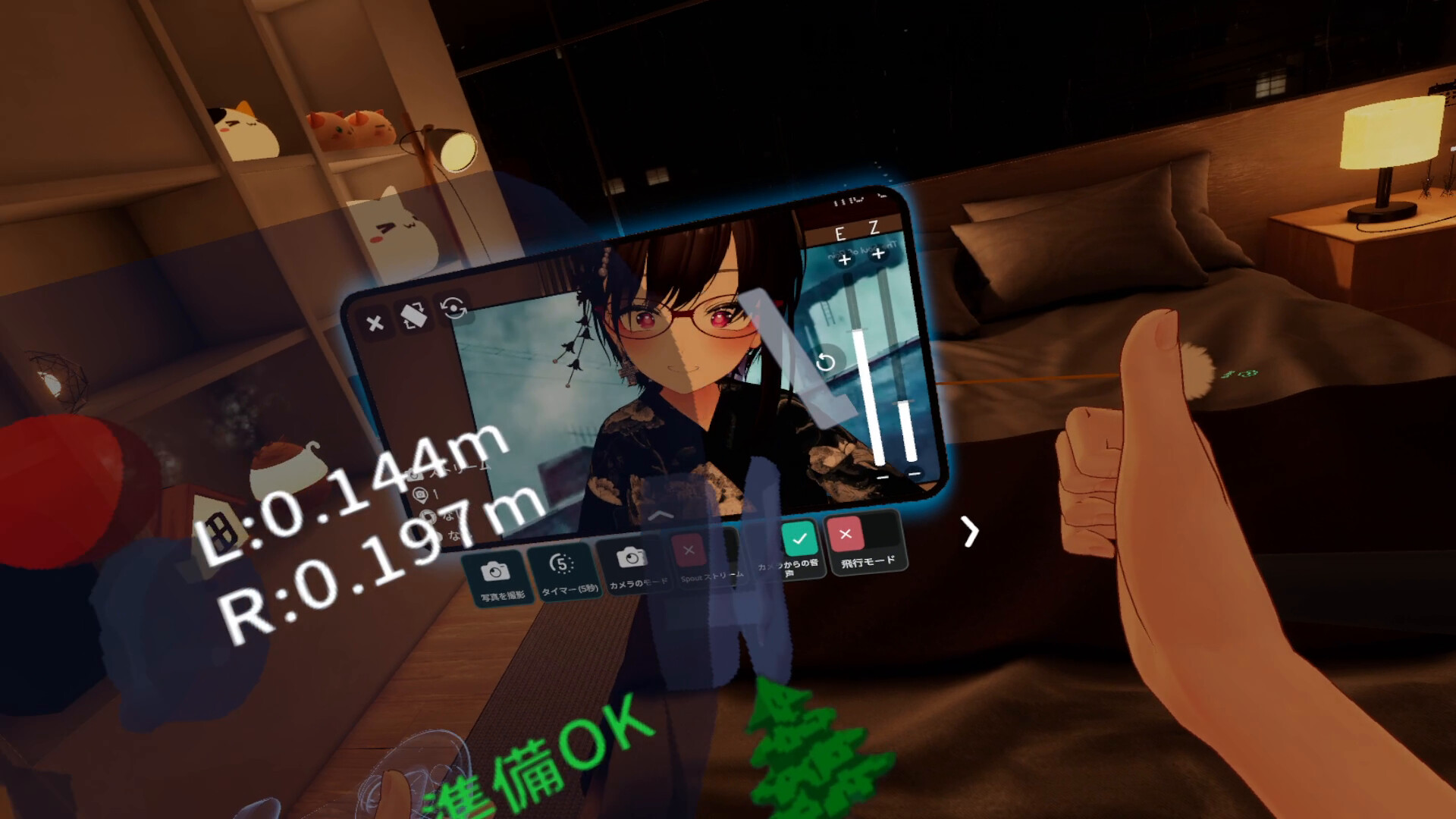
Put the dummy head where your VR camera is, and the viewpoint your audience sees lines up with where your voice is heard from. With VRChat camera sync, the dummy head follows VRChat's User Camera automatically.

Near-real-time processing

In normal use, measured latency is about 25 ms including audio-device input and output (it varies by setup). With VST Bridge, the app itself adds about 5 ms, and the DAW's latency compensation keeps recordings and renders in sync. It is fast enough to monitor yourself while you talk.

Features

  • Low-latency connection to VST3-compatible DAWs with VST Bridge (about 5 ms added by the app)
  • Place and orient the dummy head anywhere in your VR space
  • Automatic tracking of VRChat's User Camera (OSC / OSCQuery, Local Anchor)
  • Three dummy head profiles: Standard, plus profiles based on KU100 and KEMAR measurements
  • Room presets including No Reverb, Small Room, Bathroom, Hall, and Tunnel
  • Gentle reduction of steady background noise such as PC fans and air conditioning
  • Toggle spatial audio with your controllers (the dummy head's color shows the state)
  • In-VR arm menu for changing settings without opening the SteamVR dashboard
  • Launch automatically with SteamVR
  • Choose your input microphone and output device (44.1 / 48 kHz; 88.2 / 96 kHz devices also work)
  • UI available in 8 languages: Japanese, English, Simplified Chinese, Traditional Chinese, Korean, Russian, Spanish, and Brazilian Portuguese

Using it for streaming and recording

Capture OVR-DummyHeadMic's output in OBS Studio or similar software with an audio output capture source. Sending it to a dedicated virtual audio device keeps it separate from game sounds and notifications. The user guide walks through the setup.

Notes

  • Headphones or earphones are required to hear the spatial effect.
  • If OBS also captures your regular microphone, your raw voice and the spatial audio will both be streamed.
  • VRChat camera sync requires OSC to be enabled in VRChat. World Anchor, Pins, and Holoport movement are not supported.

AI Generated Content Disclosure

The developers describe how their game uses AI Generated Content like this:

AI assistants were used to help write the application's code. The store images were created with the help of an AI assistant by rendering the actual dummy head 3D model in Blender. The app does not generate any content with AI while it runs.

System Requirements

    Minimum:
    • Requires a 64-bit processor and operating system
    • OS: Windows 10 / 11 (64-bit)
    • Processor: Intel Core i5-4590 / AMD Ryzen 5 1500X or better
    • Memory: 8 GB RAM
    • Graphics: NVIDIA GeForce GTX 1060 / AMD Radeon RX 480 or better (SteamVR-capable)
    • DirectX: Version 11
    • Storage: 500 MB available space
    • Sound Card: Microphone input and headphones or earphones
    • VR Support: A SteamVR-compatible HMD with left and right controllers
    • Additional Notes: Streaming or recording requires capture software such as OBS Studio. VRChat camera sync requires VRChat for PC with OSC enabled.
    Recommended:
    • Requires a 64-bit processor and operating system
Review Filters