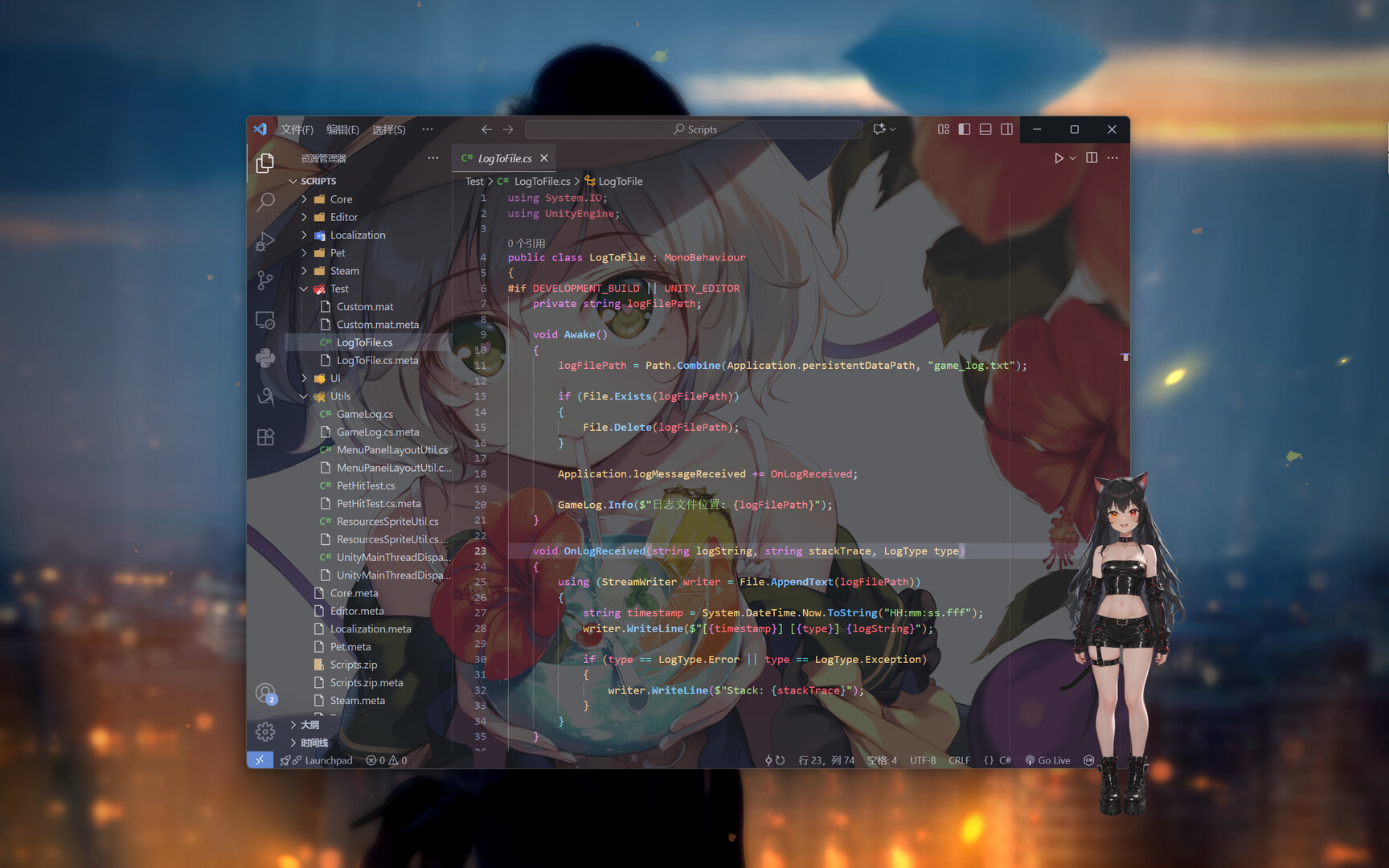

A cat-girl Live2D desktop pet featuring Sora and Rin. Drag, lock, and scale; mouse gaze tracking; blink, breath, ear twitch, and physics. Switch expressions and motions manually or automatically. Supports Live2D import and Steam Workshop.
Tarikh Keluaran:
Akan datang
Pembangun:
Penerbit:
Tag

Daftar masuk untuk menambah item ini ke senarai hajat anda, ikuti atau tandakannya sebagai diabaikan

Bahasa Bahasa Melayu tidak disokong

Produk ini tidak menyokong bahasa tempatan anda. Sila semak senarai bahasa yang disokong di bawah sebelum membuat pembelian

Permainan ini belum tersedia di Steam lagi

Akan datang

Berminat?
Tambah ke senarai hajat anda dan terima pemberitahuan apabila permainan sudah tersedia.
 

Tentang Permainan Ini

Your Tender Catgirl is a Live2D desktop pet game for Windows. She resides on your actual desktop within a borderless, pixel-perfect transparent window. She tracks your mouse cursor with her gaze, blinks and breathes naturally, and features physics-based animations like swaying, ear-twitching, and tail-wagging. You can manually or automatically trigger expressions, actions, and animations, while her idle behavior conveys a subtle sense of life. The game supports Steam Workshop and manual model imports. Free from heavy storylines or the need for constant clicking, she is like a quiet companion sitting in the corner of your screen, offering gentle, unobtrusive company while you work, study, or rest.

Transparent Desktop Pet: Blending into Your Workspace

Utilizing a borderless, transparent window and pixel-perfect rendering, she appears without clunky frames or the typical "app box" look (no solid black or white backgrounds). The model sits directly atop your desktop and other windows, creating the illusion that she is truly inhabiting your screen. She can serve as a charming accent or a long-term companion.

Lively Live2D: Blinking, Breathing, and Physics Effects

Built-in features include gaze tracking, automatic blinking, breathing, and physics-based movements like swaying, ear-twitching, and tail-wagging; she maintains a sense of presence and subtle motion even when idle. A simple left-click triggers random expressions or actions for casual interaction. You can also configure automatic cycling of expressions, actions, or animations at intervals of 5, 30, or 60 seconds—or disable automation entirely in favor of manual control. Whether you want a lively presence or a quiet one, the choice is yours.

Locking and Click-Through: Companionship Without Hindering Work

Locking the model prevents accidental dragging or resizing. Standard locking fixes the position and scale while allowing you to unlock it via a right-click menu. Enabling "Click-Through" mode allows your mouse to pass right through the model to interact with the desktop or other applications underneath—perfect for keeping her on-screen while writing documents, browsing the web, or gaming. To adjust the position or size, simply right-click the system tray icon and select "Unlock." The tray menu offers options to lock, unlock, and exit, allowing you to manage the desktop pet safely—even when "click-through" mode is enabled.

Positioning and Scaling: Place and Size It Your Way

Click and drag with the left mouse button to move the pet anywhere on your screen; hover your mouse over the pet, hold the Ctrl key, and scroll the mouse wheel to resize it. Whether you prefer a petite pet sitting near the taskbar or a larger one positioned along the side, the choice is yours. Your position and scale settings are saved automatically, so there is no need to readjust them every time.

Always on Top & Auto-Start: Here Whenever You Need Company

Enable "Always on Top" to keep the pet visible above other windows, ensuring it doesn't get completely hidden while you switch apps or browse documents. You can also enable "Auto-Start" to have the pet launch automatically when you log into Windows, so she is there the moment you turn on your computer. This is ideal for those who want the desktop pet to be a daily companion rather than just an occasional novelty.

Switching and Importing Models: Clear Previews and Support for Workshop or Manual Import

Right-click the pet to open the menu and select "Switch" to view the model list. Each model in the list displays a preview image and a name, making it easy to identify the character you want at a glance. Click an entry to switch to that model instantly; the currently active model is highlighted for easy identification. You can add extra Live2D models to a designated folder and refresh the list to import them, or subscribe to models via the Steam Workshop.

Note: For imported models to display a preview image in the selection list, the model directory must contain a preview image file (the file should be named "preview" or match the model folder name; a 2:3 aspect ratio is recommended); otherwise, a default image will be displayed. Models subscribed via the Steam Workshop display their preview images automatically. You can rename any model by double-clicking its name; by default, the model file name is used.

Statement

The other models featured in the promotional video are from the official Live2D sample dataset; they are authorized for free use but are not included in the game's default model list. They can be downloaded from the official Live2D website.

This is the creator's first time making a Live2D model, so there is still room for improvement. We ask for your understanding regarding any shortcomings.

Keperluan Sistem

    Minimum:
    • Memerlukan pemproses 64-bit dan sistem pengendalian
    • OS:
    • Pemproses:
    • Memori: 4096 MB RAM
    • Grafik:
    • DirectX: Versi 11
    • Storan: 2 GB ruang tersedia
    • Kad Bunyi:
    Dicadangkan:
    • Memerlukan pemproses 64-bit dan sistem pengendalian
Penapis Ulasan