
The overlay that watches your hardware like a guardian. Live GPU/CPU temps, FPS, VRAM, RAM, Latency, NVIDIA and more — smart alerts before damage. Configure in-game.
Release Date:
Aug 17, 2026
Developer:
Publisher:
Tags

Sign in to add this item to your wishlist, follow it, or mark it as ignored

Buy TAY Monitoring


About This Software

TAY Monitoring is the gaming overlay that thinks ahead. While other tools just show you numbers, TAY Monitoring watches your hardware like a guardian - alerting you before temperatures get dangerous, tracking min / max / averages so you can spot real problems over time, and delivering a dedicated NVIDIA overlay experience that puts the right information exactly where you need it.

SCREENSHOTS & TRAILER NOTE

Due to game licensing restrictions, we're unable to show TAY Monitoring running over real game footage.
Rest assured - it works seamlessly with any game from any launcher. To see it in action over real games, search TAY Monitoring on Social media.

HOW TO USE

  • Launch TAY Monitoring — it will appear in the system tray and automatically detect when a game starts.

  • Launch your game from any launcher — Steam, EA App, Epic Games, GOG, Ubisoft Connect, , Rockstar, Riot, Xbox Game Pass, and more. Works in any display mode except Exclusive Fullscreen (Windowed, Borderless, Borderless Fullscreen, Fullscreen Windowed, etc.) — see the Compatibility section for details.

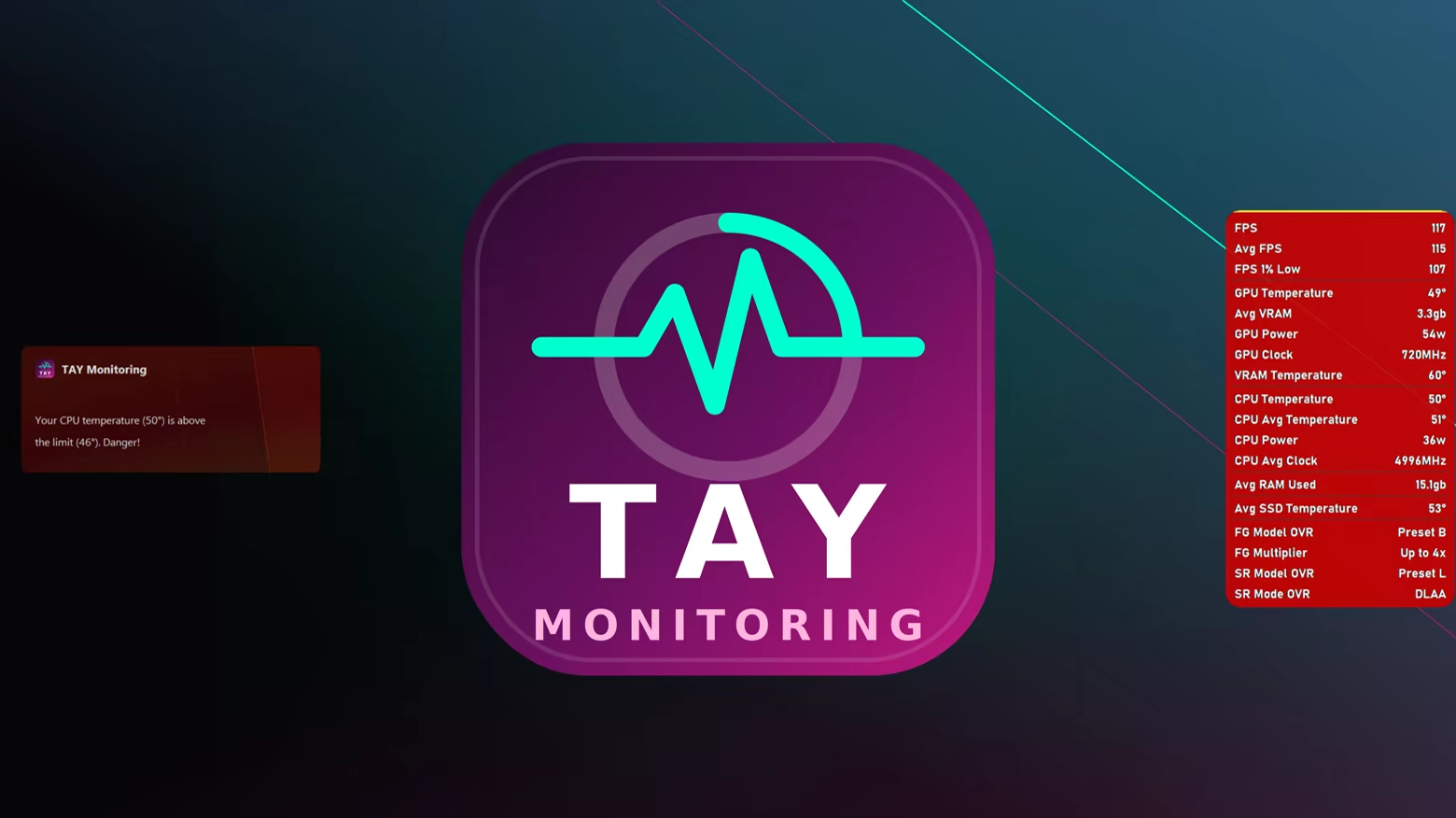
  • After 5-10 seconds, a TAY Monitoring banner will appear on the left side of the screen confirming the game has been detected.

  • Press Alt+8 to open the settings overlay, or Alt+0 to open the statistics overlay while the game is in the foreground. Hotkeys can be changed anytime from the settings overlay.

  • Customize sensors, alerts, themes, the overlay's location, view type, size, opacity, font, and more — all in-game, live. Change any setting and watch the statistics overlay update instantly without leaving your game.

  • When the game closes, TAY Monitoring returns to the system tray and quietly waits for the next game to launch.


DEFAULT HOTKEYS:

  • Keyboard:

    Alt+8 - Open settings overlay.

    Alt+0 - Open statistics overlay.

    Alt+9 - Reset all Avg / Min / Max values.

  • Xbox Controller:

    Back + Start - Open settings overlay.

    Back + Start (hold 2 seconds) - Reset all Avg / Min / Max values.

ALWAYS RUNNING, NEVER IN THE WAY

TAY Monitoring starts automatically with Windows and sits quietly in your system tray, using negligible resources until a game is detected. You will see the TAY icon in your tray confirming the app is ready, always watching in the background, always waiting for your next session.

The moment a game is detected, TAY Monitoring springs to life — a banner appears on screen confirming your session has begun and the overlay is ready.

CONFIGURE LIVE — WITHOUT LEAVING YOUR GAME

Most overlays force you to alt-tab, tweak a setting, go back, and check if it looked right. TAY Monitoring's full settings panel opens directly over your game — no alt-tab, no interruption, no guessing. Change what stats are displayed, adjust thresholds, switch overlay layout, and see the result instantly while your game is still running.

Everything is configured in context, the way it should be.

FIVE OVERLAY LAYOUTS — PICK YOUR STYLE

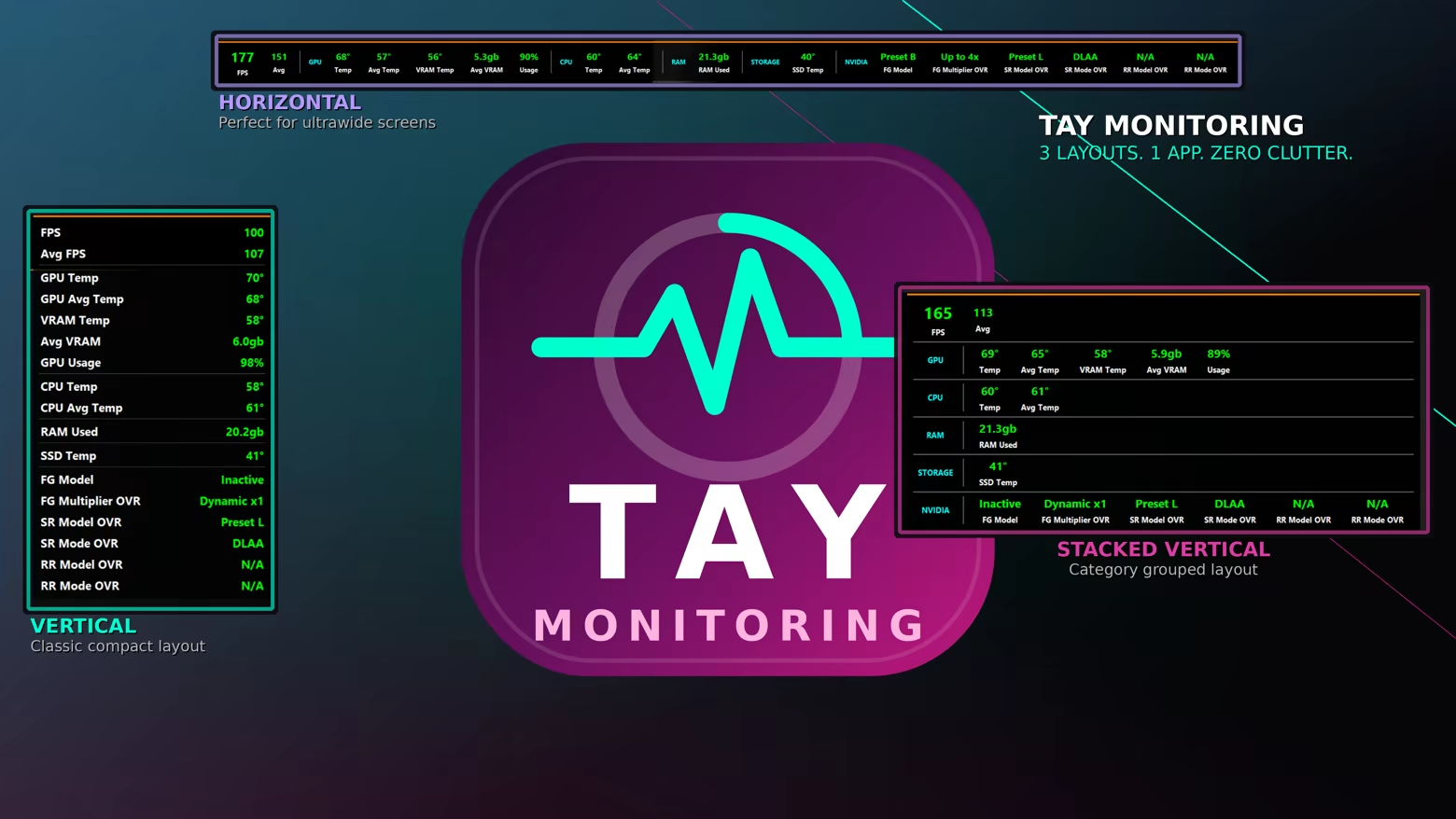
TAY Monitoring gives you 5 distinct ways to display your stats:

  •  Horizontal - a compact single row, great for ultrawide monitors and players who want minimal screen real estate used

  •  Vertical - a clean column of stats along the side of your screen

  •  Vertical Stacked - a grouped column layout that organizes stats by category for quick scanning at a glance

  • Vertical Values Only - the leanest layout. Numbers only, no labels — for experienced users who already know what each value means at a glance

  • Cards - each stat gets its own tile with a section header, value, and label. Great for desk setups or when you want full visibility with a clear, organized look at all your metrics

And for each layout, you choose exactly where it lives on your screen. Eight anchor positions are available — top left, top center, top right, middle left, middle right, bottom left, bottom center, and bottom right — so the overlay never covers the part of the screen that matters to you, whether that is the minimap, the health bar, or the chat window.

Switch layouts and reposition instantly from within the settings overlay, right inside your game. No guessing — what you see is what you get, live

YOUR OVERLAY, YOUR LOOK

Beyond layout and position, TAY Monitoring gives you full control over how the overlay looks on your screen:

  •  Size - scale the overlay up for a large monitor or down for a compact corner display, without losing any information

  •  Opacity - dial transparency from fully opaque to nearly invisible, so the overlay blends into your game rather than competing with it.

  • Rounded Corners - soften the overlay's edges for a modern, polished look, or keep them sharp for a clean HUD-style appearance.

  • Fonts

  •  Theme - choose the visual style that fits your setup and personal taste.

All appearance settings are adjusted live from within the settings overlay, directly over your game. No restart required.

SMART ALERTS THAT PROTECT YOUR PC

This is where TAY Monitoring sets itself apart from every other overlay available.

Most monitoring tools just display numbers - they expect you to watch and react. TAY Monitoring watches for you.

Set custom temperature thresholds for your GPU and CPU. The moment either hits a dangerous level, TAY Monitoring fires a real-time alert - giving you time to close a demanding application, check your cooling, or save your work before thermal throttling kicks in and performance collapses.

Modern GPUs are built to run hot, but there are real limits. A GPU consistently exceeding 85°C under gaming load is operating at the edge of its thermal envelope - at that point, thermal throttling silently reduces your clock speeds and tanks your frame rate without you ever knowing why. Sustained heat over long sessions also accelerate component wear over time, shortening the lifespan of hardware you paid serious money for.

TAY Monitoring catches it before it becomes a problem. Set your threshold, get alerted, and act - before the damage is done.

AVERAGES THAT TELL THE REAL STORY

Instant readings lie. A GPU temperature spike might be a one-second burst - or it might mean your cooling paste has dried out. A single FPS reading could show 144fps during a quiet loading screen and 38fps during the firefight you actually care about.

Instant numbers give you a snapshot. Min, Max, and Average give you the truth.

TAY Monitoring tracks running Min, Max, and Average alongside every instant value — across almost every sensor and metric, from FPS and latency to GPU, CPU, VRAM, RAM, storage, and more.

DEDICATED NVIDIA OVERLAY

TAY Monitoring includes a dedicated overlay mode built specifically for NVIDIA GPU owners. It surfaces the metrics that matter most for your card with precision and reliability - a tailored experience, not a generic one-size-fits-all display.

AMD support is actively in development and coming very soon. Whether you are on Team Green now or planning a switch to Team Red, TAY Monitoring is ready for you.

WHAT YOU SEE IS WHAT YOU CHOOSE

Every gamer is different. Some want everything on screen. Others want just FPS and GPU temp. TAY Monitoring lets you configure exactly what appears, so your overlay shows only what matters to you — nothing more.

Choose from a large variety of sensors across GPU, CPU, RAM, storage, latency, FPS, NVIDIA, and more — every field individually toggleable, each with current value, min, max, and average, so you build the exact overlay you want.

Your configuration is saved automatically and applied every time a game is detected. Configure once — it just works forever.

ZERO PERFORMANCE IMPACT

TAY Monitoring is engineered to have no measurable impact on your gaming performance. The monitoring engine runs in a dedicated subprocess — completely separate from your game process - so your game gets every CPU cycle it needs. Hardware sensor reads happen on a 1-second interval, not hundreds of times per second, keeping system overhead negligible.

The overlay is a transparent, borderless window that composites directly onto your display with no GPU overhead, no memory bloat, and no interference with your game's rendering pipeline.

COMPATIBILITY — WORKS WITH HOW YOU ACTUALLY PLAY

  • TAY Monitoring works with every display mode modern games use - windowed, borderless windowed, Fullscreen borderless, and standard Fullscreen. If you launched a game in the last few years, TAY Monitoring works with it.

  • Some games with aggressive anti-cheat (e.g. Easy Anti-Cheat, BattlEye) may block the overlay. TAY Monitoring respects these restrictions and makes no attempt to bypass them — completely ban-safe

  • The only unsupported mode is Exclusive Fullscreen - a legacy setting that the vast majority of modern titles have moved away from. If your game still offers it, switching to Fullscreen borderless takes one setting change and delivers identical performance on modern hardware. Games running in Exclusive Fullscreen mode may briefly minimize when the TAY Monitoring overlay or settings panel appears — this is a Windows limitation, not a bug. Switch to any other display mode in your game's settings for full overlay support.

System Requirements

    Minimum:
    • OS: 10
    • DirectX: Version 11
    Recommended:
    • OS: 11
Review Filters