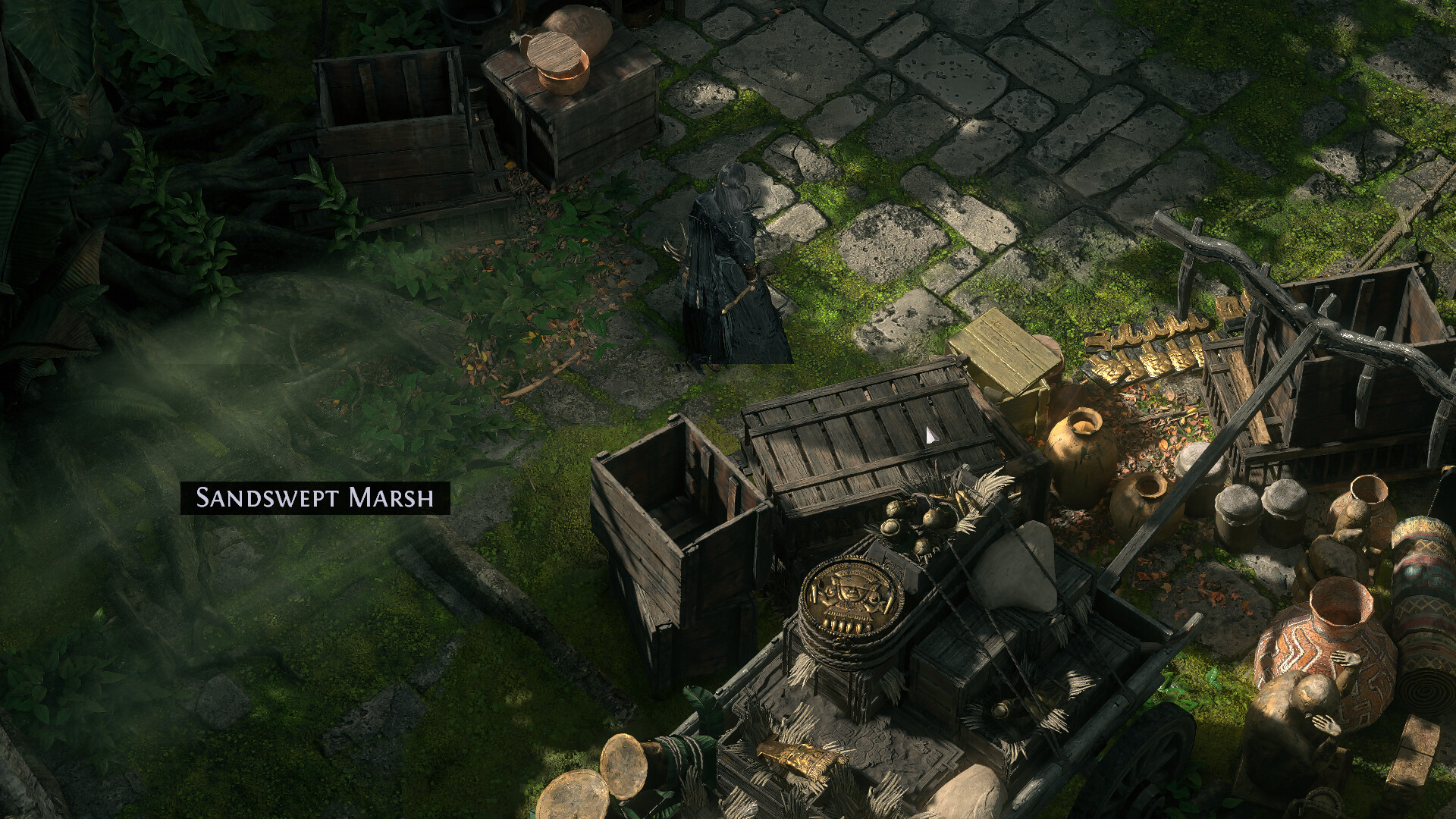


Swap out obscure or hard-to-see cursors—even in games that include their own. Until now, replacing built-in game cursors was almost exclusively a Windows option. MykrosCursor bridges the gap with an OS-level cursor swap (not an overlay) on Linux and Steam Deck, in Desktop and Gaming Mode.
發行日期:
即將推出
開發人員:
發行商:
標籤

登入以將此項目新增至您的願望清單、關注它,或標記為已忽略

不支援繁體中文

本產品尚不支援您的目前所在地的語言。購買前請先確認語言支援清單。

即將推出

此項目尚未發售

感興趣嗎?
將這款遊戲加入願望清單,以便在發售時收到通知。
新增至您的願望清單
 

關於此軟體

Overview

MykrosCursor is an OS-level cursor replacement (not an overlay) for Linux and Steam Deck. Swap out obscure or hard-to-see cursors—even in games that include their own cursors—with the theme you choose. This functionality was previously almost exclusive to Windows; MykrosCursor bridges the gap, working seamlessly in both Desktop and Gaming Mode.

Key Features

Lag-free swap – hooks standard X11 / XWayland calls; zero added input delay.

Built-in theme pack – Ships with several ready-to-use themes.

Import or create – load Linux XCursor themes, Windows CUR files, or generate a cursor from any image.

Steam Workshop integration – browse and subscribe to new themes inside the app.

Resize and customize – Resize or recolor any of the cursors.

Works everywhere – Linux desktop apps, Proton/Wine games, and Steam Deck (Desktop & Gaming Mode).

Multi-monitor support - Multi-monitor support with no FPS impact.

User-space only – no kernel drivers; compatible with common anti-cheat services.

Anti-cheat compatibility

MykrosCursor operates strictly at the desktop/input layer on Linux and Steam Deck. It replaces the cursor with your chosen pointer whenever a game asks the system to display one—without touching game memory, altering gameplay logic, or requiring elevated (root) privileges.

We’ve tested MykrosCursor with the various anti-cheat systems and encountered no issues. Policies can change, so please review your game’s Terms of Service before use.

Ease of use

MykrosCursor is designed to be simple to set up and effortless to maintain.

Just launch the app once to complete the initial configuration—after that, all you need to do is restart your system or Steam Deck. Once rebooted, the cursor theme settings and cursor hook activate everywhere automatically.

In most cases, no manual desktop configuration is required. If your Linux desktop environment doesn’t automatically switch to the MykrosCursor theme, you may need to open your system’s appearance settings and select it once. This only applies to the first setup, with the configuration remaining persistent across reboots. This step is only needed to switch over to MykrosCursor—once selected, you can change cursors inside MykrosCursor without needing to do this again.

If a game ships with its own custom cursor and you want to override it, the process is just as easy. Simply enable Compatibility Mode on the game:
Steam Library → right-click the game → Properties → Compatibility → check "Force the use of a specific Steam Play compatibility tool."

Once enabled, MykrosCursor will correctly replace the game's built-in cursor. This only needs to be done once per game—after that, you can freely switch between any cursor or theme inside MykrosCursor without touching the compatibility setting again. This is only needed for games that ship with their own cursors, for games that use your standard cursor it will be replaced automatically.

Any time you change cursors, colors, or configurations within MykrosCursor, simply close and re-open the app to see the new cursor take effect. While the Steam UI itself may not visually update until Steam is restarted, your games will immediately use the updated cursor once that specific game is restarted—no full Steam restart required.

系統需求

    最低配備:
    • 作業系統: 64-bit Linux (kernel 5.10 or newer) — tested on Ubuntu 20.04+, Arch, Fedora 38+, and SteamOS 3.x (Steam Deck)
    • 處理器: Any 64-bit dual-core CPU
    • 記憶體: 256 MB 記憶體
    • 顯示卡: Any GPU (X11 and XWayland support)
    • 儲存空間: 400 MB 可用空間
此產品無任何評論

您可以撰寫評論來與社群分享您對於本產品的看法。請使用本頁面中位於購買按鈕上方的區塊來進行評論的編寫。