Gamecraft - JoshJammer
Hello Gamecrafters!
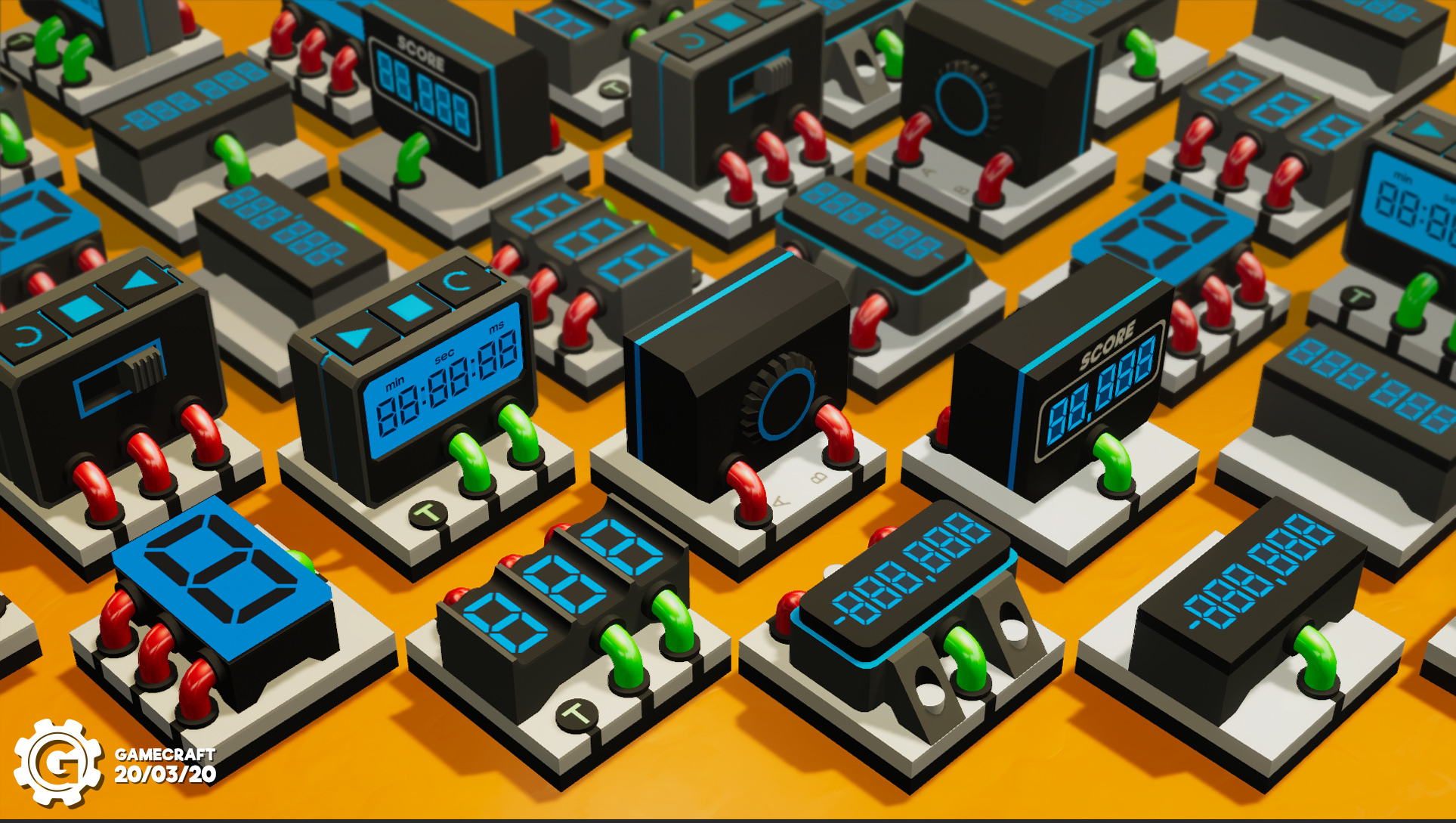


Last week we released a HUGE update to Gamecraft that introduced Logic, Copy & Paste and so much more! If you haven’t read about all of those amazing new things, you can check out the patch notes here: https://steamcommunity.com/gid/103582791464559041/announcements/detail/1694982051051695761

We’re working on some more epic blocks and features for our next update and we’ll be teasing some of these in each blog leading up to the release again. This week, we have some special blocks that will complement the Logic and Maths blocks added in the last update. We introduce to you, the State Blocks!
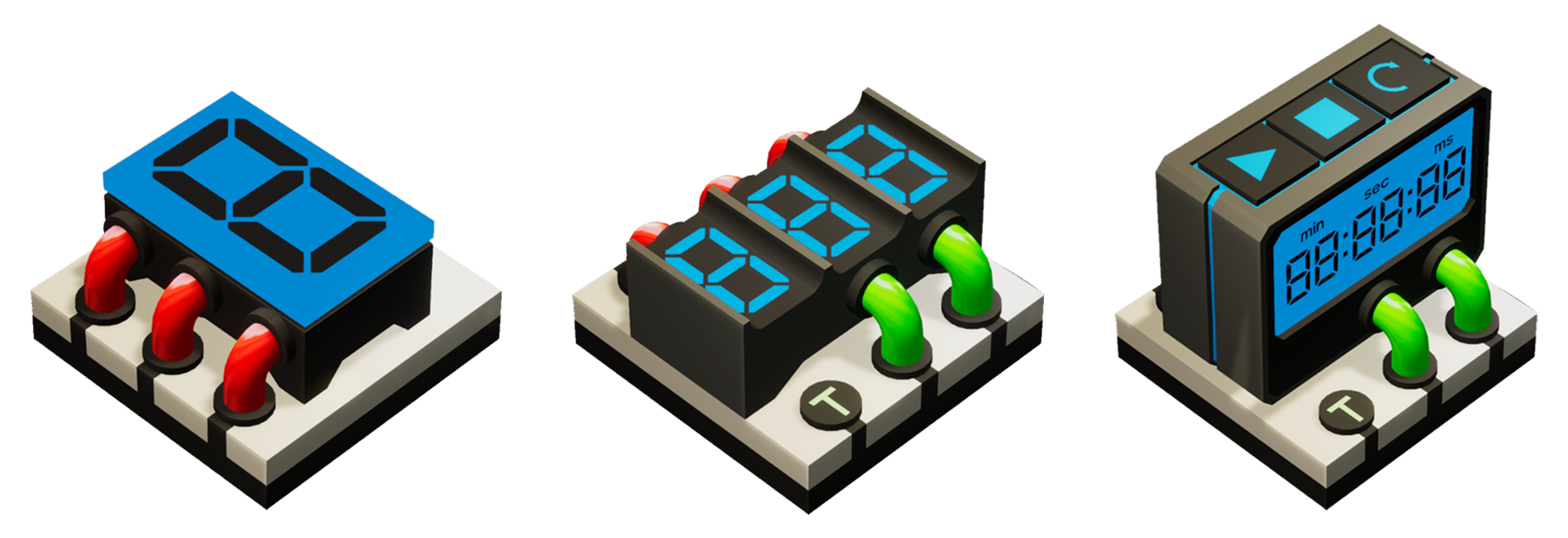


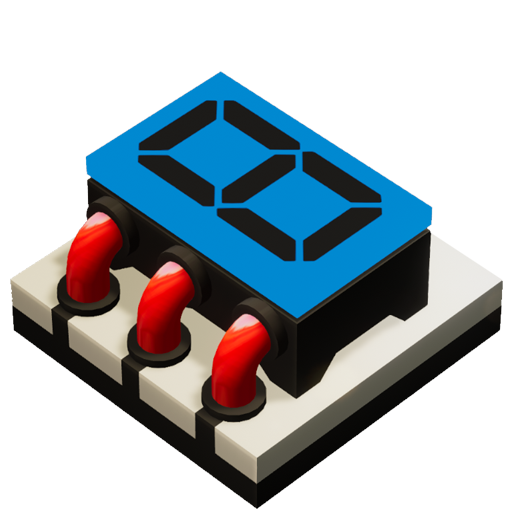
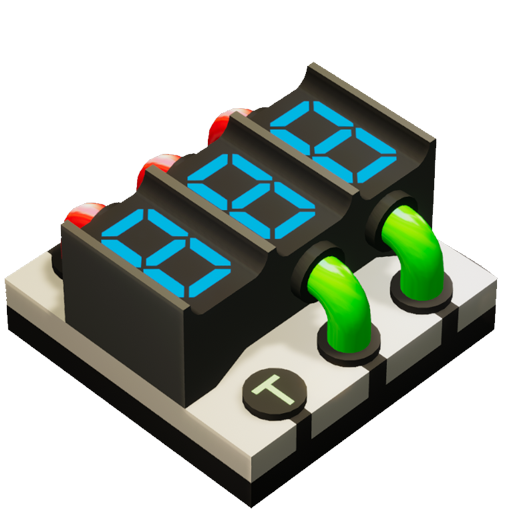
From left to right we have; The Bit Block, Counter Block and Timer Block. These powerful blocks are useful to add some extra state logic into your games. We’ll give you a brief rundown of each block in this blog, but we’d also like to start sharing some of the finer details of upcoming features with the community, to get early feedback, so you’ll find some links to our public “Confluence Wiki” which go into more depth on these blocks.

You can access the Wiki here: https://freejamgames.atlassian.net/wiki/spaces/GCEXT/overview
Bit Block


The Bit block can be used as a sort of “local memory” in your logic, storing a single on/off value. As such, this block has two possible states, 0 or 1. This value can be set manually through the associated input, or you can also toggle the current value with a separate input.

This block also has a functional digital display built-in to show the current state, which will make debugging easier.

For more info, check out this link: https://freejamgames.atlassian.net/wiki/spaces/GCEXT/pages/720535578/Bit+Block
Counter Block


The Counter block allows for the storage of an integer number that can be incremented, decremented and reset.

The Counter block lets you pre-set a target value which will then output a signal of +1 once it has been reached, as well as a float value between 0 and +1 tied to the progress the Counter has made to the target. You’ll even be able to output the value as “text” to other blocks that support it!

For more info, check out this link: https://freejamgames.atlassian.net/wiki/spaces/GCEXT/pages/720502834/Counter+Block

NB: We plan on adding support for “Text Output/Input Ports” with this update. We’ll cover the details on that a bit further on.
Timer Block
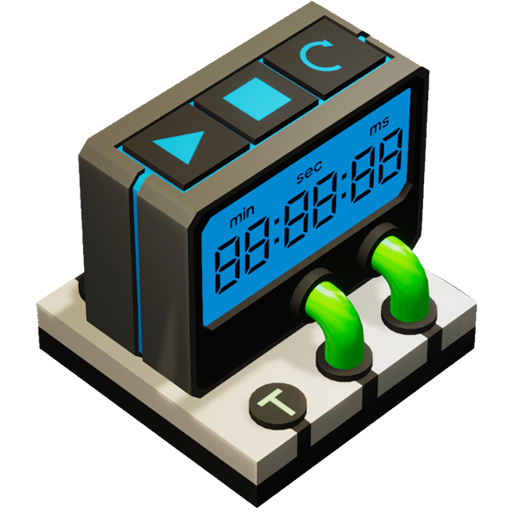

The timer block can be used to trigger an event when a specific time has passed, or even update an event as time slowly passes.

You’ll be able to start, stop and reset the timer with separate inputs. Similar to the Counter block, the Timer block can output a signal of +1 when the target time is reached, as well as the progress and “text” value.

For more info, check out this link: https://freejamgames.atlassian.net/wiki/spaces/GCEXT/pages/720109619/Timer+Block

NB: In this update we’ll also be making some improvements to the stat sliders. These changes should give you finer control and more freedom with your settings! We’ll talk more about this later in this post as well.

Text Ports
Some of these blocks would really benefit from being able to display their output in a user-friendly, fully visible way, which is exactly why we’re implementing a new “Text Port”!

These ports will fundamentally work the same way as the current input/output ports. The difference here is that these ports will only connect to a matching port i.e. you cannot connect the Text Port output of a Timer block to the input of a Motor and vice-versa.

This change is going to make text blocks even more powerful as you'll be able to show a whole lot more game related information, updated in real time!

Improved Stat Slider
A lot of these upcoming blocks reinforced the need for better precision in our stat sliders. So, we’re throwing away the current ‘10 step’ slider in favour of a smoother, more precise slider. That’s not all though, as we’re also giving you the ability to set specific values via a small label under each slider!

We hope you enjoy this sneak peek into some of the great new things we’ve got planned for the next update and if you have any feedback you want to share, leave a comment on the appropriate Wiki doc.

Please follow us on our social spaces and share your creations with us:
Twitter- https://twitter.com/Gamecraft_FJ
Youtube - https://www.youtube.com/channel/UCkcRFCr9aQxszaYeXcWZjwA
Facebook- https://www.facebook.com/GamecraftGame/
Reddit - https://www.reddit.com/r/GamecraftGame/
Discord - https://discord.gg/gamecraft

Thanks for reading!

The Gamecraft Team
Gamecraft - JoshJammer
Hi Gamecrafters,

We’ve just released a small hotfix for the latest update. Below is a list of the changes and fixes.


Bug Fixes
  • Fixed a bug with Command Computers that were copied via MMB sharing commands - Existing blocks created this way may need to be replaced to avoid this behaviour
  • Fixed a bug where joints copied from older save files, that were then copied again would incorrectly calculate their rotation/direction
  • Fixed a bug where dividing 0 by 0, then giving that output to a Motor could cause it to lock up anything it touches
  • Fixed some visual issues with larger parts flickering when viewed from certain angles
  • Fixed an error that could trigger when a player joins a server while another player is using the Box Selection tool
  • Fixed an issue where the ghost cube could always appear ‘invalid’ if the clipboard was previously left in an invalid state
  • Fixed some issues with 4:3 aspect ratio resolution on various screens (Please note: we’re dropping support for 5:4 aspect ratio at this time)
  • Fixed an issue where the ghost cube could reappear in multiplayer while creating a wire
We’re investigating a few more issues that have been reported over the last couple of days and we’ll keep an eye on things over the weekend to see if we can deliver a second hotfix next week.

The Gamecraft Team
Gamecraft - JoshJammer
Hello Gamecrafters,


We have another colossal update to share with you all! Most of the new features in this update are heavily focused on the ‘building’ aspect of Gamecraft, so you can look forward to a host of tools to make building quicker, easier and so much more powerful! We’ve also thrown in some new parts, more optimisations and other QoL changes to top it all off! Read the full patch notes below.

Box Select - Delete, Cut, Copy & Paste
The first massive feature we’re going to talk about is the “Box Select” tool. This powerful tool can be used to copy parts of games and prefabs, either your own or other members of the community, and paste them wherever you want!


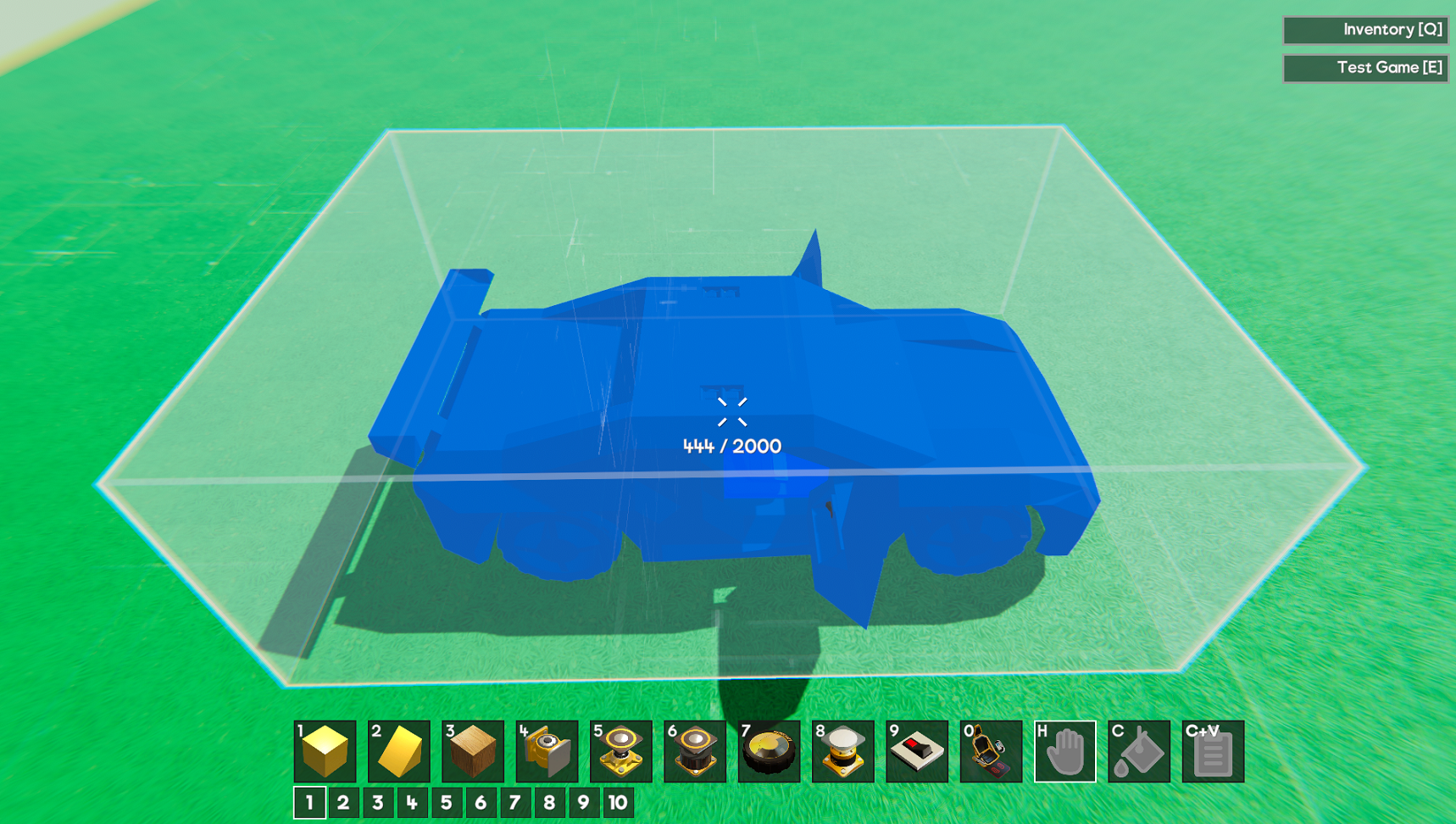
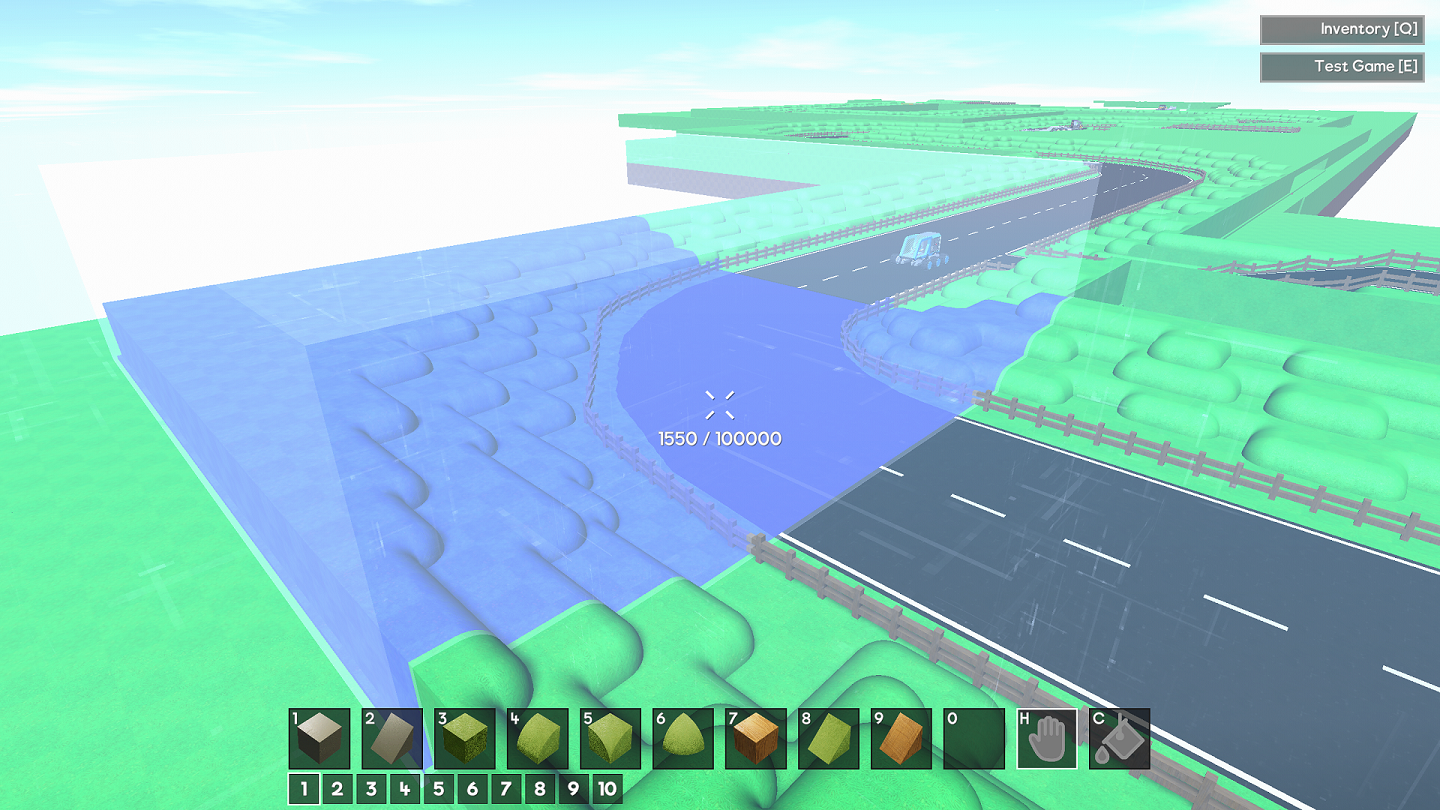
To use this tool, simply select the “Empty Hand” slot on the hotbar. From there, you’ll have a handy new cursor when aiming at a surface, to show you that you’re ready to start a selection. Box Select works much like Non-Uniform Scaling, or creating a new Trigger volume. Hold LMB to start a selection, then drag in the first two perpendicular axis. Release LMB to start dragging in the final axis. When you’re finished, you can click LMB again to lock this selection in, allowing you to move around and check out the selection.

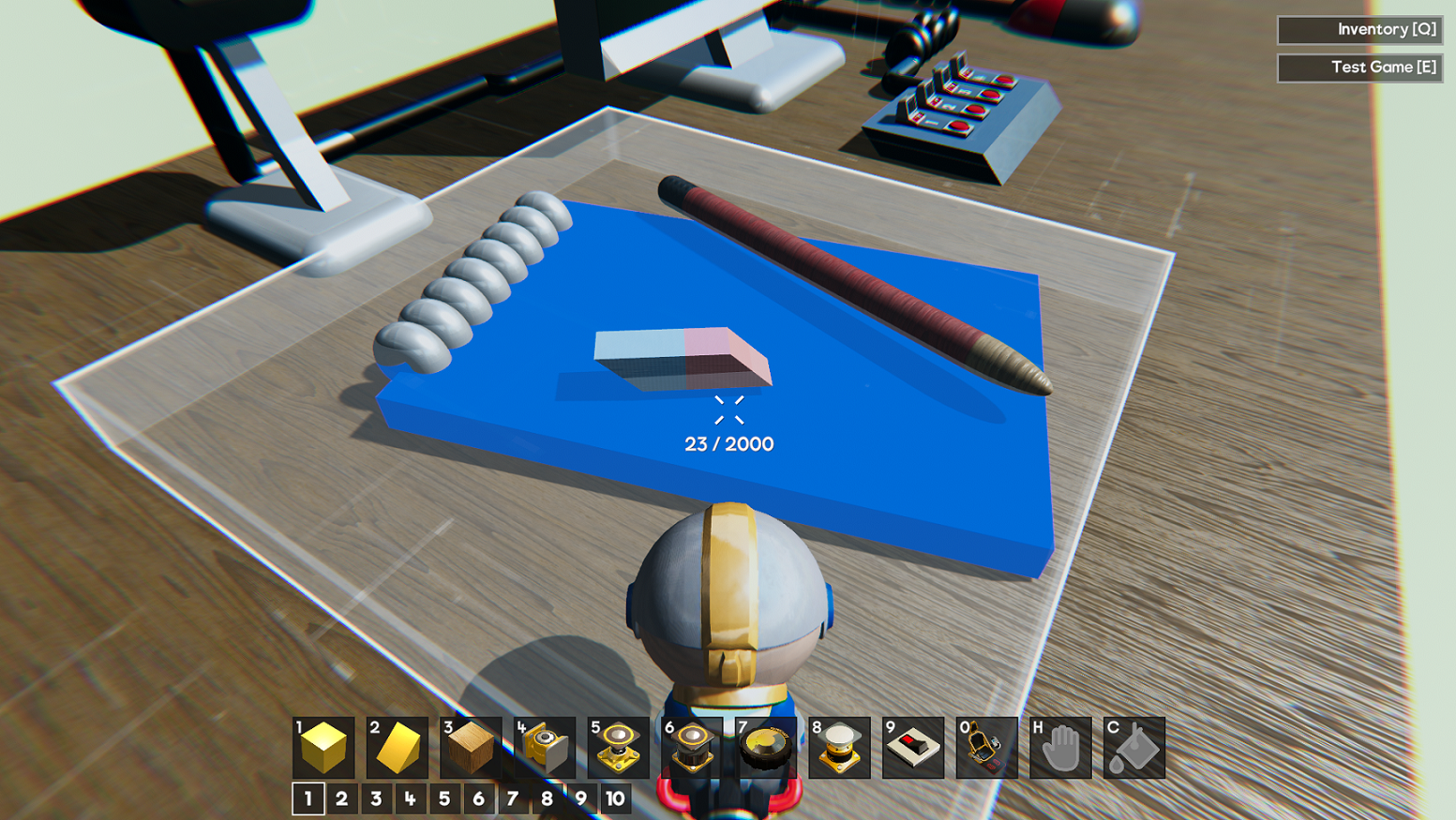
Everything that is completely within the boundaries of this box will be highlighted, up to a limit of 2000 cubes.This means that a single cube that has been scaled up to 2x2x2 will only be included if the whole block is inside. A single block of this cube will not highlight the entire thing.

Pro Tip: Clicking either mouse button, or using an action like selecting a cube will cancel the selection if you change your mind


With this selection in place, you now have three options! We’ll cover each of them now.

Copy
By pressing the default keybind of Ctrl+C, you’ll create an exact copy of the contents of the selection - everything coloured blue. Everything inside the selection will remain as it was, but you’ll now have a new “clipboard” slot to the right of the hotbar.


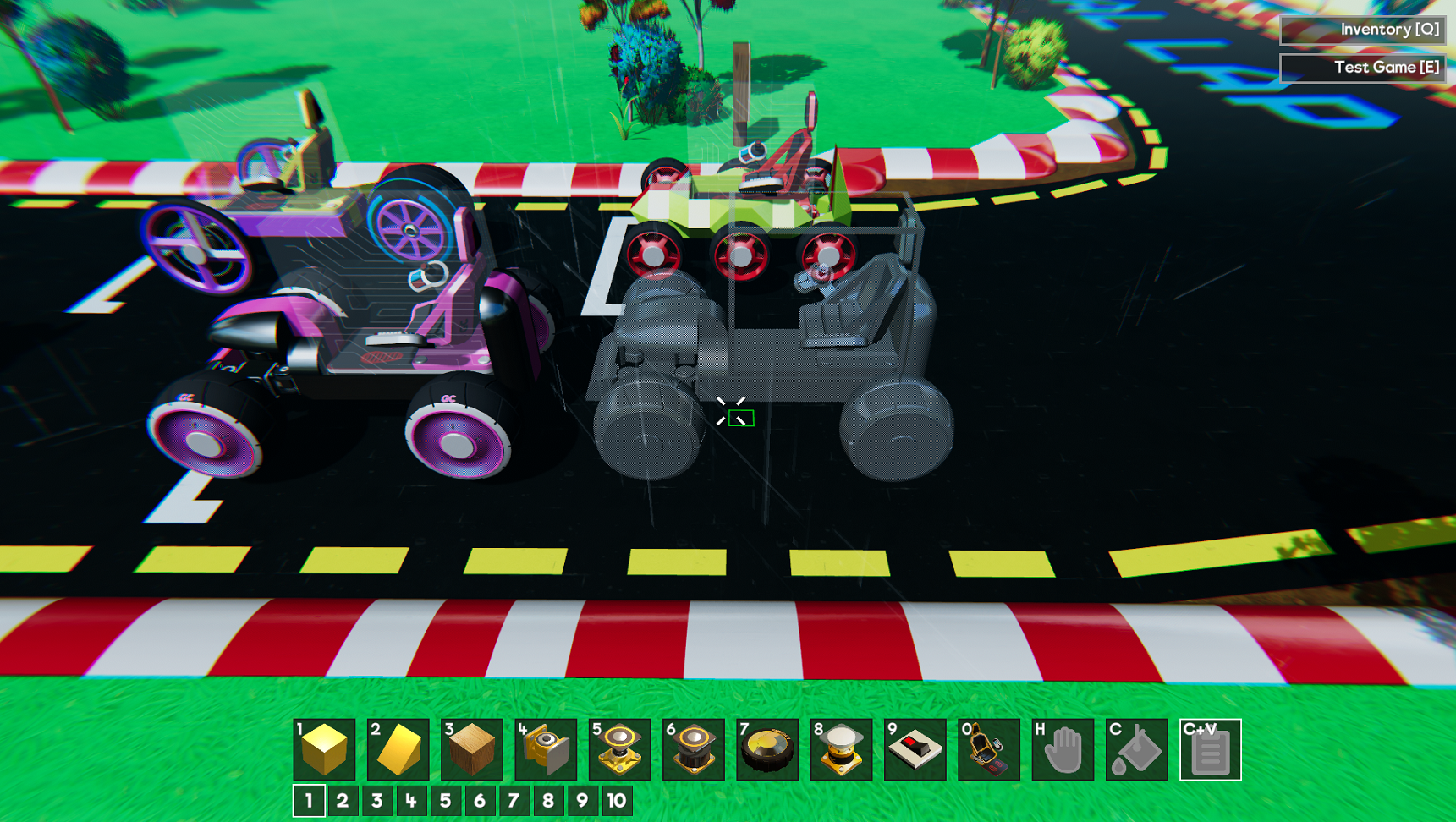
You can then look around and position this part as if it were any regular block!

Any existing connections, wires and stats will be copied too, so copying a car will create an exact duplicate, with its own controls, ready to go!

Pro Tip: When you’re trying to place a clipboard item, the “placement cursor” will be the center of the selection box. If you want to place something with an offset, try extending the selection box to move the center point further forward.

Cut
If you no longer want the contents of the selection box to be present, but you maybe wanted to shift them over a few blocks, you could instead choose to “cut” the selection with CTRL+X. Doing this will create a copy in the clipboard, but also completely delete everything inside the selection.

Delete
If you want to quickly clear out a mass of parts that you no longer care about, you can simply delete everything in the selection box with the default key DEL.

Once you have something saved into your clipboard it will remain there for the rest of the session (until you close the game), so you can swap back to other cubes, swap back and paste as many times as you want and even carry the clipboard over to another save! For example, you could take a car from the Prefab Workshop into your own save file, make some edits and then take that improved car into a multiplayer race with other players!

Pro Tip: If you select another Inventory part and want to switch back to the clipboard, you can do that by pressing the default keybind of CTRL+V.

Part Picker Improvements
In addition to being able to copy stats and wires with the box selection tool, we’re also adding this functionality to the “part picker”, which can be used by clicking MMB when aiming at a part. Now, picking a part this way will copy the part, scale, colour and any stats or wires! With this, you’ll be able to quickly place, tweak and wire a Motor, then copy it and paste three more copied to create a car. This also applies to Text Blocks and Command Computers, which will have their contents copied.

Logic & Math Blocks
The extremely powerful Logic & Math blocks are here! These new parts are going to open up whole new worlds of possibilities when it comes to crafting games, vehicles and loads of other contraptions.

Logic Blocks


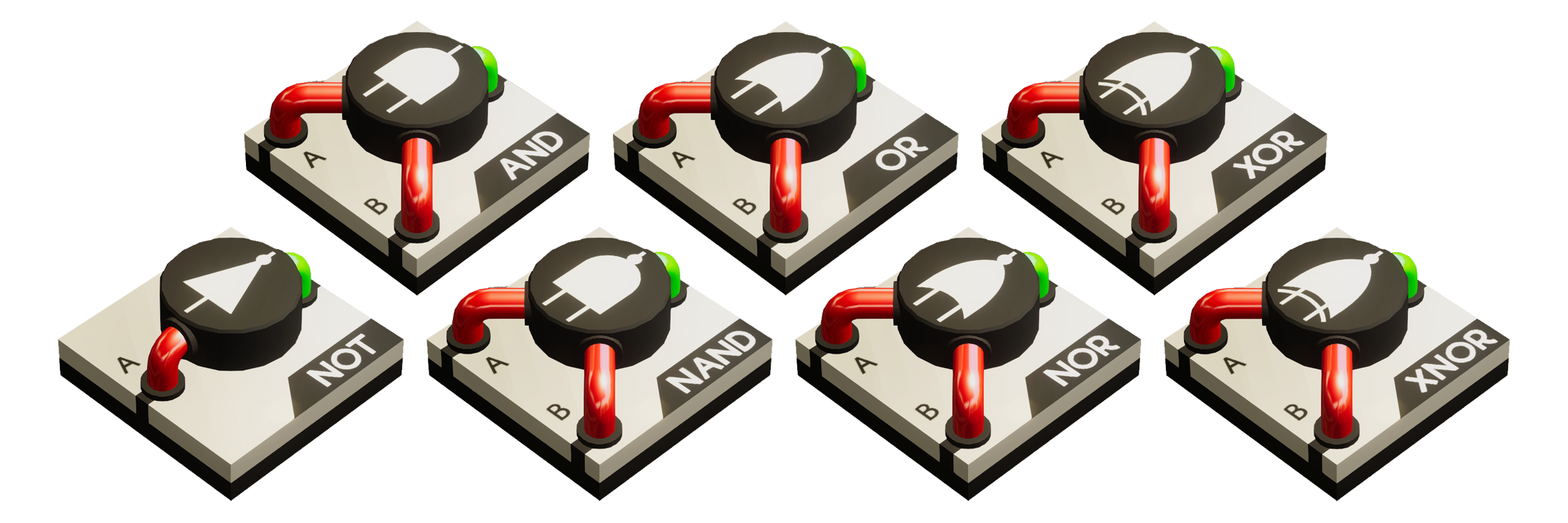
Each Logic Block performs a standard “Logic Gate” function, such as AND, OR or XOR. For those that aren’t familiar with these, we’ll cover them below.

Most Logic Blocks have two inputs. These two inputs will take any signal between -1 and +0.5 as 0 (or false). Any signal greater than +0.5 will be treated as +1 (or true), with anything over +1 clamped down. In the case of the AND Logic Block, both inputs would need to be “true” for it’s condition to be met.

The output of these blocks is a fixed 0 (if the condition is not met) or 1 (if the condition is met). For an AND block, this means that it will output a signal of 0 if either input is false, and will output a signal of +1 if both inputs are true.

The full list of current Logic Block functions are:
  • AND - If A = 1 AND B = 1 then the output = 1. Otherwise, the Output = 0 (Both inputs must be true)
  • OR - If A = 1 AND/OR B = 1 then the output = 1. Otherwise, the output = 0 (At least one input must true)
  • NOT - If A = 1 then the output = 0. If A = 0 then the output = 1 (The output is essentially the opposite of the input)
  • NAND (Not AND) - If A = 1 AND B = 1 then the output = 0. Otherwise, the Output = 0 (Unless both inputs are true, this will output 1)
  • NOR - If A = 1 OR B = 1 then the output will be 0 (As long as either input is true, the output will be 0)
  • XOR (Exclusive OR) - If A = 1 OR B = 1 then the output will be 1 (As long as only one input is true, the output will be 1, but if both inputs are true the output will be 0)
  • XNOR (Exclusive NOR) - if A = B then the output will be 1 (As long as both inputs match, the output will be 1)

Math Blocks


Math Blocks are basic arithmetic operations, such as addition, division and making a value “absolute”. We’ll cover the current operations below.

Most of these blocks also have two inputs. One of the main differences here is that these blocks allow uncapped values! This means that you can give one of these blocks an input greater than +1. Adding two inputs of +1 together will output +2, which can then in turn be multiplied even higher. These blocks support full floating point precision, so you could even multiply/divide your inputs together to get tiny values like -0.054, for fine tuning on your joints!

The full list of current Math Block operations are:
  • Adder - Output = A + B ( i.e A = 6, B = 2, O = 8)
  • Subtractor - Output = A - B ( i.e A = 6, B = 2, O = 4)
  • Multiplier - Output = A * B ( i.e A = 6, B = 2, O = 12)
  • Divider - Output = A / B ( i.e A = 6, B = 2, O = 3)
  • Mean - Output is the Average of A and B, or Output = A + B / Input ( i.e A = 6, B = 2, O = 4)
  • Absolute - Converts any negative input into a positive output ( i.e A = -2, O = 2)
  • Sign - Flips the sign of the input ( i.e A = 6, O = -6)
  • Min - Output = The lowest value between A and B ( i.e A = 6, B = 2, O = 2)
  • Max - Output = The highest value between A and B ( i.e A = 6, B = 2, O = 6)
Currently we’re not supporting loops with these blocks. If you try to connect an output back into an previous part in the sequence, causing a loop, you’ll see a message stating that this cannot be done. We plan on supporting loops later, which will have infinite loop protection and further optimisations. We’ll share more on those as they reach development.

Simple Connector

With all of these new parts to wire, things are bound to get a bit hectic, so we’re adding in a Simple Connector to help tidy things up. This part will allow you to wire the “LMB” output of a Pilot Seat to a Simple Connector, which can then go to 4 Motors, rather than having the seat go directly to each of these.

New Landscaping Parts


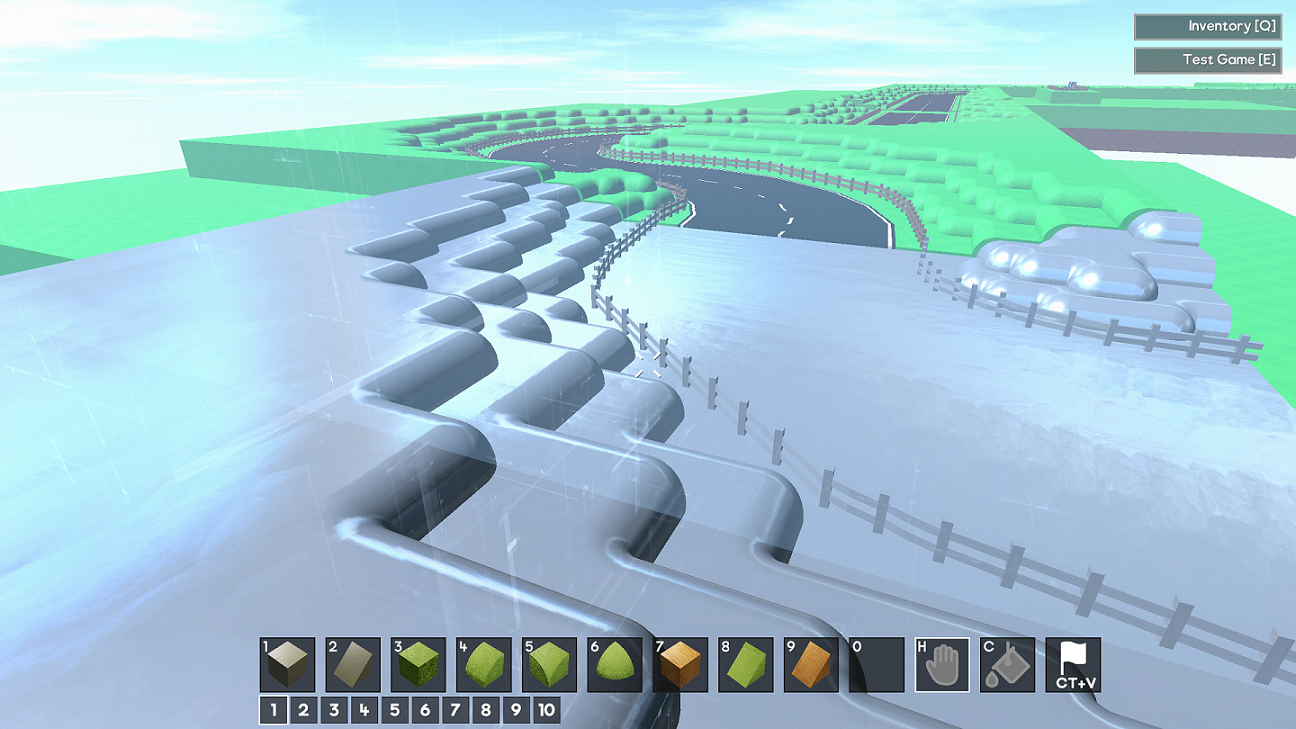
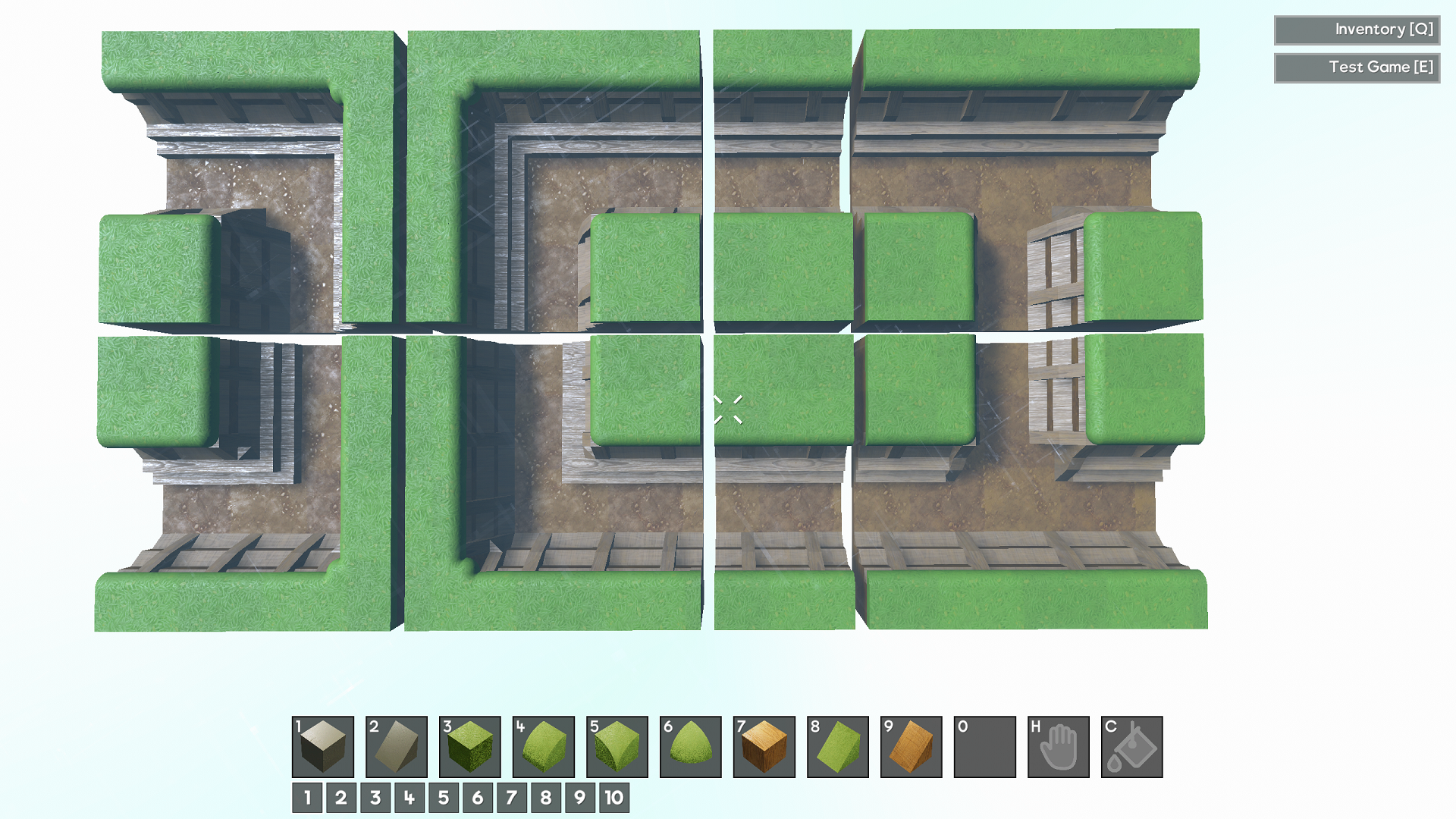
Building games isn’t just about the cool logic and functionality, it’s also about the look and feel. To help with this we’re adding some new Landscaping Blocks in the form of Cliff and Grass blocks. These new parts can add some real depth and character to your worlds.


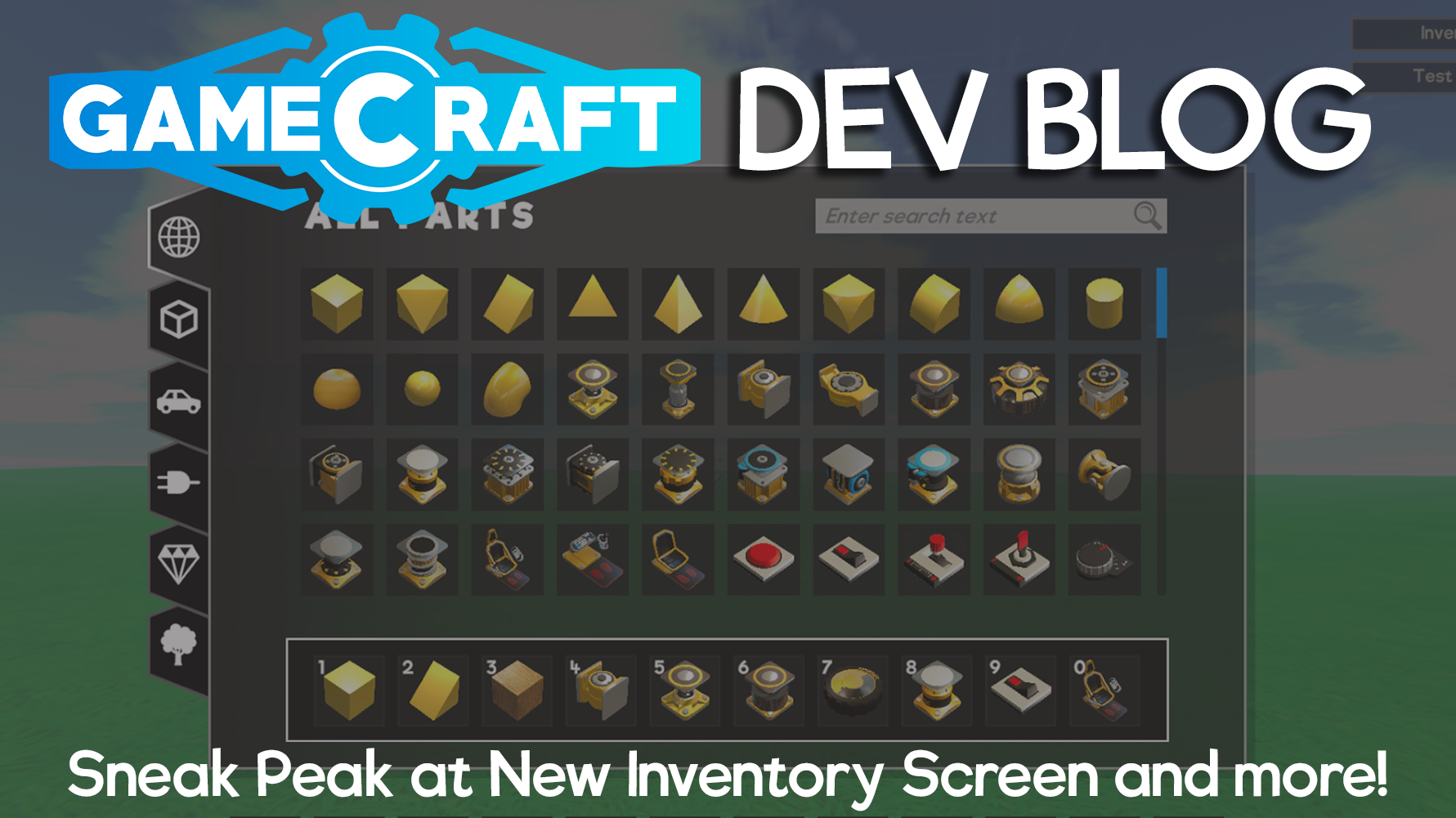
Inventory Categories & Search


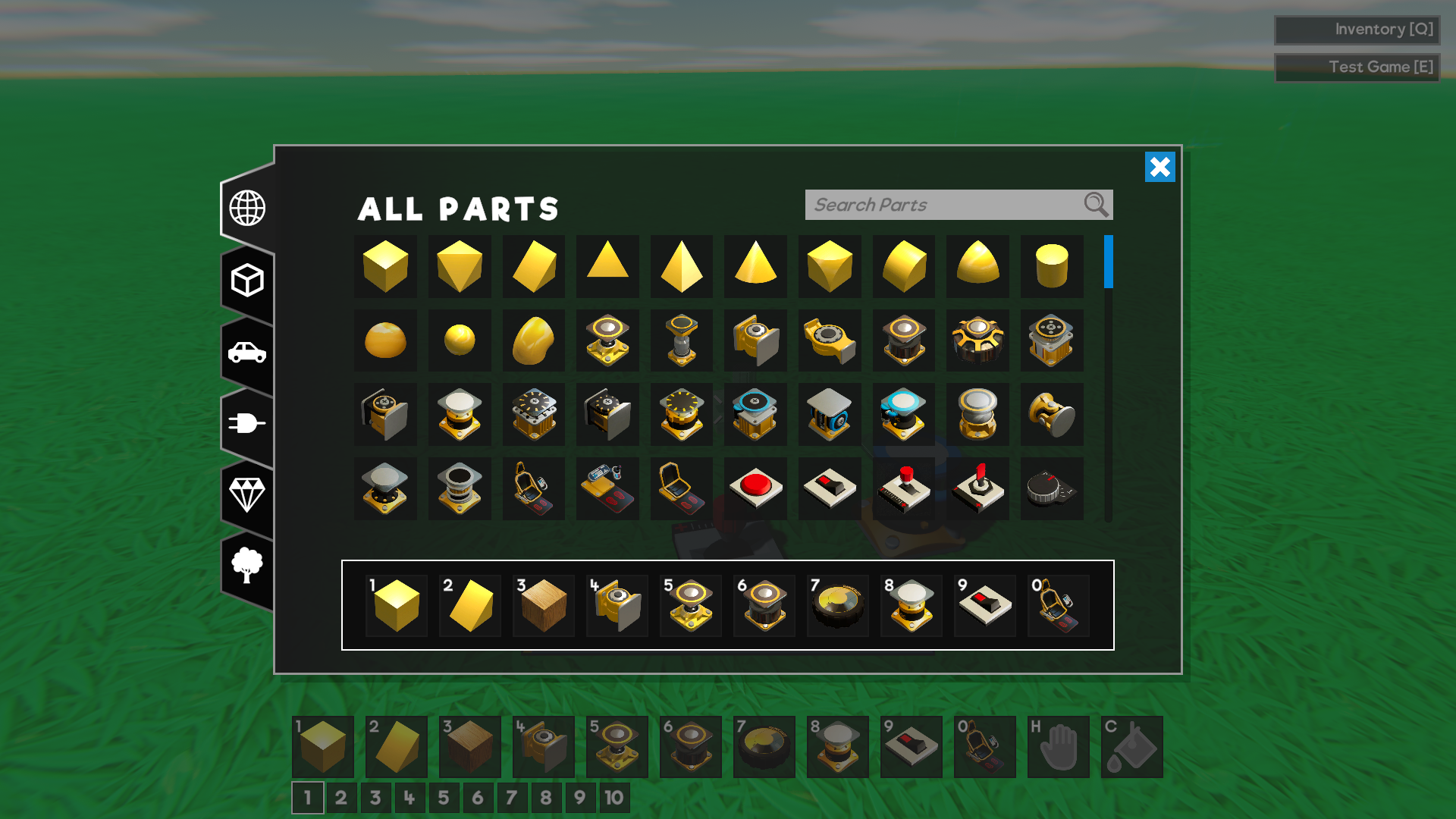
With all of these new parts, we wanted to give the Inventory a much needed overhaul. The first thing we’ve done is to slip the Inventory into different categories. These categories are:
  • All Parts - The default category which includes absolutely everything
  • Shapes - All of the standard Cubes, Edges etc. in all of the current materials
  • Machines - Joints, Controllers, Wheels and other “contraption” related parts can be found here
  • Logic - Triggers, Command Computers and all of the new Logic & Math Blocks
  • Special - Parts that don’t quite fit into the other categories go here, such as Spawn Points and Text Blocks
  • Cosmetic - Trees, Rocks and other Foliage is in this category
Clicking the handy little buttons on the left of the Inventory will filter to the corresponding category, meaning you’ll only find a specific subset of parts in each one.

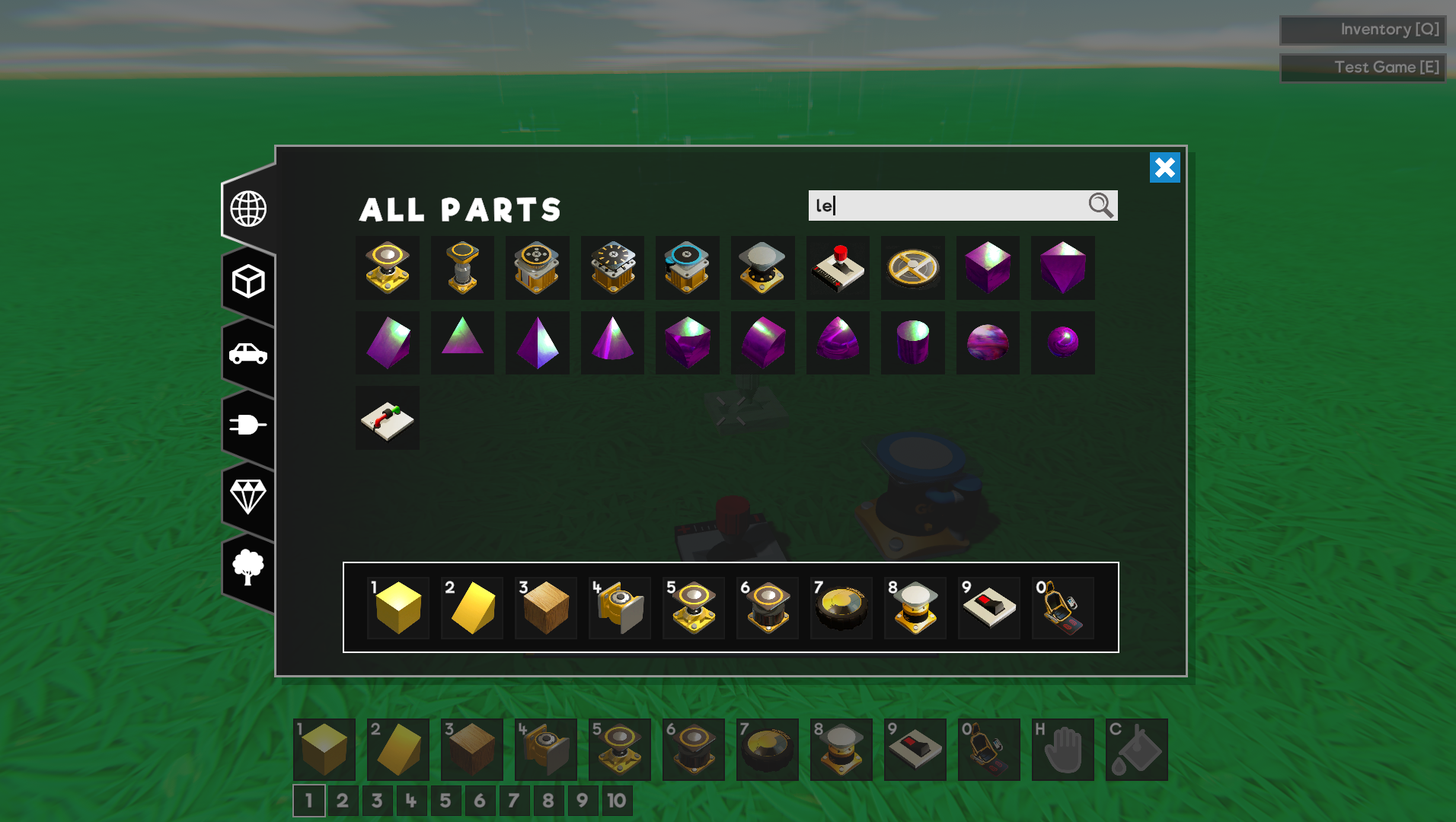
To make things even easier to find, we’ve added a search bar in the top right. This search can handle partial searches too! For example, if you wanted to find a certain type of Axle, while in the “All Parts” category, you can simply type “Ax” or even “le”.


This will return any parts that include these letters, so “le” would also show you the Lever, Telescopic Joint and a few other parts. If no results are found, you’ll see a message in the center explaining this.

Multichannel Wiring
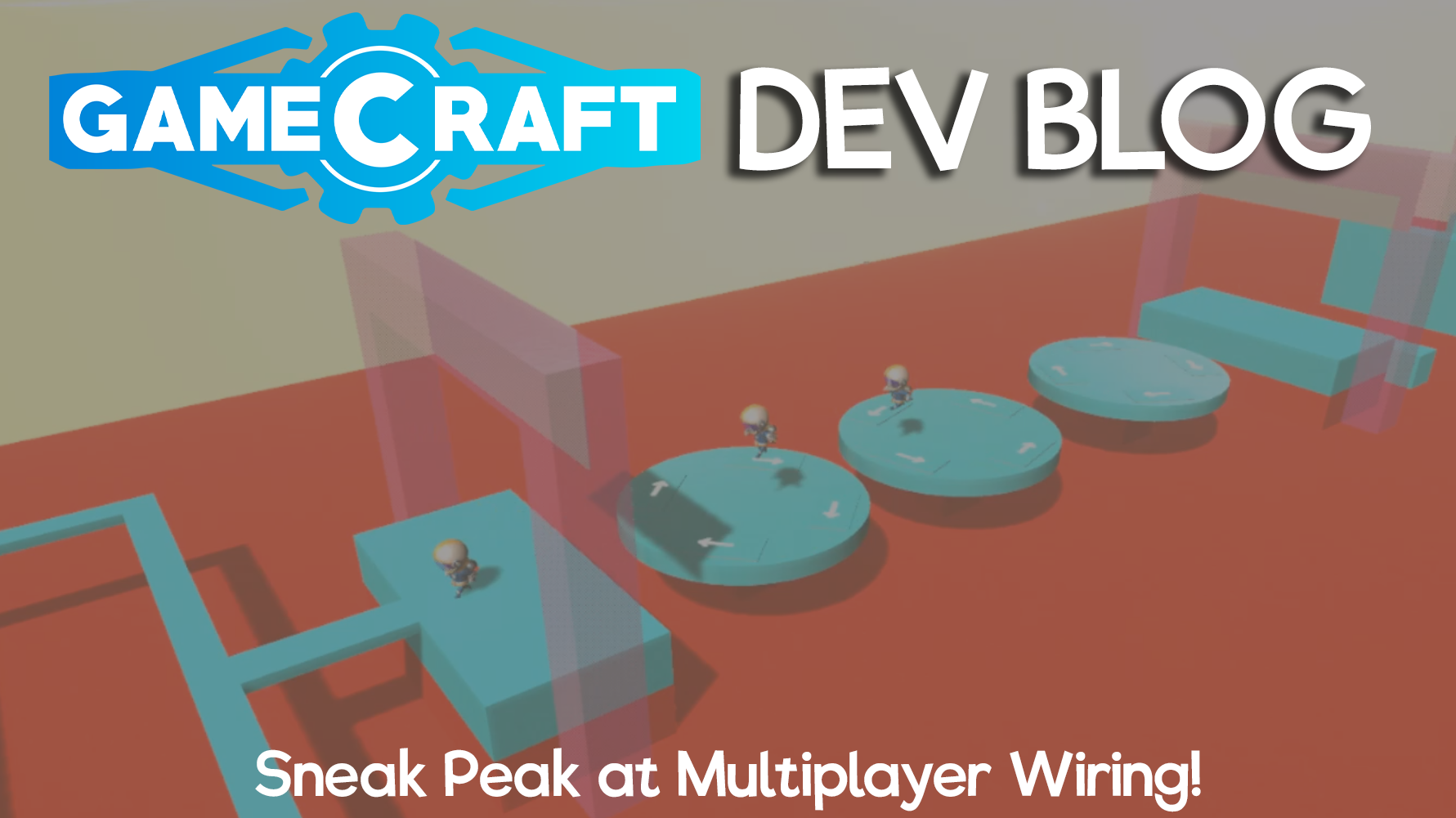
As part of our ongoing multiplayer prep work, we’ve taken the opportunity to start updating the current wiring system to handle multiple players a bit better. The Multichannel Wiring System now handles input from individual players. In short, this means that it can now tell the difference between “Player 1” touching a button, or entering a trigger and “Player 2”.

Previously we had to disable teleport commands in multiplayer when fired from Command Computers as there was no way to tell who should be teleported. Now, when Player 2 enters a character trigger that is connected to a Command computer, it will know who to teleport. We’ll be adding to this over time, with support for more commands, object IDs, team IDs and much, much more. Single player games remain unchanged, as these commands can always act on “Player 1”.

Optimisations & Limit Increases
We’re still working through some of the outstanding optimization work that we started a few updates ago. This time around we’ve heavily increased the “limits” in Gamecraft (we’ll go over those shortly) as well as optimising loading and saving times.

Loading Optimisations
We’ve identified a few problem areas with the initial loading sequence. With this update, everyone should reach the main menu much faster. This change is going to be more noticeable on low-end machines.

Joint count increase
One limit we’ve been aware of is the combined total of Joints allowed before errors start cropping up. Previously we had a limit of ~500 powered joints (Servos, Pneumatics etc.). Now, we’re not even sure there is a limit! You’ll now be able to place thousands of powered joints without running into errors. Although the limit now is your hardware, as that many parts will still have a performance hit. We’ll continue to work on optimising these as we go.

Single cube instance increase
When Gamecraft first launched, we were extremely limited on how many instances of a single part could be placed (which is part of the reason we had a count in the early Inventory system. This limit has slowly increased over time, as it’s been hit. From 2000 cubes, up to 20,000. Now, we’re able to support a theoretically infinite number of instances! This means you’ll be able to place hundreds of thousands of a single Aluminium cube.

Total cube instance increase
Following on from the above change, a total of 20,000 specific cubes would be fine, but after 20,000 Cubes, Edges, Corners and Spheres, more limits would be hit. As with the single cube instance limit, we’ve completely removed the cap on total parts. Again, the only limit now is the hardware you are using, but we'll continue work on optimizing this as we go.

Ongoing Multiplayer improvements
We’ve started some work to improve the connection phase of multiplayer. Loading should now be less error prone now, as everything is synced together correctly now, although it might take a little bit longer to connect to massive saves, as will likely run into other issues with memory or ping, but it will now load “as expected”.

We’ve also slightly improved the transition from Stasis to Simulation (and back). This should be a bit quicker and less ugly.

We’ve managed to fix a bug with joints that caused a lot of unintended intersections and collisions. This should improve some of the “jittering” and twitching some of you have been experiencing, but will need further work to prevent parts shooting off in other situations.

We’re committed to planning each new feature with multiplayer in mind and making sure it works as much as possible when it launches. While we’re not actively focusing on multiplayer development right now, we’re planning on spending a bit more time getting it up to scratch so that it’s playable, and more importantly enjoyable in its current state. Over the next few updates we’ll be trying to clean up some more problem areas and optimise what we can.

Other Changes
Signal Averaging Support Ended
As we’ve mentioned over the last few weeks, we’re dropping support for the old “averaged” signal model in favour of the “summed” model. Games that relied on the “averaged” model are not guaranteed to work the same on the new model, so some tweaks might be necessary.

Damped Spring Tweakable stats
Damped Springs have been added to the list of tweakable parts now. You can now tweak the “Stiffness”, which affects how freely it moves and the “Damping”, which affects how quickly it settles. These stats should offer a lot more control over your creations.

Console Blocks now trigger when the input is greater than +0.5
Previously, Command Computers would only trigger when they received an input of +1. We intended for this to happen on signals greater than +0.5, to match the Logic Blocks so this is just a small correction.

Ghost Cube Update
The Ghost Cubes has also had a bit of an overhaul to work with the new Box Select feature. The ghost cube is a little brighter and more opaque than before. This change was necessary to allow us to handle a collection of parts (trust us, it was confusing to look at 2000 overlapping and intersecting transparent cubes).

Pilot Seat changes - Ghost, Stasis & Simulation
We’ve also taken this opportunity to rework the Pilot Seat visuals a bit. The new ghost cube didn’t play well with the current setup, so we’ve created an entirely new “ghost” version of the Seats, with a smaller outline. The Stasis version of the Seat remains unchanged but the Simulation version now correctly loses it’s grid-like effect.

Empty Hand in Colour Mode takes you back to Parts Model
With the new Box Selection tool being an “Empty Hand” tool, we felt that it didn’t make much sense keeping the Empty Hand functionality as it was for Colour Mode,as you couldn’t interact with controllers or even delete parts. Now, pressing ‘H’ in Colour Mode will place you back in Parts Mode, with the Empty Hand selected, ready to start highlighting your selection.

Spawn Point Changes - Player ID, Team ID & Spawn Limit
As part of the Multichannel Wiring System, Spawn Points have received a few updates.

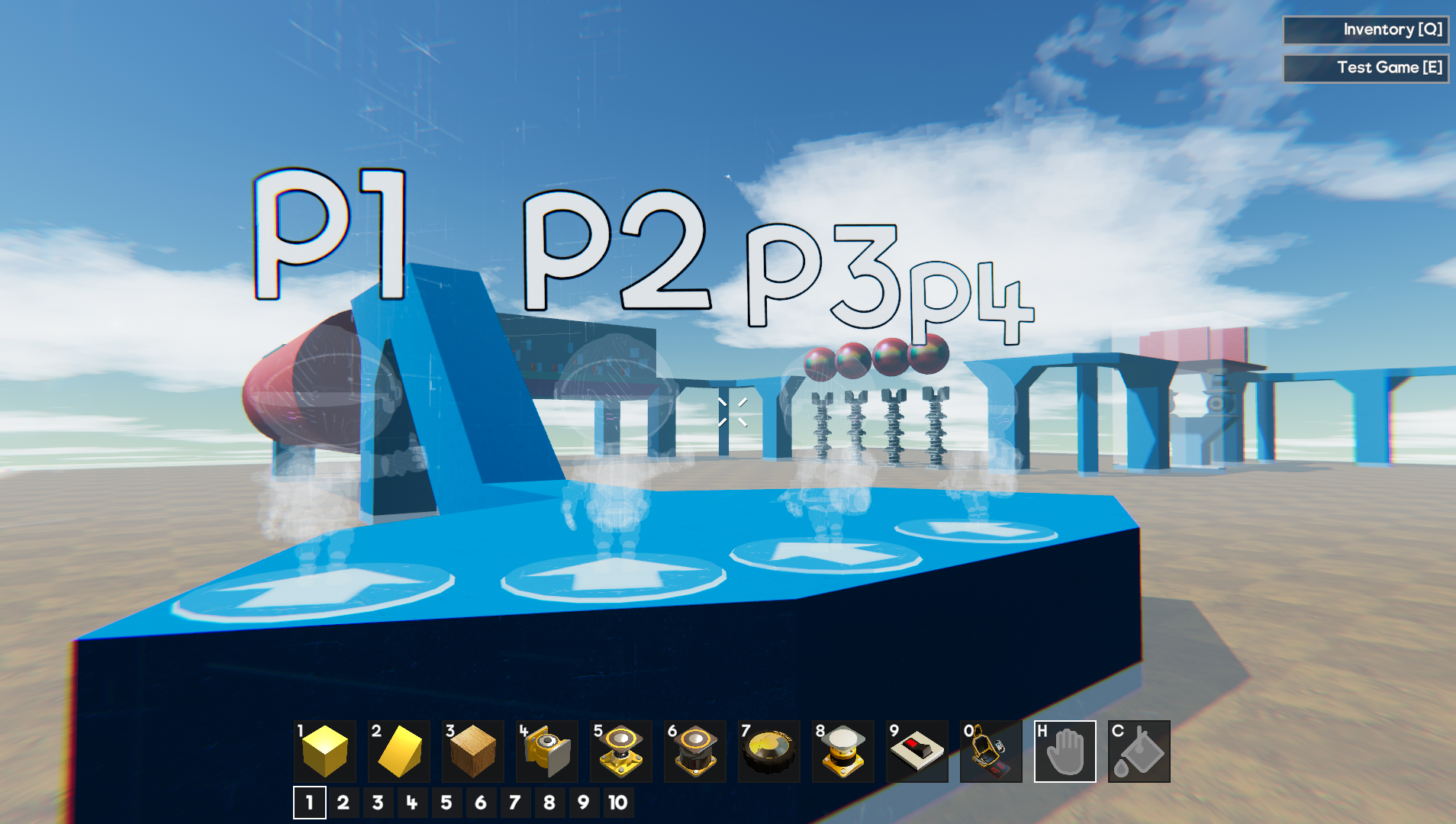
Each Spawn Point now has a fixed Player ID linked to it. The first one you place will be 1, the second, 2 etc. This will be shown above the Spawn Point and will later be used to allow player specific commands.

Spawn Points now have a tweakable stat in the form of “Team ID”. For now, this isn’t used anywhere in-game, but it will come into play when we add some more multiplayer functionality.

We’re limiting the total number of Spawn Points in a single save to 100. We feel like this is more than enough for now, but we’ll see how things go.

Bug Fixes
  • Fixed a bug when teleporting the player while they are in a seat
  • Fixed a bug where closing a wire panel while holding a slider could trigger an error
  • Fixed a bug where deleting large cubes near wireable parts could lead to an error
  • Fixed a bug that stopped the list of Games/Prefabs from loading when switching to Trending/All for the first time
  • Fixed a bug that prevented the multiplayer host from interacting with a button after another player had pressed it
  • Reduced the distance at which Pistons come to rest, which makes the gap left when a Piston retracts smaller
  • Fixed a visual bug with Pistons that caused the top plate to appear in the wrong place in some cases
  • Fixed a bug that prevented detached controllers from colliding with each other
  • Fixed some visual issues with layered wire/stat panels
  • Fixed some inconsistencies with the Text Block placeholder text
  • Fixed a rare error that can appear when copying a Prefab Workshop save
  • Fixed a couple of bugs with loading and entering simulation in a completely empty save file
  • Fixed some inconsistent naming of Aluminum parts
Phew, that covers everything in this gigantic update! We hope you all enjoy these amazing new features and as always, we’re looking forward to seeing some really outstanding creations soon.

The Gamecraft Team
Mar 9, 2020
Gamecraft - JoshJammer


Starting today (9th March 2020 5:00pm GMT) until 15th March 2020 5:00pm GMT, we’re running a discount across Freejam Products.

Gamecraft will be at a 25% discount, along-side one of our biggest updates. We have a series of Dev Blogs which each mention a different feature of this update and you can read the latest one here: https://steamcommunity.com/gid/103582791464559041/announcements/detail/1694981324150246172
Cardlife will be half price, a big 50% discount. Hand-draw your own character, tools and building pieces in this innovative science-fantasy creative survival game.

Robocraft - Premium for Life will also have a 50% discount. Get extra colors for your robot, and give your account a personal flair by uploading your own Avatar, as well as doubling the amount of experience you receive from matches and quests.
Gamecraft - JoshJammer
Hello Gamecrafters!


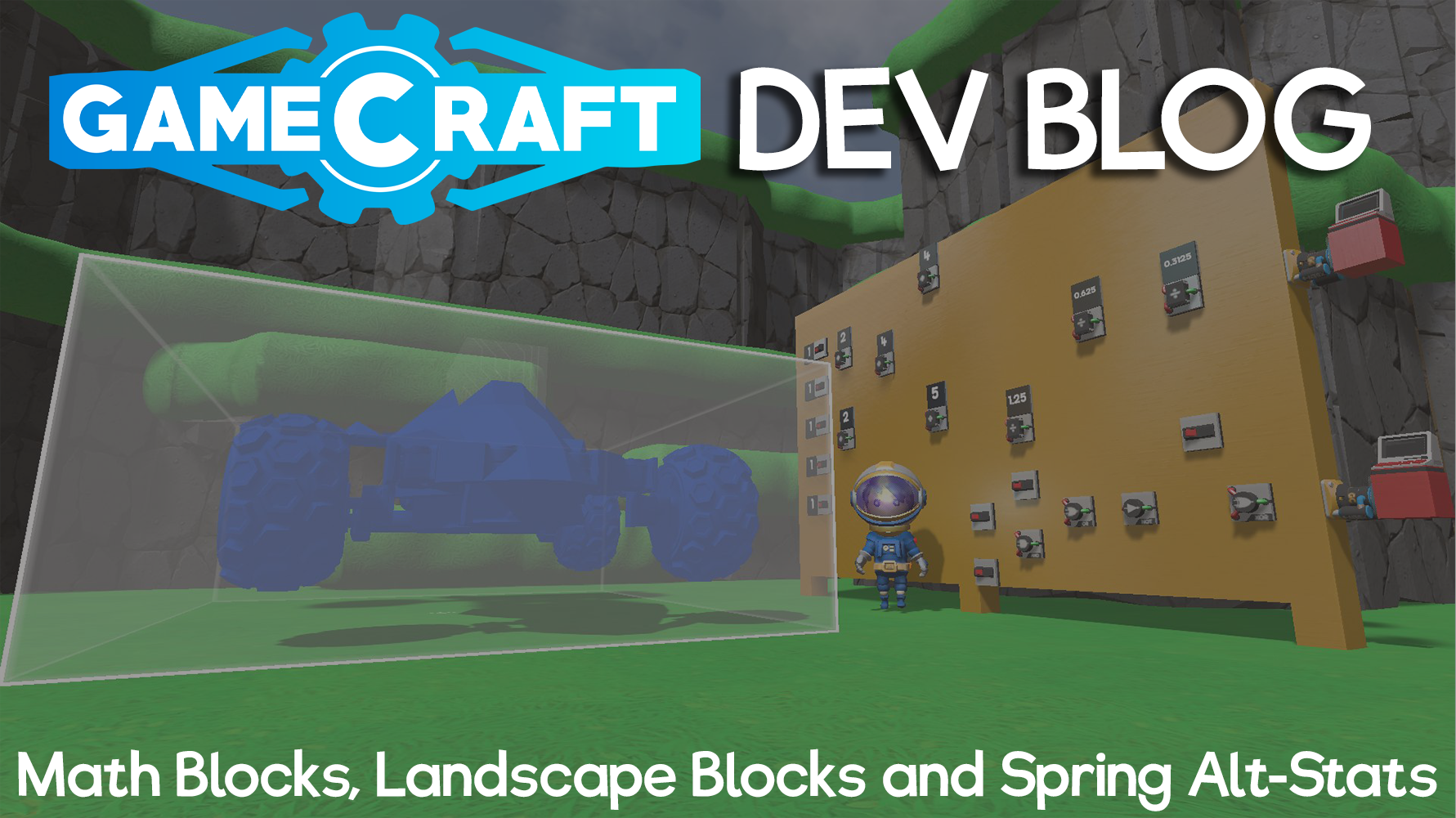
We’re starting to finish up the work we’ve been doing on some amazing features for the next major Gamecraft update and we’ve still got a couple of features left to talk about in this Dev Blog. This week we’ll be diving into Maths Blocks, Landscape Blocks and Tweakable Stats for Springs, which we plan to add in this coming update!

Math Blocks


Last week we showed off some of the new Logic Blocks, in addition (see what we did there?), we’ve also been working on some Maths Blocks. These blocks will open up a myriad of possibilities for you to explore.

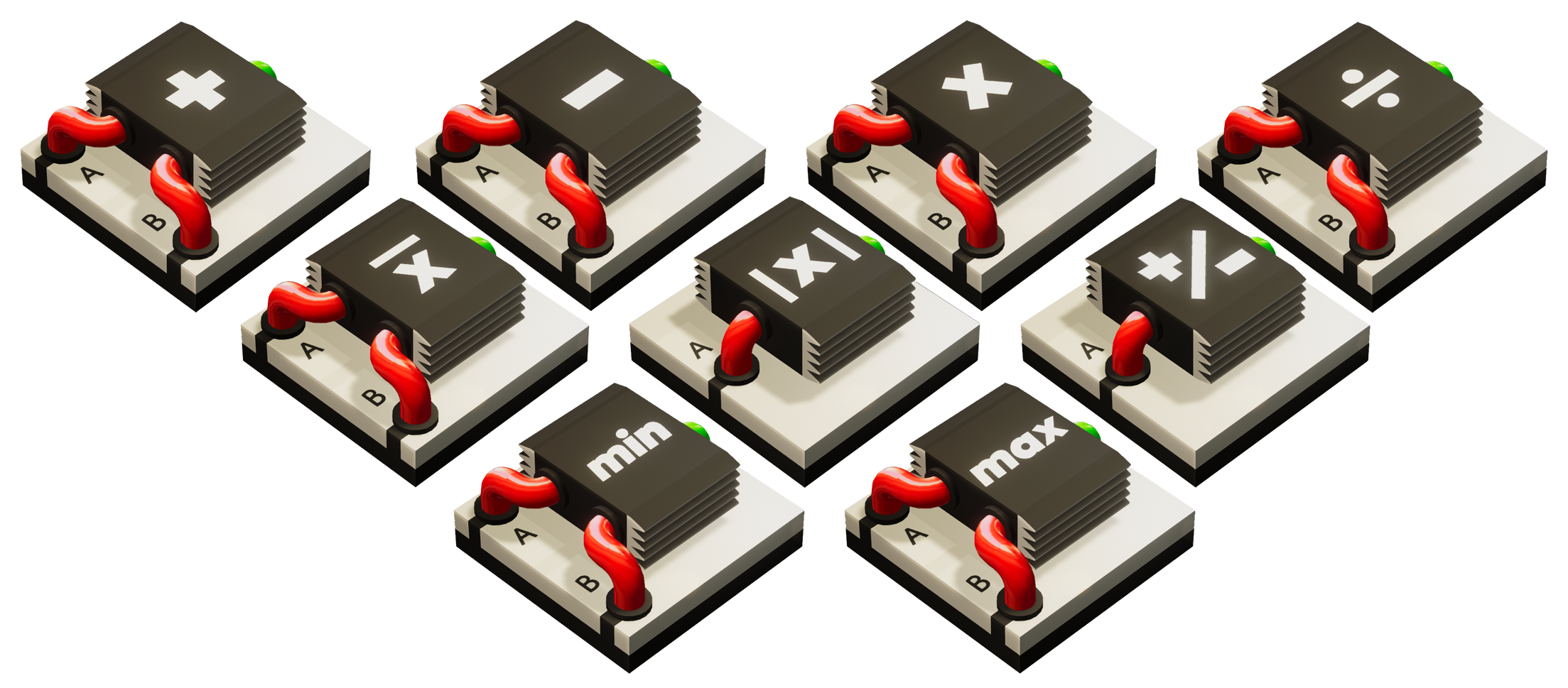
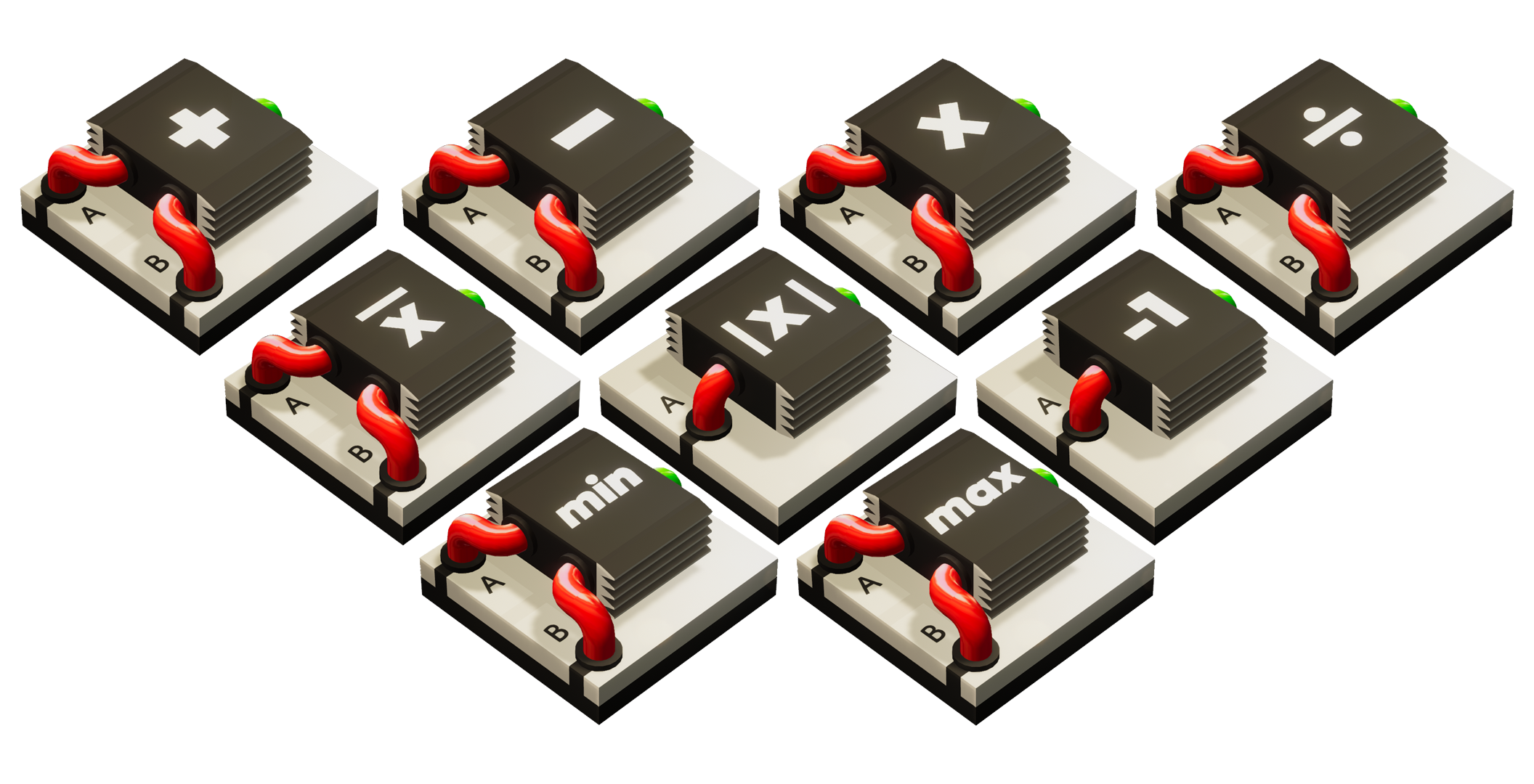
The planned Math Blocks, as seen in the image above are:
  • Adder - Output = A + B ( i.e A = 6, B = 2, O = 8)
  • Subtractor - Output = A - B ( i.e A = 6, B = 2, O = 4)
  • Multiplier - Output = A * B ( i.e A = 6, B = 2, O = 12)
  • Divider - Output = A / B ( i.e A = 6, B = 2, O = 3)
  • Mean - Output is the Average of A and B ( i.e A = 6, B = 2, O = 4)
  • Absolute - Converts any negative input into a positive output ( i.e A = -2, O = 2)
  • Sign - Flips the sign of the input ( i.e A = 6, O = -6)
  • Min - Output = The lowest value between A and B ( i.e A = 6, B = 2, O = 2)
  • Max - Output = The highest value between A and B ( i.e A = 6, B = 2, O = 6)
All of these blocks support uncapped signals and even float values too! That means you’ll be able to multiply a Dial on +0.1 by an input of +6 (gained by adding “On” Switches” together) to get an output of +0.6, which can then be used to get finer positioning on your mechanical Hinges or Pistons. Logic Blocks and functional parts will still be capped to +/-1.

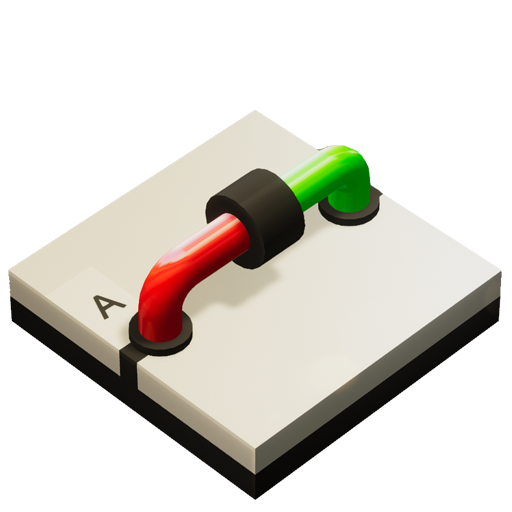
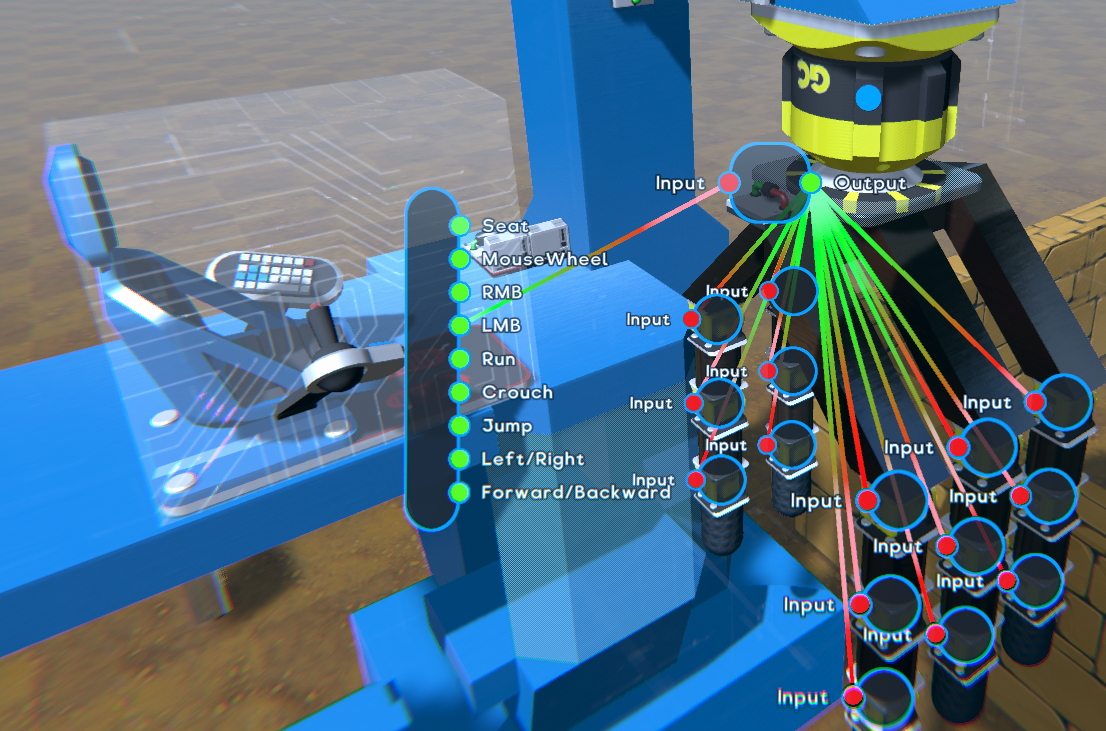
Since there are so many new blocks to link wires between, it might become a little messy for some creations. To combat this we’ve also added a Simple Connector Block that can be used to keep your wires tidy.

Here’s an example of one way to use the connector to clean up your project. Instead of linking each Servo in the grabber to the seat, they are linked to the simple connector instead. This can allow you to put logic in before the simple connector and easily hook it up, instead of having to re-wire all the servos.


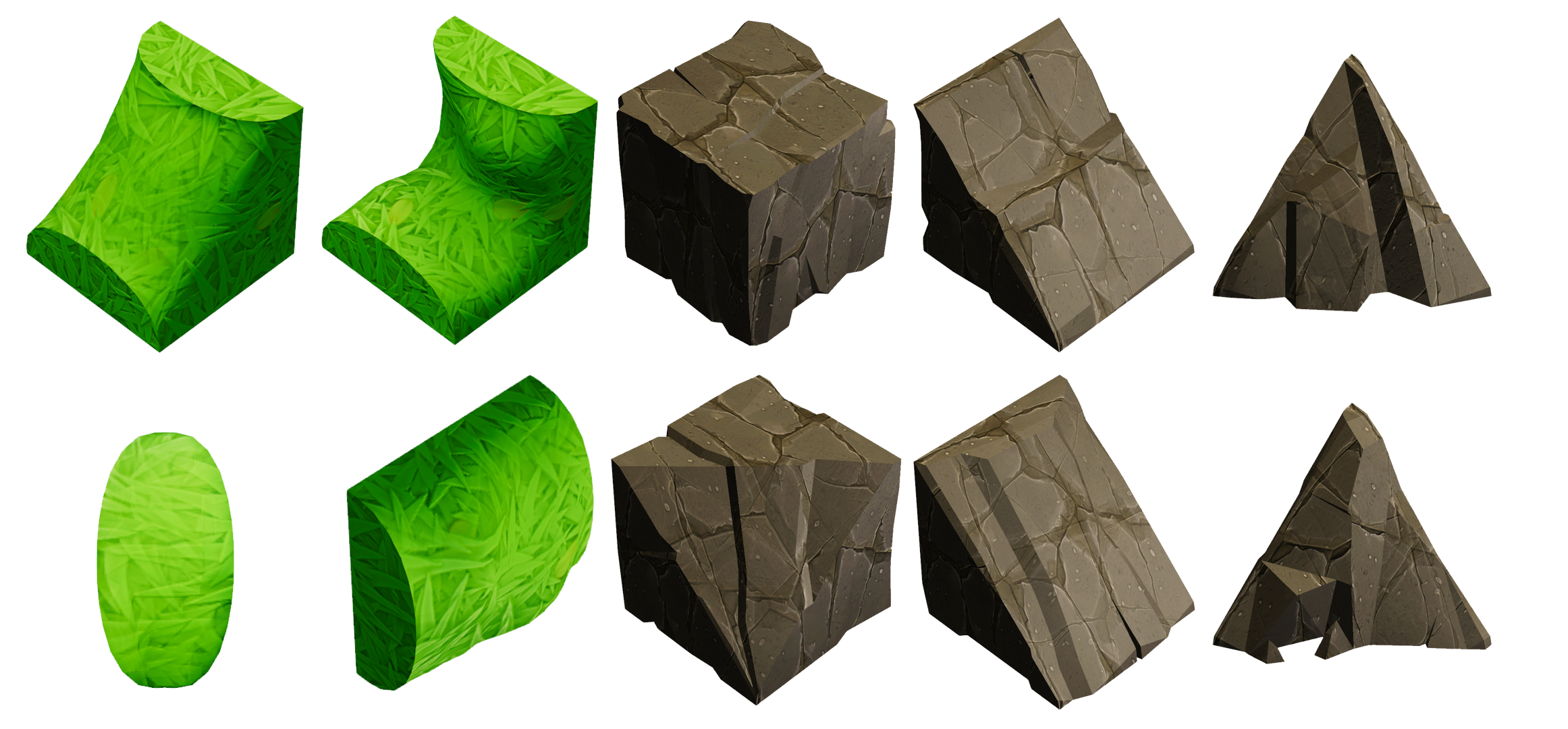
Landscape Blocks


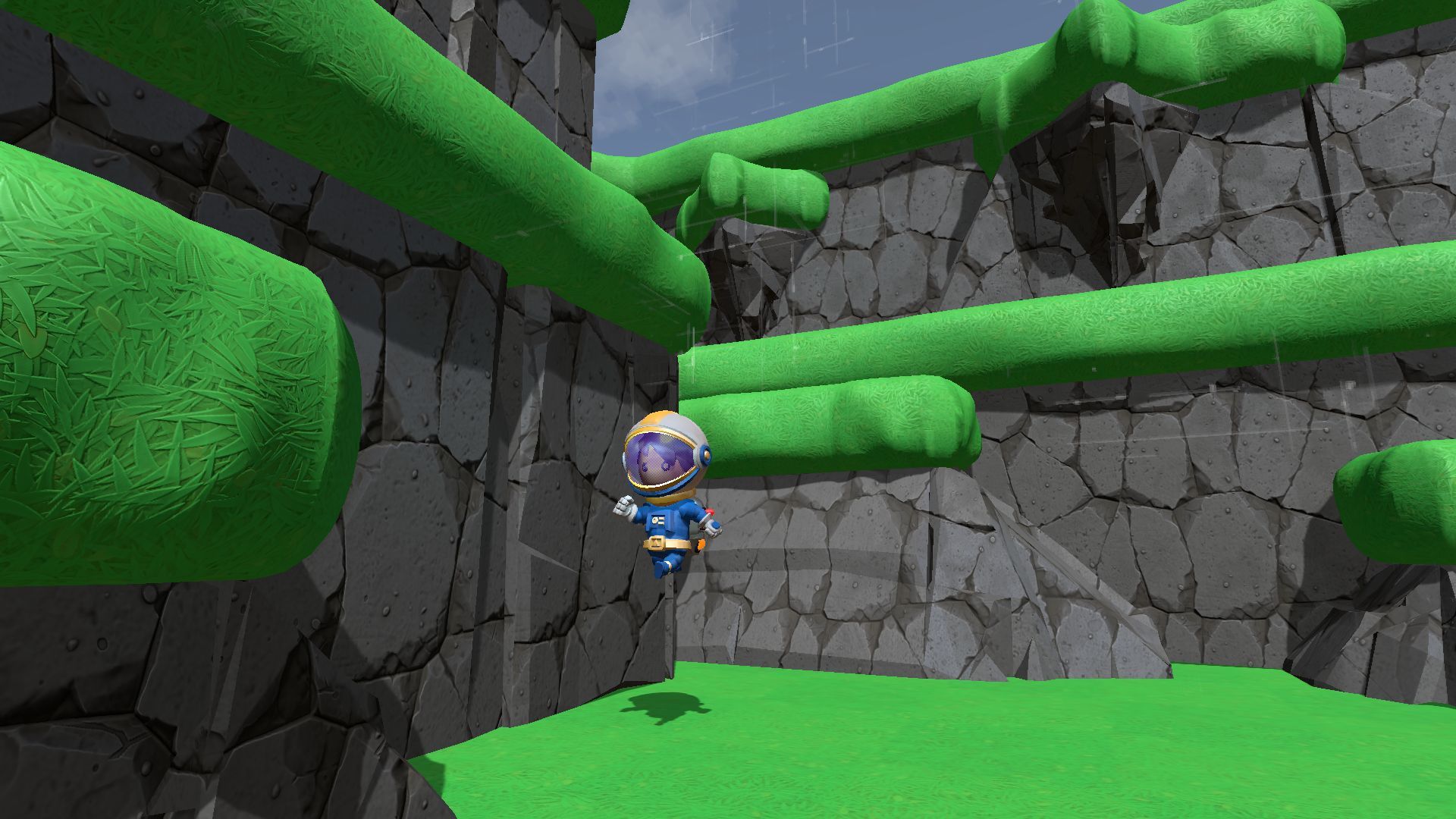
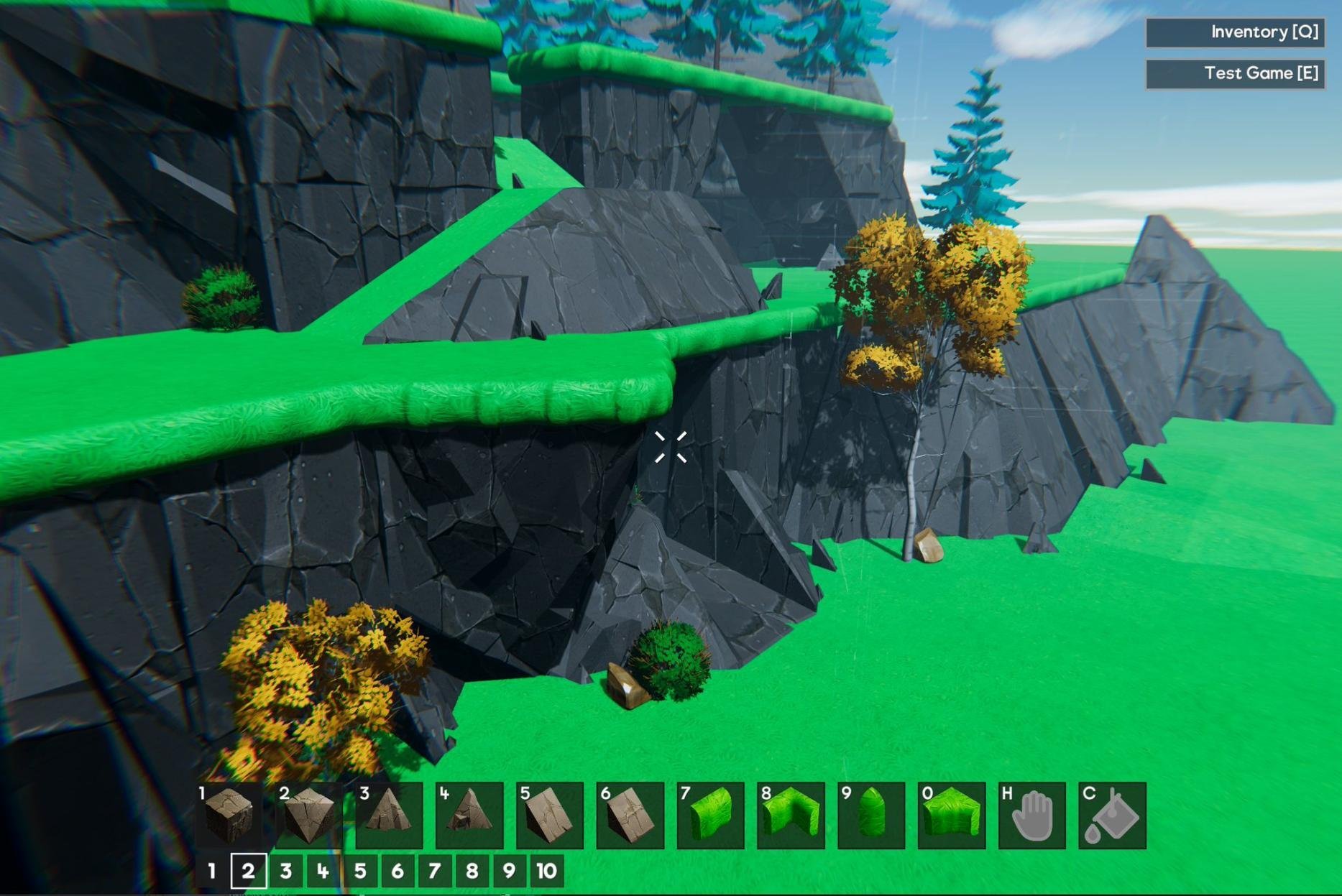
Gameplay is also about level design, so we’re adding a selection of Landscape Blocks for Gamecrafters to use too. These blocks can be combined to create stunning landscapes to bring out some beauty in your level. Below you can see an example of the types of landscapes you can create.


Spring Tweakable-Stats
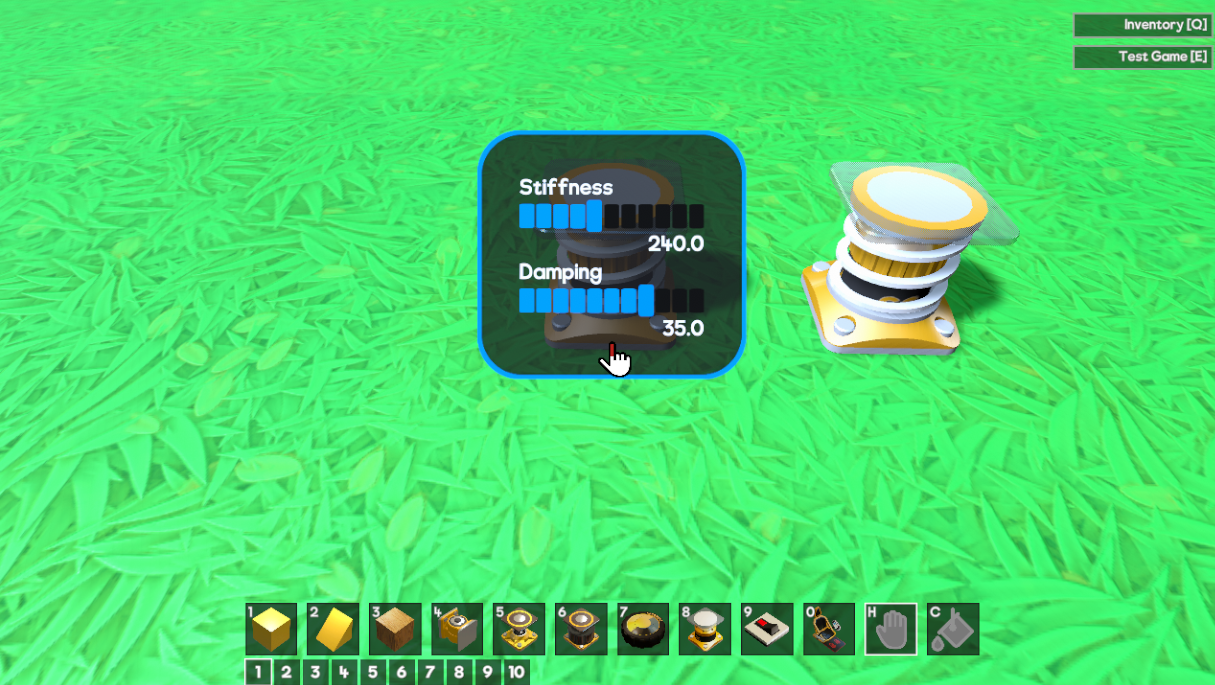
Springs will be getting Tweakable Stats as well. Springs can have their stiffness and damping values changed, to give you much finer control over your suspension and other contraptions.


Stiffness affects the way the Springs handle weight. A lower stiffness will make the Spring less “bouncy” while a higher value will let them react better to large weights. Damping affects how quickly the Spring will try to settle back into position, with a lower damping value making the spring settle quicker.

We hope you enjoy this sneak peek into what we’re planning on releasing in our next update. We’re aiming to release this update next week, and we really cannot wait for all the amazing content you are going to create! If you missed last weeks blog, be sure to give it a read here: Gamecraft Blog 28/02/2020

We're also giving you another reminder that we'll be dropping support for “signal averaging” as part of this update. You can read more about that here:
https://steamcommunity.com/gid/103582791464559041/announcements/detail/1693854158811546458

Please follow us on our social spaces and share your creations with us:
Twitter- https://twitter.com/Gamecraft_FJ
Youtube - https://www.youtube.com/channel/UCkcRFCr9aQxszaYeXcWZjwA
Facebook- https://www.facebook.com/GamecraftGame/
Reddit - https://www.reddit.com/r/GamecraftGame/
Discord - https://discord.gg/gamecraft

Thanks for reading!
The Gamecraft Team
Gamecraft - JoshJammer
Hello Gamecrafters!


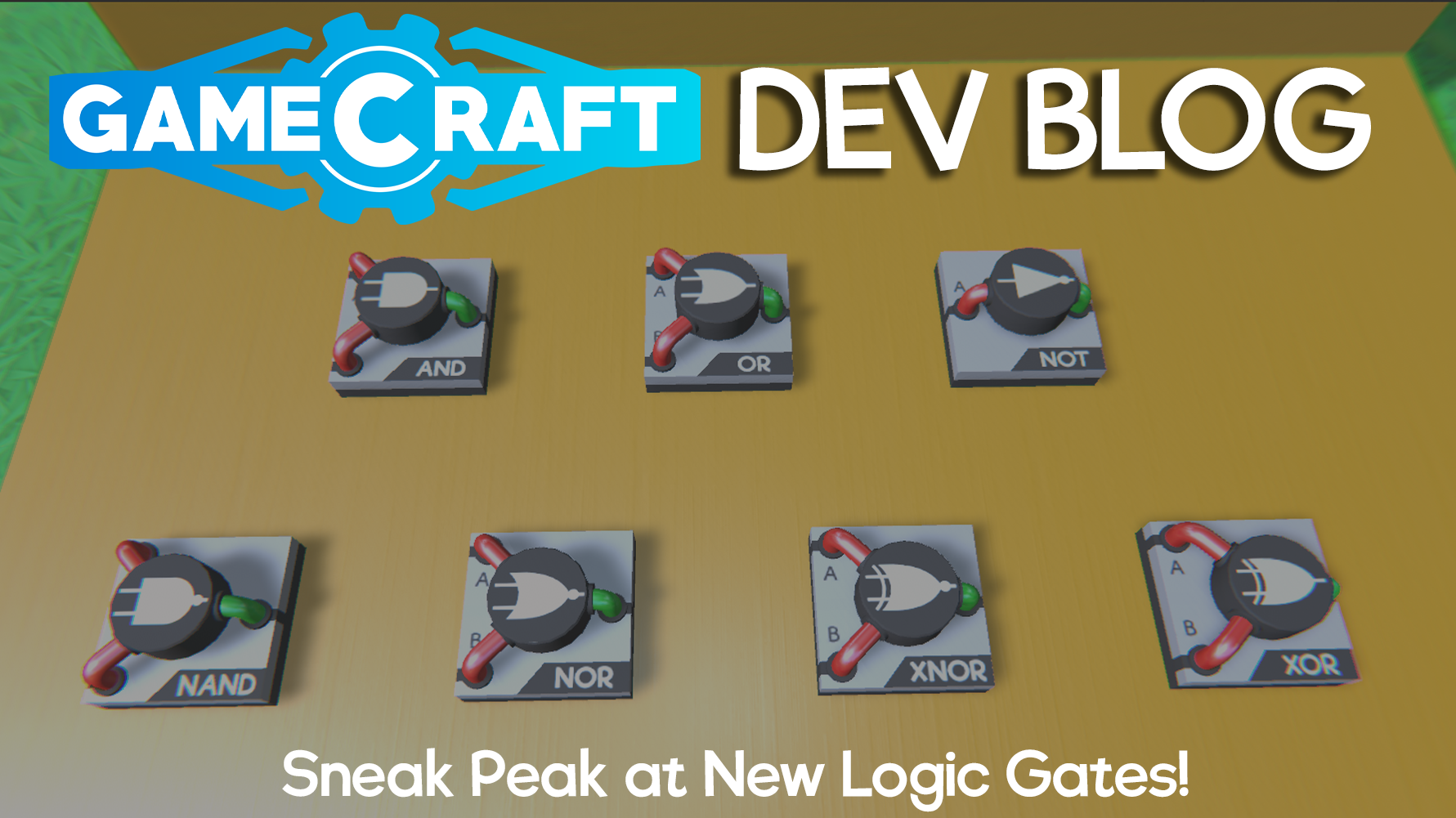
As we’re sure you’re aware by now, we’re working on some amazing features for the next major Gamecraft update and we’re going to talk about some of these features in each Dev Blog leading up to the release. This week we’ll be diving into the mystical world of logic and talking about all the Logic Gate blocks we plan to add in this coming update.


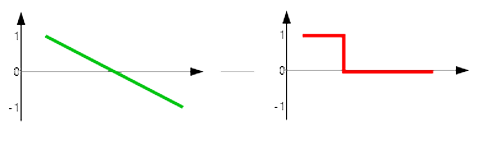
Each logic gate has its own unique function, and each will output a signal that is either 1 or 0. Inputs can be anywhere between -1 and 1, so we decided to round them so they interact nicely with these Logic Gates. Essentially, the input signal is rounded up when it reaches the Logic Gate (e.g. +0.5 is rounded up to +1, +0.49 is rounded down) and then clamped between 0 and 1 (e.g. -0.9 is clamped to 0 instead).


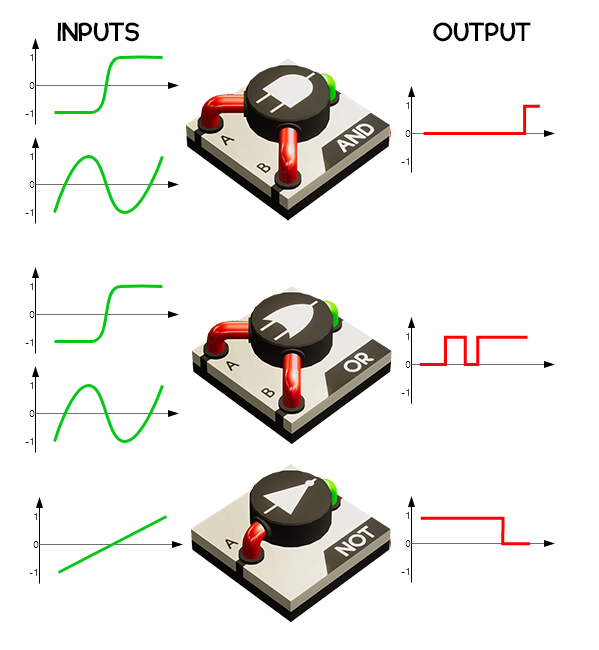
Let’s dive in and take a look at how each of these Logic Gates works, so you have a better understanding of how to optimise these logic gates in your games. We’ll start with 3 basic gates - AND, OR and NOT.


First, the AND Gate. This gate outputs a signal of +1 ONLY when BOTH inputs are receiving a signal of +1. This can be seen in the example above, the output is giving an output of 0 up until both inputs are giving that signal of +1.

Next, we’ll go onto the OR gate. This gate outputs a signal of 1 when EITHER of the inputs is receiving a signal of +1. This could be one or both of the inputs, but as long as one of the inputs is +1, it will give an output of +1.

Next is the NOT gate. This is a simple gate where it provides an output of +1 as long as the input is not +1. Unlike the AND gate, if both inputs are receiving a signal of +1, this gate goes back to providing an output of 0.

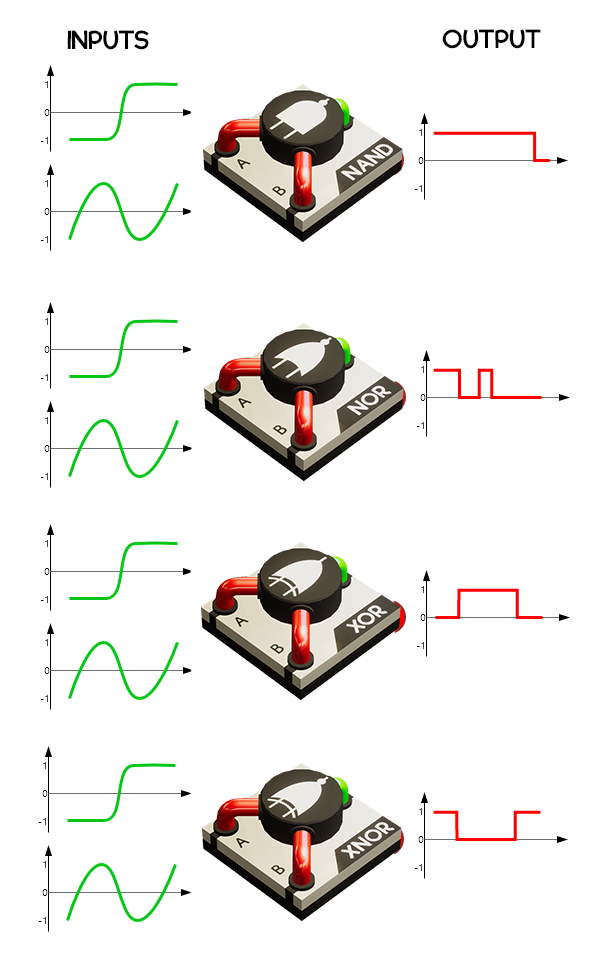
Now that we have these covered, let’s take a look at the rest of the planned Logic Gates. These are slight variants on the AND, OR and NOT gates above. These gates are NAND, NOR, XOR, and XNOR.


The first of these is the NAND gate. The NAND gate is the inverse of the AND gate logic. So, in order for the NAND gate to output +1, BOTH inputs must be receiving a signal that is less than +1. If EITHER input receives a signal of +1, this gate will output 0.

Next is the NOR gate. The NOR gate combines the OR and NOT gate logic together. In order for the NOR gate to output +1, NEITHER of the inputs can be receiving a signal of +1.

The XOR gate is similar to the OR gate, however, it is exclusive. This means ONLY 1 input can be receiving an input of +1 to provide an output of +1. If BOTH inputs receive an input of +1, the output will be 0.

Finally, the XNOR. This gate is a combination of the XOR and the NOT gate. This gate provides an output of +1 as long as BOTH inputs match, as 0 or +1.

All of these Logic Gates, alone or combined, should allow you to create a myriad of logic in your games. We can’t wait to see what you create with them, alongside all the other amazing features coming in this update. These are only the first of many. There are more Math and State blocks to look forward to in upcoming updates as well!

We hope you enjoy this small sneak peek into what we’re planning on releasing in our next update. Remember, we’ll be talking about more of the features that we are currently working on in each Dev Blog leading up to the next release. If you missed last week's blog, be sure to give it a read here: Gamecraft Blog 21/02/2020

We're also giving you another reminder that we'll be dropping support for “signal averaging”. You can read more about that here:
https://steamcommunity.com/gid/103582791464559041/announcements/detail/1693854158811546458

Please follow us on our social spaces and share your creations with us:
Twitter- https://twitter.com/Gamecraft_FJ
Youtube - https://www.youtube.com/channel/UCkcRFCr9aQxszaYeXcWZjwA
Facebook- https://www.facebook.com/GamecraftGame/
Reddit - https://www.reddit.com/r/GamecraftGame/
Discord - https://discord.gg/gamecraft

Thanks for reading!
The Gamecraft Team
Gamecraft - JoshJammer
Hello Gamecrafters!


We’re working on some amazing features for the next major Gamecraft update and we’re going to talk about some of these features in each Dev Blog leading up to the release. This week we’ll be showcasing some of the work we’ve been doing to handle different players interacting with triggers and controllers in multiplayer games.

Multichannel Wiring - Handling interactions from multiple players

We’ve briefly teased this one on our Twitter but we’d like to dive into this feature a little bit more to explain how it works, how this opens up more multiplayer possibilities and how it links to other upcoming features.

Currently, teleport commands are disabled in multiplayer as we had no way of knowing who should be teleported, which would result in the host always being teleported. This is obviously not ideal if you have multiple players running through an obstacle course, getting teleported to the start point when they fall off.

To remedy this, we’ve been working towards “multichannel wiring”. In short, this system will now know which player stepped into the trigger, which player is sat in each Pilot Seat or which player pressed a button. With that knowledge, teleport commands will be able to move that specific player!


This is only the start and we’ve got lots left to do before we can fully support all kinds of multiplayer gameplay but this is already a big step in that direction. Upcoming Logic and Math blocks will also open up some more multiplayer gameplay. A couple of things on that we’ll be working on in future updates are:
  • Allowing other commands to be activated per player (such as flight mode toggle)
  • Object ID’s - To ‘tag’ certain objects (like a ball) so that triggers (like a goal) have the ability to react to only that object entering.


  • Spawn Point ID’s - To handle team based and player specific spawning for games.


  • More Logic and State blocks - To handle objective based gameplay, like scoring ‘x’ goals, or pushing the enemy team’s robots out of an arena.
  • Channel filters & transducers - To react to certain player or object ID’s separately, so that you could only teleport Player 1 when they enter a trigger, while ignoring any other players or teleport all of Team A when any player on that team enters a trigger.

We’re also looking into that pesky bug when teleporting a player while they are in a seat.

We hope you enjoy this small sneak peak into what we’re planning on releasing in our next update. Remember, we’ll be talking about more of the features that we are currently working on in each Dev Blog leading up to the next release. If you missed last week's blog, be sure to give it a read here: Gamecraft Blog 14/02/2020

We're also going to remind you that we'll be dropping support for the channel averaging. You can read more about that here:
https://steamcommunity.com/gid/103582791464559041/announcements/detail/1693854158811546458

Please follow us on our social spaces and share your creations with us:
Twitter- https://twitter.com/Gamecraft_FJ
Youtube - https://www.youtube.com/channel/UCkcRFCr9aQxszaYeXcWZjwA
Facebook- https://www.facebook.com/GamecraftGame/
Reddit - https://www.reddit.com/r/GamecraftGame/
Discord - https://discord.gg/gamecraft

Thanks for reading!
The Gamecraft Team
Gamecraft - JoshJammer
Hi Gamecrafters,

As we mentioned in our last major update post, the introduction of tweakable stats and the wiring system prompted us to switch our signal model from “averaged” to “summed”. All new games create since the Wires, Parameters, Wheels, Settings & More update are already on this new model, but we’ve supported the older “averaged” model in existing saves to avoid breaking them.

In preparation for the upcoming Logic and Math Blocks, we’re going to officially drop support for the legacy signal model with our next update, which is currently planned for early March. This means that all existing saves using the “averaged” model will be automatically converted when the update goes live.

We’re announcing this early to give crafters a chance to load up their published saves and make sure they work with the new model (or tweak them where necessary) in advance. You can check which model your save file uses by opening the advanced info tab (F3). From here, if you see “Signal model: Averaged”, you can convert to the new model by entering the “switchSignalsToSummed” console command (which you can open with ‘/’). After you save this file, it will remain on the new “summed” model.

We’ll give a short example of the key difference between the two models, so that everyone is aware of how the change will impact your creations.

With 2 Switches connected to a single piston:
  • Averaged signals would extend the piston by 50% when one Switch is on and 100% when both are on.
  • Summed signals would extend the piston by 100% when either Switch is on

We’ll post reminders in our weekly dev blogs leading up to the release.

The Gamecraft Team
Gamecraft - JoshJammer
Hello Gamecrafters!


We’re working on some amazing features for the next major Gamecraft update and we’re going to talk about some of these features in each Dev Blog leading up to the release. This week we’re excited to share some details on an extremely powerful and handy feature that we’re sure will interest everyone.

Box Selection - Cut, Copy & Paste


This is a massive addition that will make creating games so much easier. You’ll be able to highlight a section of your level, be it a vehicle, contraption or even a chunk of terrain, then delete, cut or copy it, and paste it anywhere else in your level, you can even open up another level and paste it there!


With this tool, stats and existing wires are copied too, so you can duplicate your existing vehicles and drive them around in a few simple actions. We’ve recorded a quick video to showcase this in action to show how quick and easy it is to copy multiple items in your level. Thanks to Paprika for the car used in this video.


Pro-tip: You can copy and paste from other crafters submissions in the Prefab Workshop. For example, you could build your own racetrack, then copy a car from the Workshop and paste it in your level. - Be sure to credit them in the description.

Pro-tip: In order to speed up the creation of levels. Make a set of prefabs to copy from. This could be in the same level or a different save. Here’s an example of what that might look like.


We hope you enjoy this small sneak peak into what we’re planning on releasing in our next update. Remember, we’ll be talking about more of the features that we are currently working on in each Dev Blog leading up to the next release. If you missed last week's blog, be sure to give it a read here: Gamecraft Blog 07/02/2020

Please follow us on our social spaces and share your creations with us:
Twitter- https://twitter.com/Gamecraft_FJ
Youtube - https://www.youtube.com/channel/UCkcRFCr9aQxszaYeXcWZjwA
Facebook- https://www.facebook.com/GamecraftGame/
Reddit - https://www.reddit.com/r/GamecraftGame/
Discord - https://discord.gg/gamecraft

Thanks for reading!
The Gamecraft Team
Gamecraft - JoshJammer
Hello Gamecrafters!


We released a new major update this week which has some fantastic new features. We’ve added a few more settings screens, new tyres, tweakable part stats and a whole new way to wire things together! You can read about all the changes in our Update blog: MAJOR BUILD: Wires, Parameters, Wheels, Settings & More - LIVE NOW!

Here are just a few amazing creations our Gamecrafters have made in this update so far:
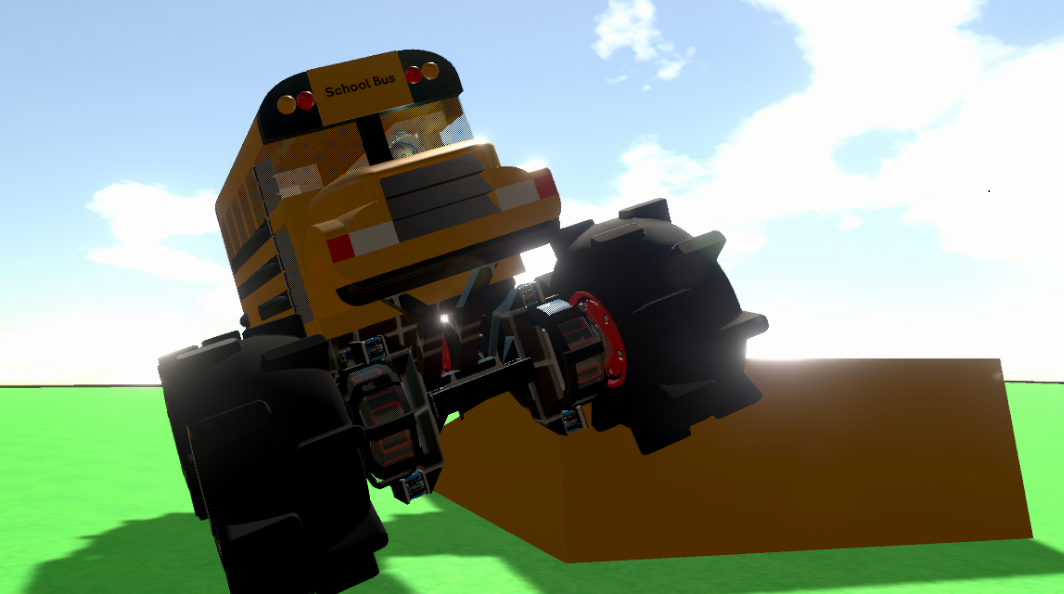
Monster Truck School Bus by Mr.Rotor


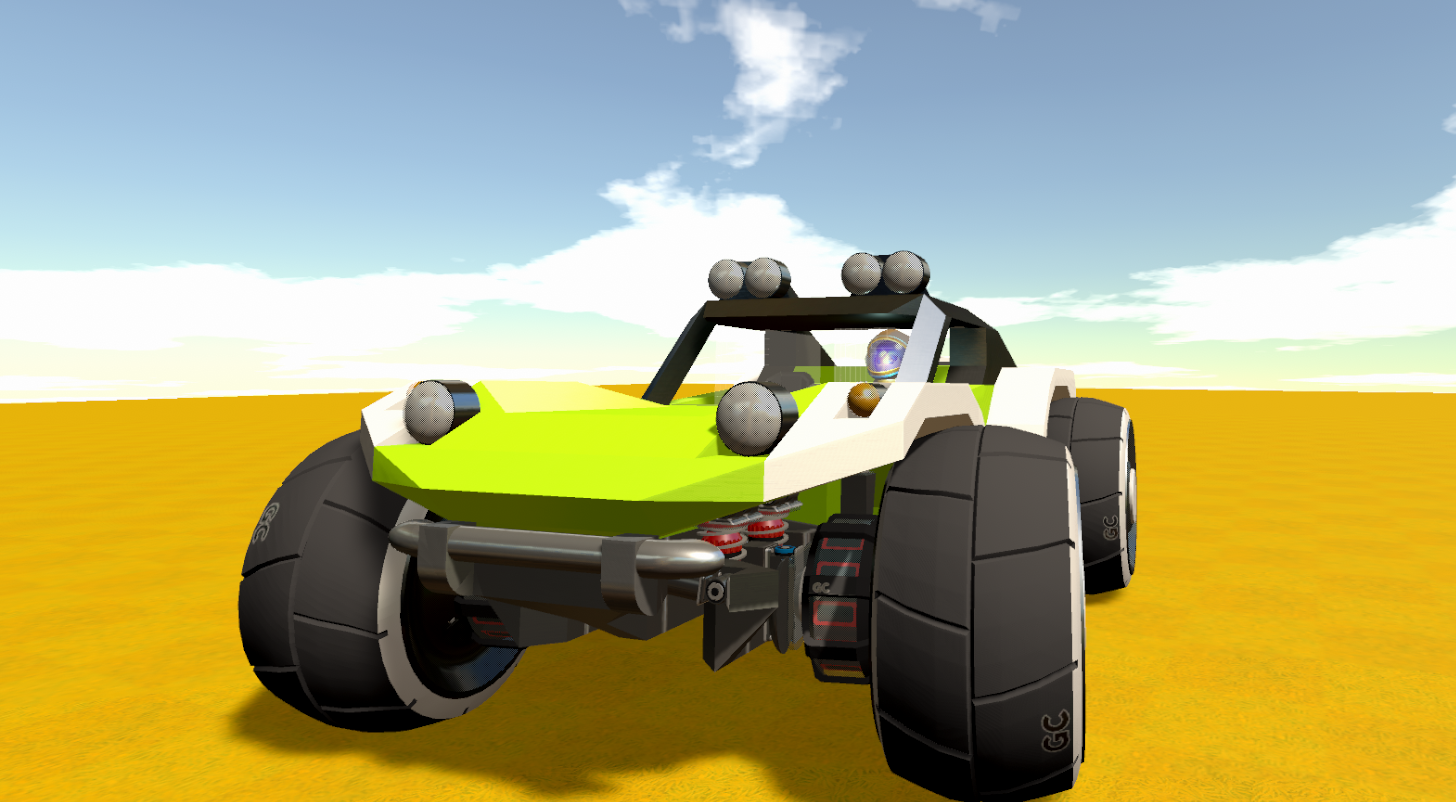
Trophy Truck 2 by Bug


What are we working on next?
We are working on some great features for the next update. We’re going to talk about a couple features in each Dev Blog we release, leading up to the release. In this Dev Blog, we’re going to share a couple of the smaller Quality of Life features with you. Both of these features have been requested by the community and we totally agree that these would be a great addition and should make it quicker to create prefabs and games for you to share in Gamecraft.

Updated Inventory Screen


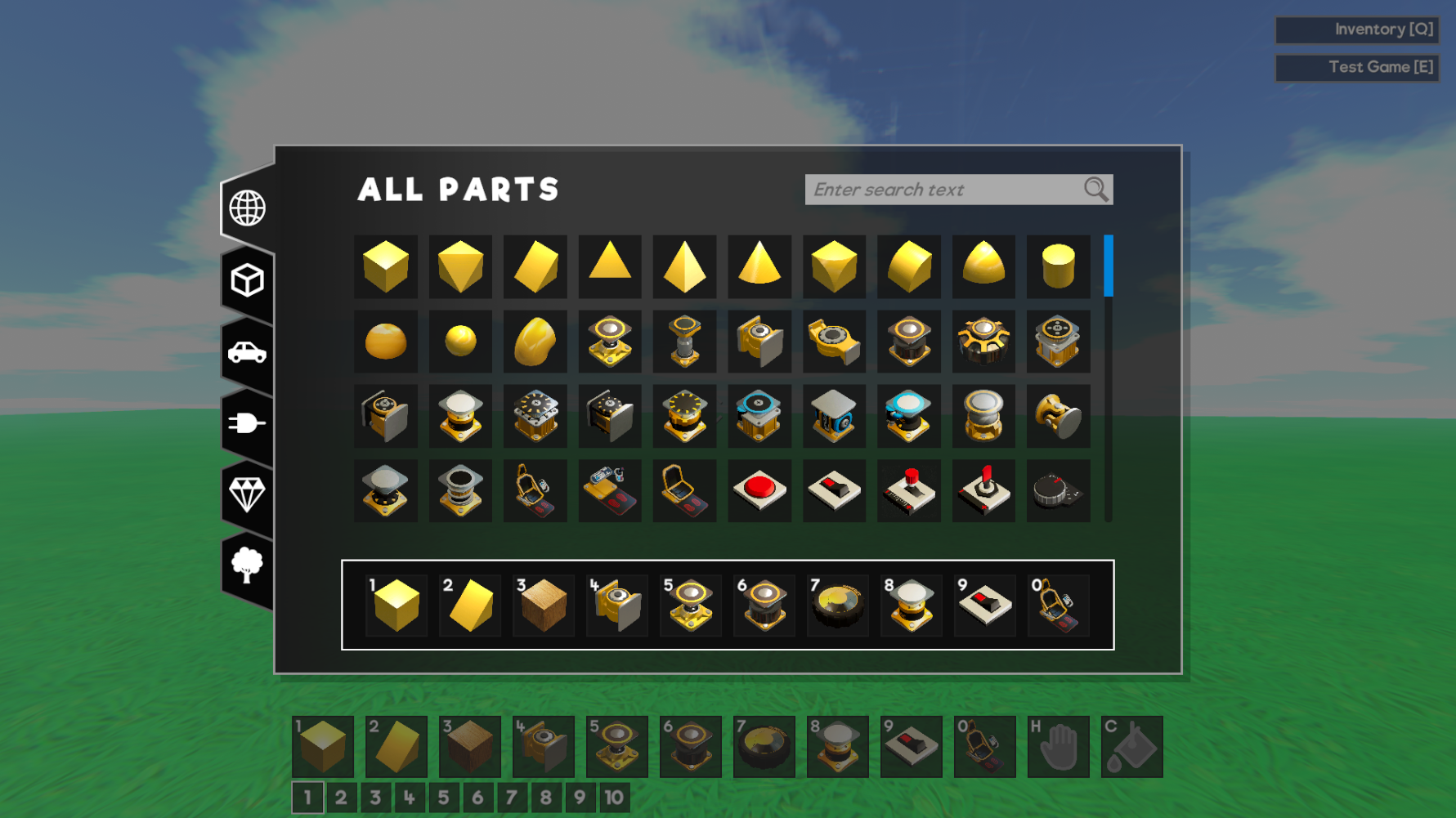
In this new inventory, you’ll be able to search for specific blocks using the search bar, so if you want to find a Piston, just type in Piston and all the different Piston types will appear.

We’ll also be separating parts into categories, such as Shapes, Logic and Cosmetic. Clicking on shapes will give you all the different primitives such as cubes, sphere or edge in all the different materials.

These changes aim to clean up the inventory as well as making finding parts easier as we continue to add more and more parts to Gamecraft.

Improved Part Picking


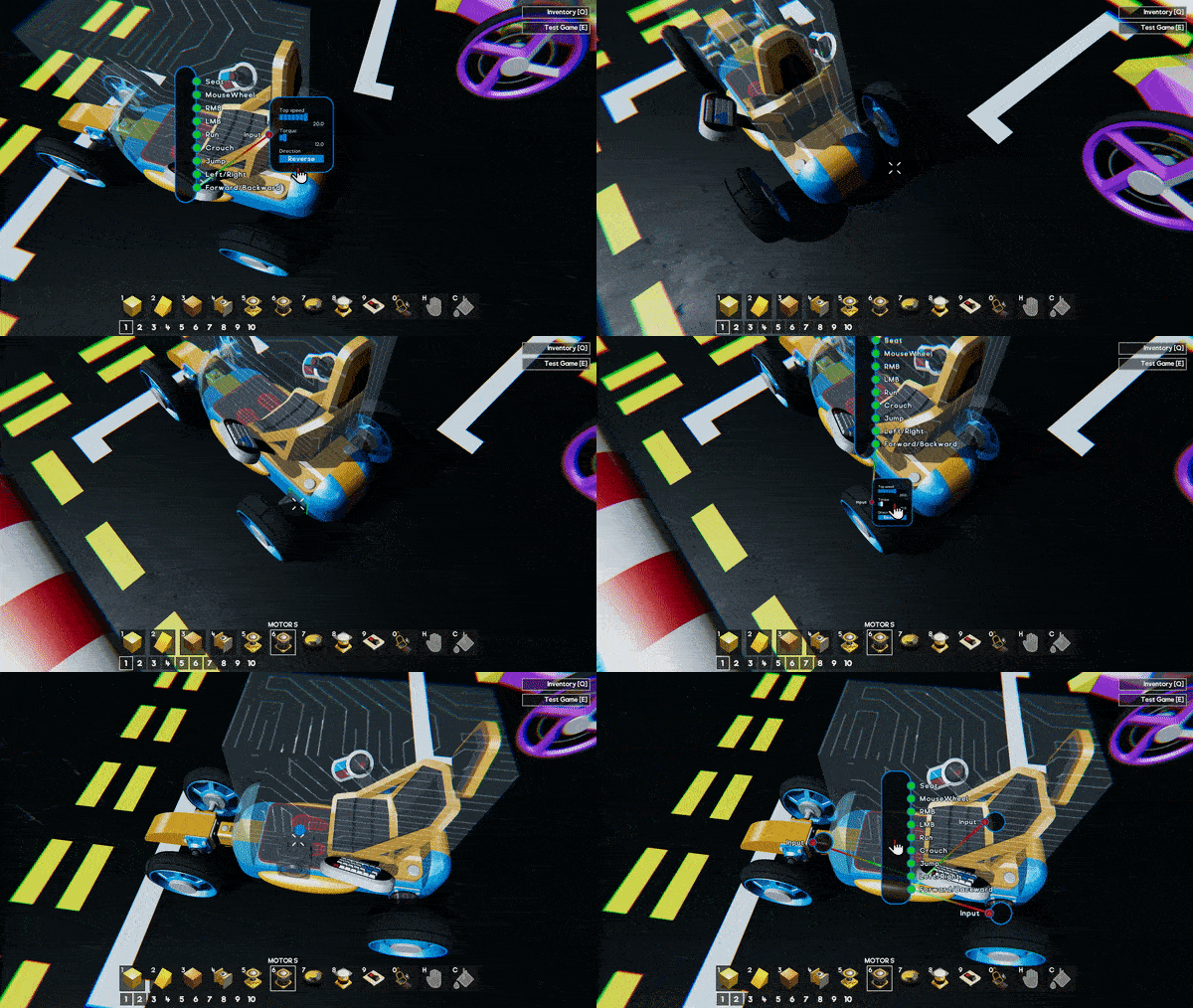
We’re making an improvement to the part picking feature (middle mouse button) which now copies existing connections and tweakable stats of the selected part. This should massively speed up the time it takes to make machines as you no longer need to rewire or edit each part you place to have the same stats.

We hope you enjoy our recent update and this small sneak peak into what we’re planning on releasing in our next update. Remember, we’re planning to talk about more of the features that we are working on in the Dev Blogs leading up to the next release. Please follow us on our social spaces and share your creations with us:
Twitter- https://twitter.com/Gamecraft_FJ
Youtube - https://www.youtube.com/channel/UCkcRFCr9aQxszaYeXcWZjwA
Facebook- https://www.facebook.com/GamecraftGame/
Reddit - https://www.reddit.com/r/GamecraftGame/
Discord - https://discord.gg/gamecraft

Thanks for reading!
The Gamecraft Team
...