NEW! Slot Machine - Imbue a weapon with +25% critical chance (green star).
NEW! Melon weapon.
NEW! spectating when dead.
NEW! Superstar Kevin, Salem, Senna, Julia, and Amber skins.
NEW! Rogue Draco skin.
Salem's kit has been given a much need buff.
Bosses now drop one reroll.
Many UI elements have been overhauled.
It is now easier to tell what badges you do/don't own from the Black Market badge coupons.
Leo ammo HUD added.
JM ammo HUD added.
Wolf's Momentum no longer reduces Combo Attack's cooldown.
The large damage numbers have been updated (give it a try if you're already using small damage numbers).
You can now close the shop with (ESC) or (B).
Final Blow badge changed to flat execute chance.
Snowcap's hazard re-enabled.
The Dump's hazard re-enabled.
Common badges moved from Black Market to Market.
Quick-buy now displays equip description when pressing the hotkey. Players must now hold down the quick-buy hotkey to buy an upgrade.
A number of boss names have been changed.
Witch can no longer damage players mid-dash.
The tutorial has been updated to include new features.
NEW! Combat Rework
Weapons and Items have been limited to five (5) each. As more and more generic weapons get added to the game, full generic weapon builds break game balance. This change also makes it easier to max out on equips already held. While it was funny to buy everything in the store, these limits are a huge boost to game balance. More content will come which will allow players to adjust the number of weapons that can be purchased at the tradeoff of other slots (and vice versa).Combat numbers have been increased by an order of magnitude. This helps with integer based computations and small percent-based modifiers not having any effect in some cases (looking at you damage badges).Combat is something that will continue to evolve as we play test (user feedback is also welcome).
NEW! Base Lobbies
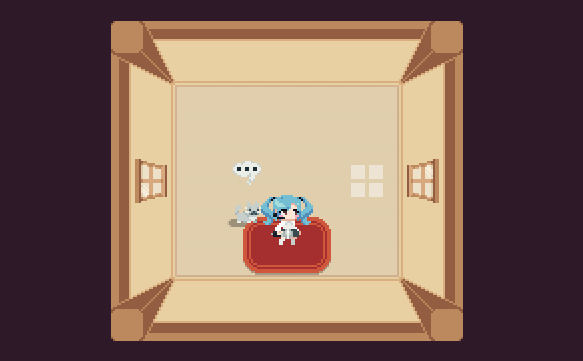
Bases have replaced the traditional character select screen. This is the perfect chance to show off your home decor skills. More furniture will be coming in future updates!
NEW! Character Melody!
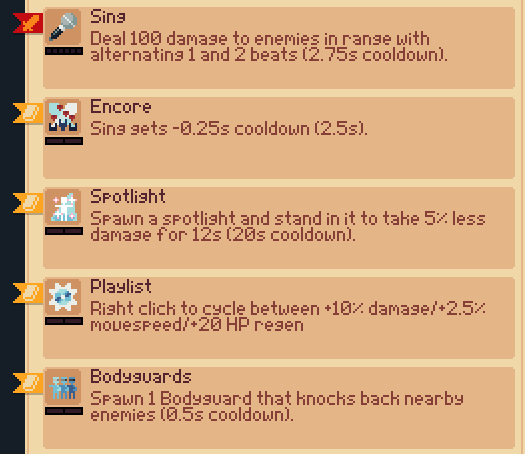
NEW! Melody "The Idol" - It's her time to shine.NEW! Rogue Melody
NEW! Draco Rework
We've changed Draco's kit to fall more in line with the power level of other characters.
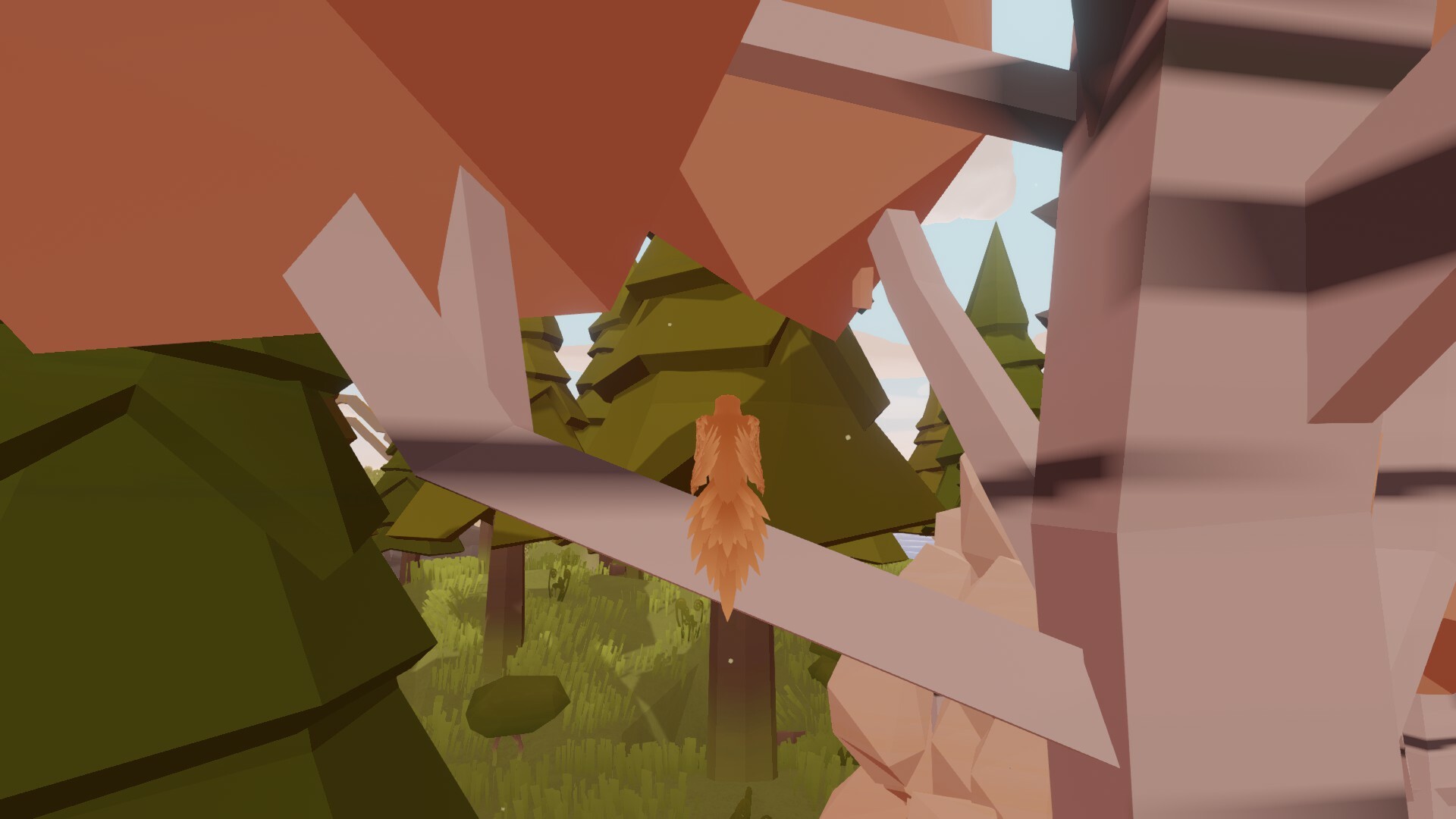
Our monthly Feather hangouts are the perfect place to discover new things within the game, like how to land, or where the chillies are on the second island. (Make sure you try flying through them!) ːbirbSmileː
(Credit: fishears)
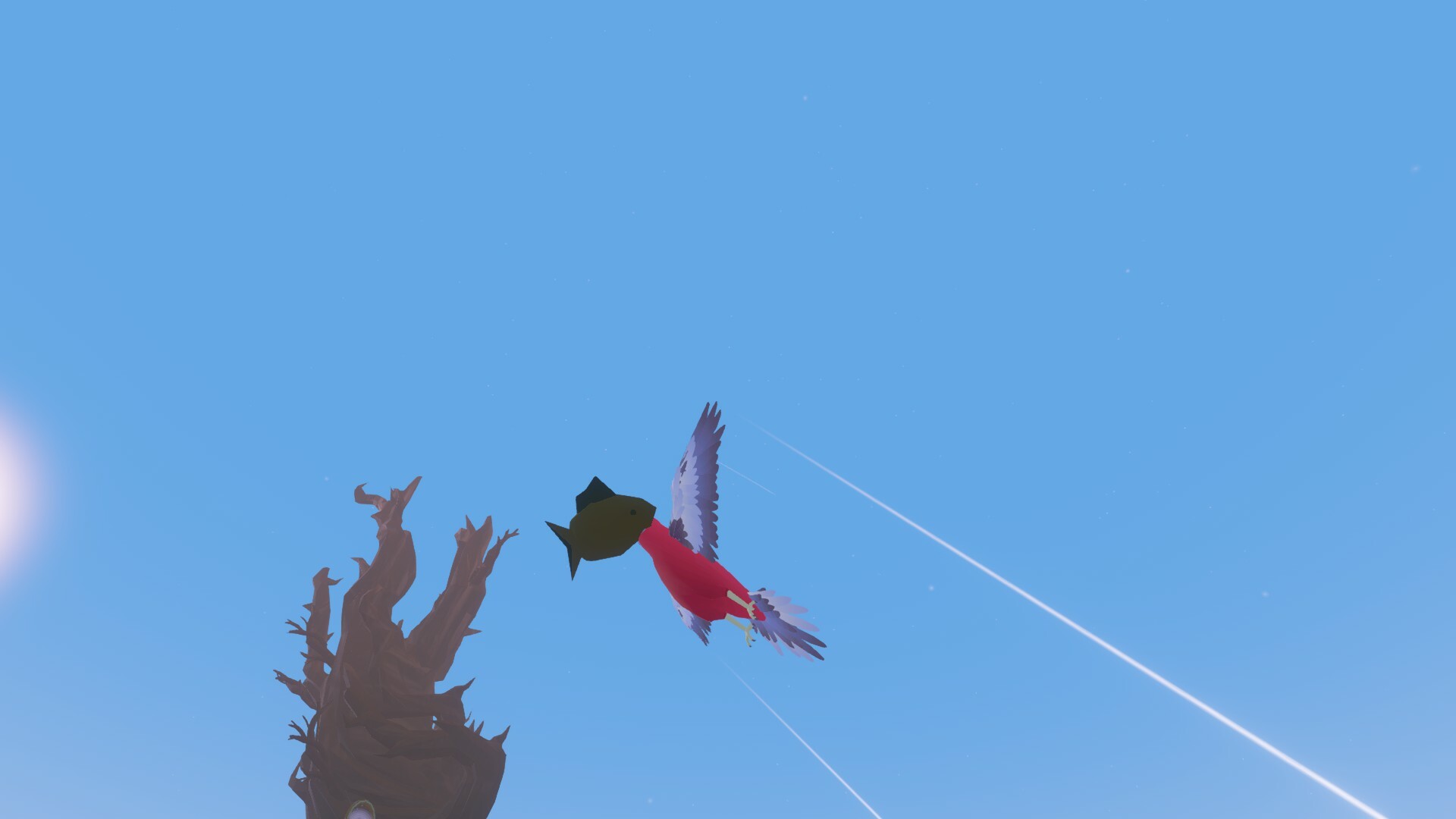
The 'feather-photos' channel in our Discord server is also full of fishing success stories, like this first catch!
(Credit: SagaYellowburg)
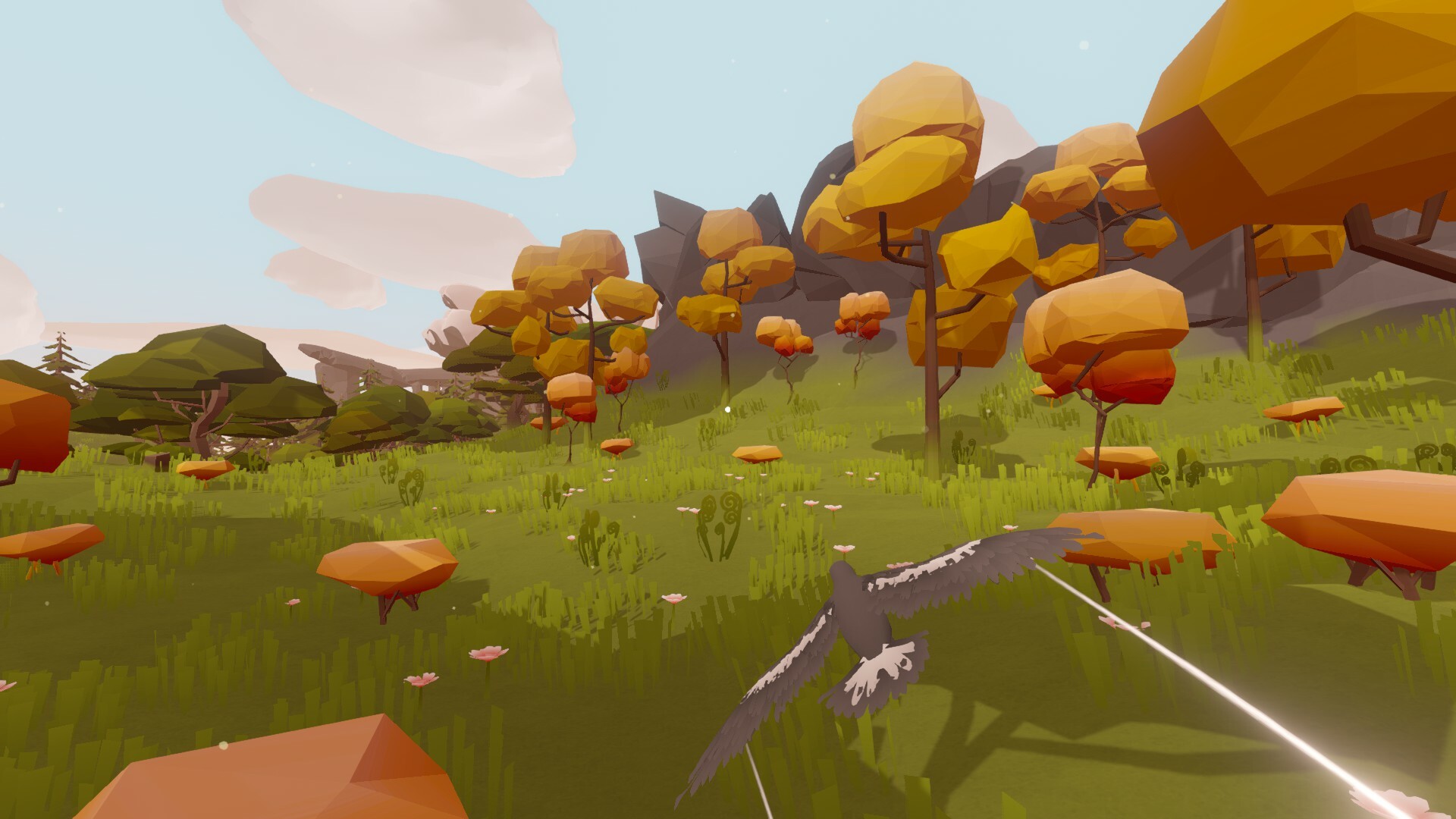
(Credit: EvacAlec79)
A monthly screenshot round-up wouldn't be complete without a sunset.
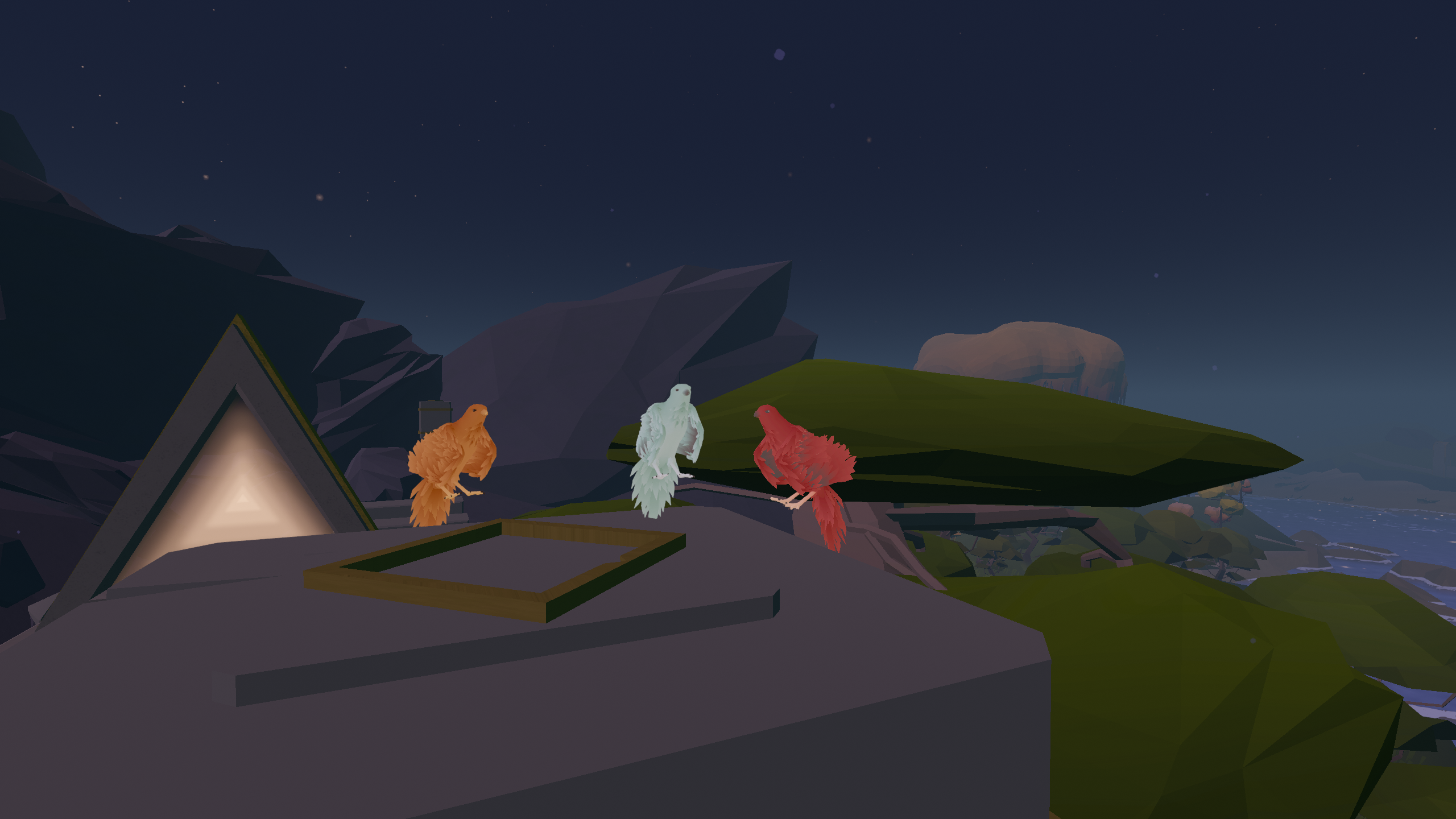
(Credit: Me!)
And to finish off, here's a snap I took during our July hangout! If you wanna come along to the next one, join the server here!
I hope you're all having a relaxing week. Go fly through some chillies, or catch a fish! (Or do whatever the heck you want. The skies are yours!)
Overwhelming playtester feedback has confirmed it was a bad idea to allow a single button press eject you from the car at any speed or altitude. This has now been fixed.
Epicenter VR's first patch is now complete! These updates are based on feedback I received during an early access live stream hosted by IndieVR on YouTube!
Here is a break down of the patch:
Added glowing outline to objective items (Appears when close by, you'll still need to follow the compass) Added damage indication on screen Added suppressor spawner to ammo box Added player footsteps sounds Updated tutorial text Resized tutorial area's props/text Moved options panel down in main menu scene Increased player step height Updated mission compass headings to more closely align with objective locations Info tablet now gives an audible chime when it updates the active objective Zombies can now hear the player moving around (the faster you move, the further they hear you) Increased zombie FOV from 75 to 150 Fixed police station gate not closing when the mission giver is talking to the player Removed excess colliders on grass near trees (should prevent getting stuck as often)
The Speedrun Achievement is now no longer unlocking for everyone and working as intended again. Plus the achievement text has been updated to reflect the new time.
Thank you S0FTERSIN for making me aware of this issue!
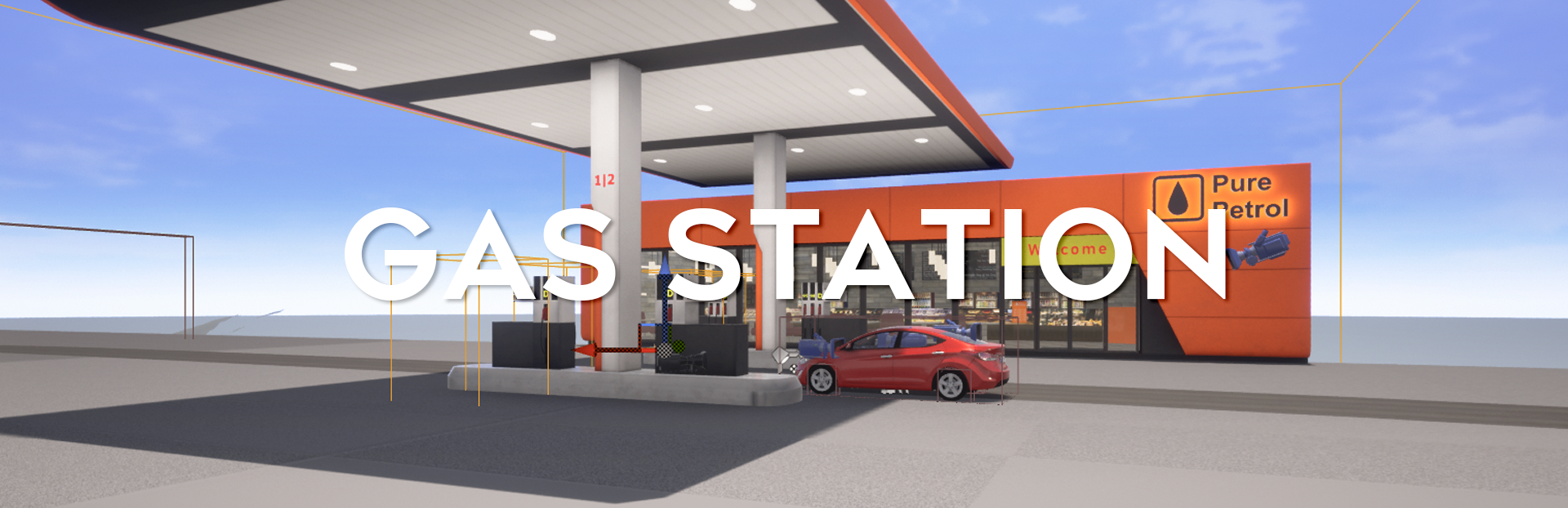
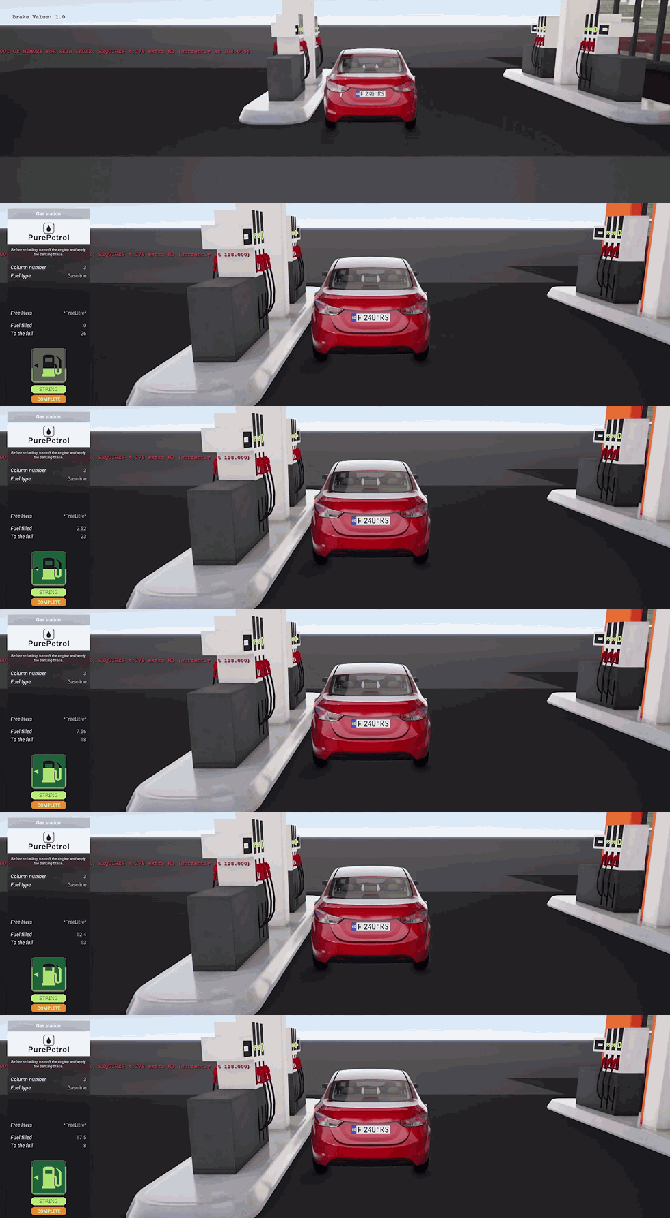
The player arrives at the gas station, drives up to the gas station they need, depending on the type of fuel and the side of the fuel tank hatch, the Overlap event is triggered.
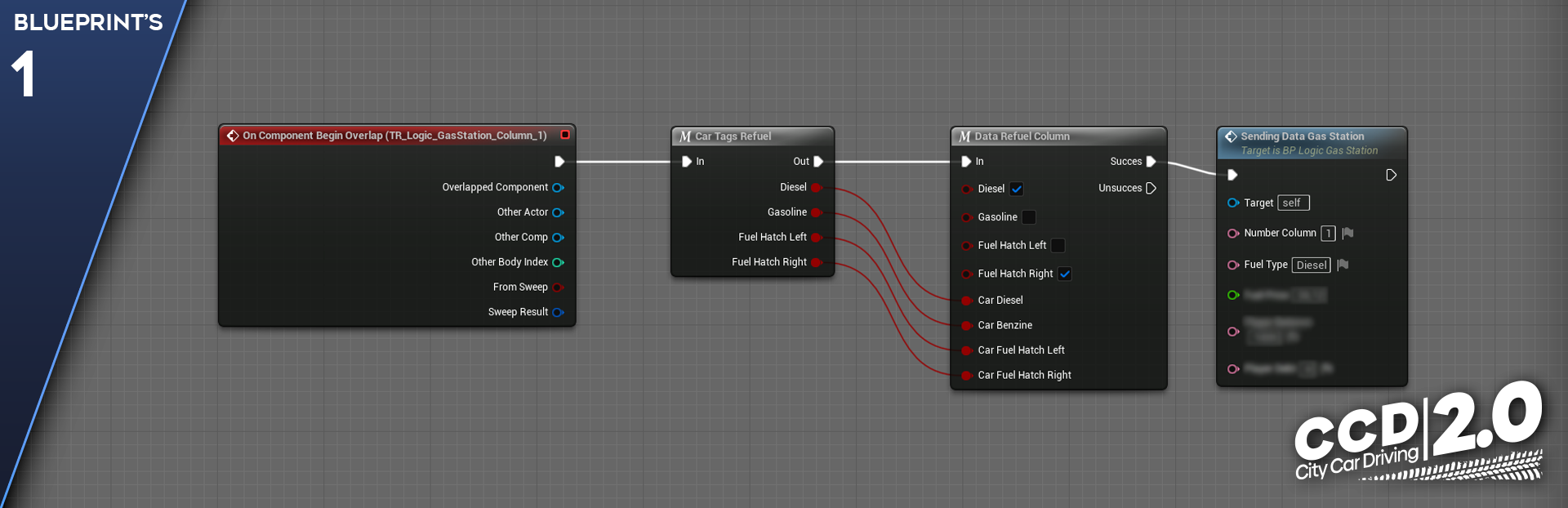
The OnComponentBeginOverlap event is called when the player hits the trigger of the refueling column, further logic is triggered.
The CarTagsRefuel macro receives data from the car, what type of fuel it has, and on which side it has a fuel tank hatch.
The DataRefuelColumn macro receives data from the CarTagsRefuel macro and compares it with the specified parameters of the refueling column.
The SendingDataGasStation function generates and sends all the data to the refueling logic.
After the data is generated, the refueling script is initialized.
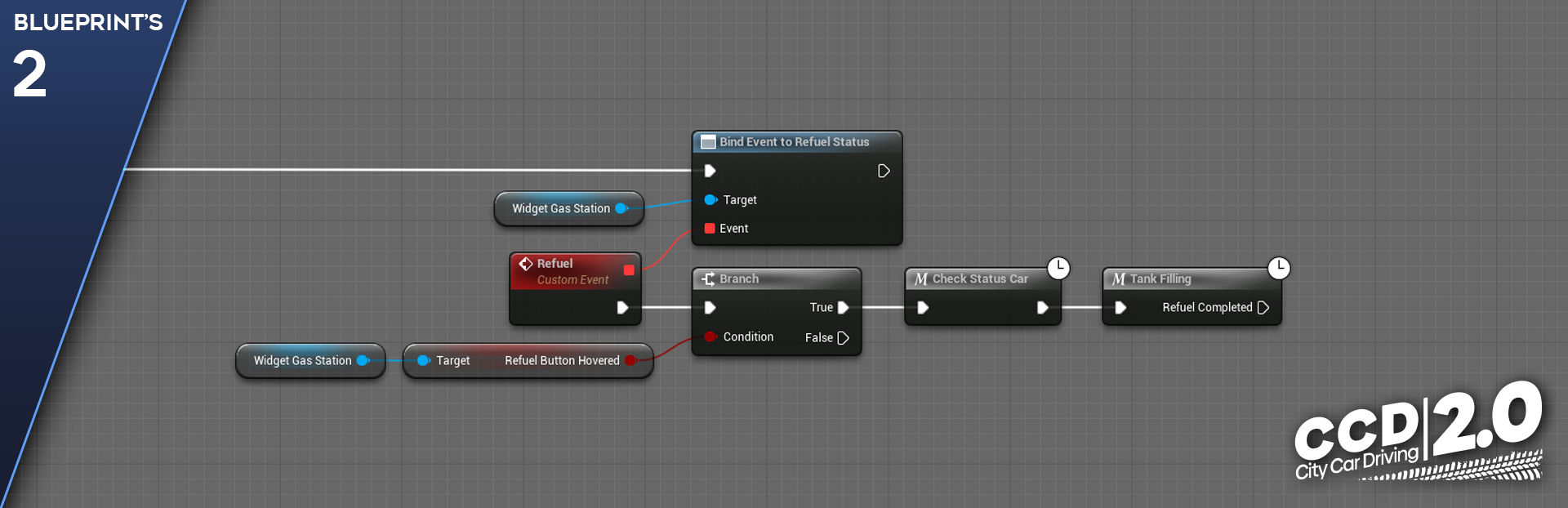
The script initialization has passed and the script has subscribed to the RefuelStatus event via the BindEvent to RefuelStatus node. Now, when this event is called from anywhere else, the event in our script will trigger. This is called Event Dispatcher.
As soon as the event to which the script is subscribed is triggered, the Refuel post-event is called and the chain of checks is started.
First, the status of the RefuelButtonHovered variable is checked (whether the button is pressed or not) via the Branch node. This node checks whether the value being checked satisfies any specified conditions; in this case, it is checked whether the value of the RefuelButtonHovered variable is TRUE or FALSE. If the button is pressed, the check is successful because the variable returns True, and the chain continues.
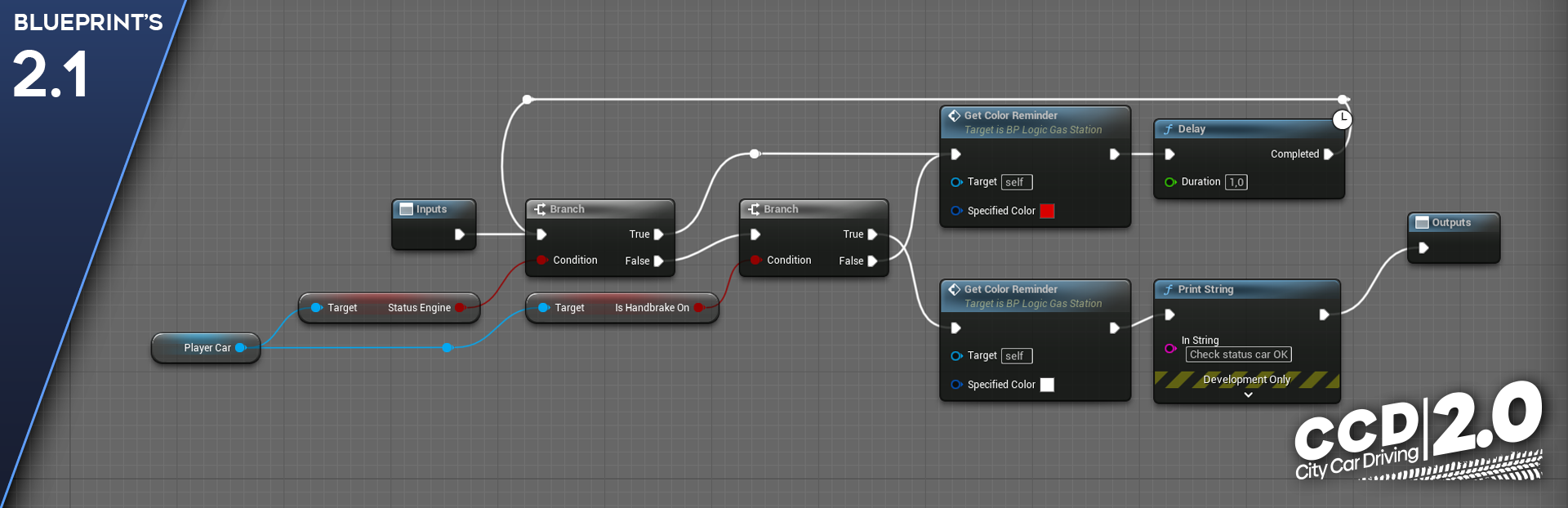
Check is carried out via the CheckStatusCar macro, inside which the following is checked:
The first two Branch nodes check whether the engine is turned off and whether the parking brake is activated. If this check is passed, the macro proceeds the script’s progress further.
If the conditions are not met, the macro simply waits for the actions to be performed via the Delay node (time delay node).
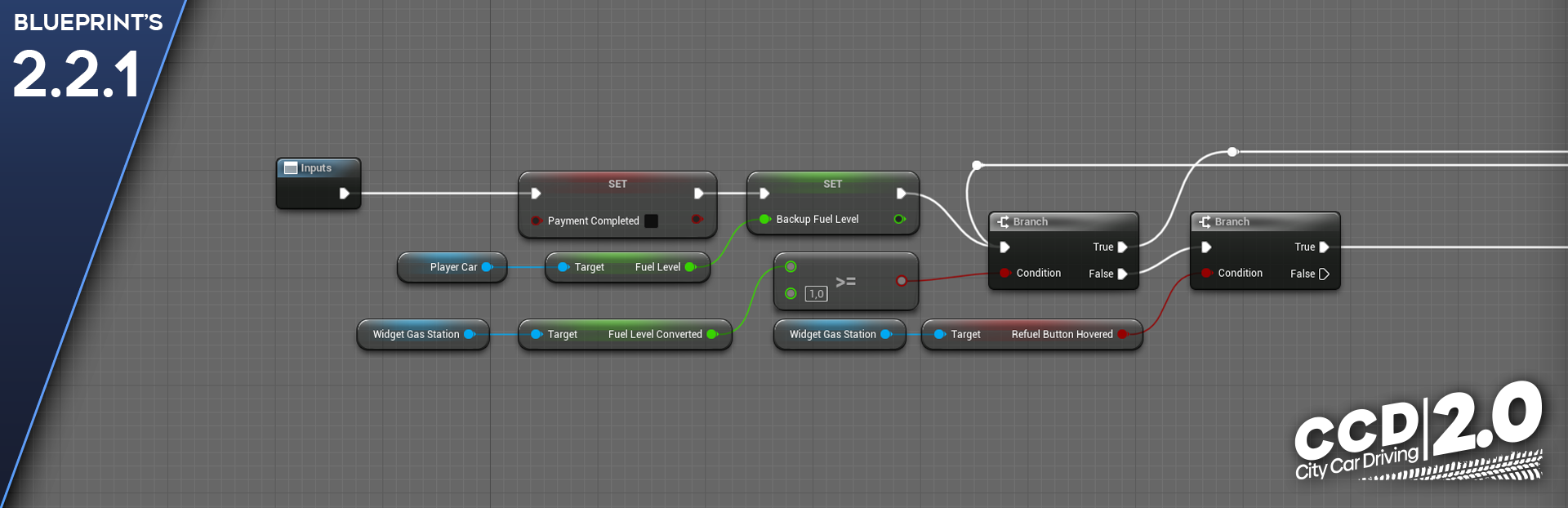
Next comes the check and execution of actions via the TankFilling macro, inside which the following is checked:
The refueling confirmation variable is initialized and set to False. At this stage, our script is already ready to complete refueling.
After that, the current fuel level is recorded in the BackupFuelLevel variable and stored there until the end of refueling.
In the FuelLevelConverted variable, the tank filling level was previously formed into a decimal structure, i.e. the tank level is measured not in liters, but in fractions from 0 to 1. After that, via the Branch node, it is checked whether the tank has filled up to 1.
Next, the script checks via the Branch node again whether the refueling button is still pressed.
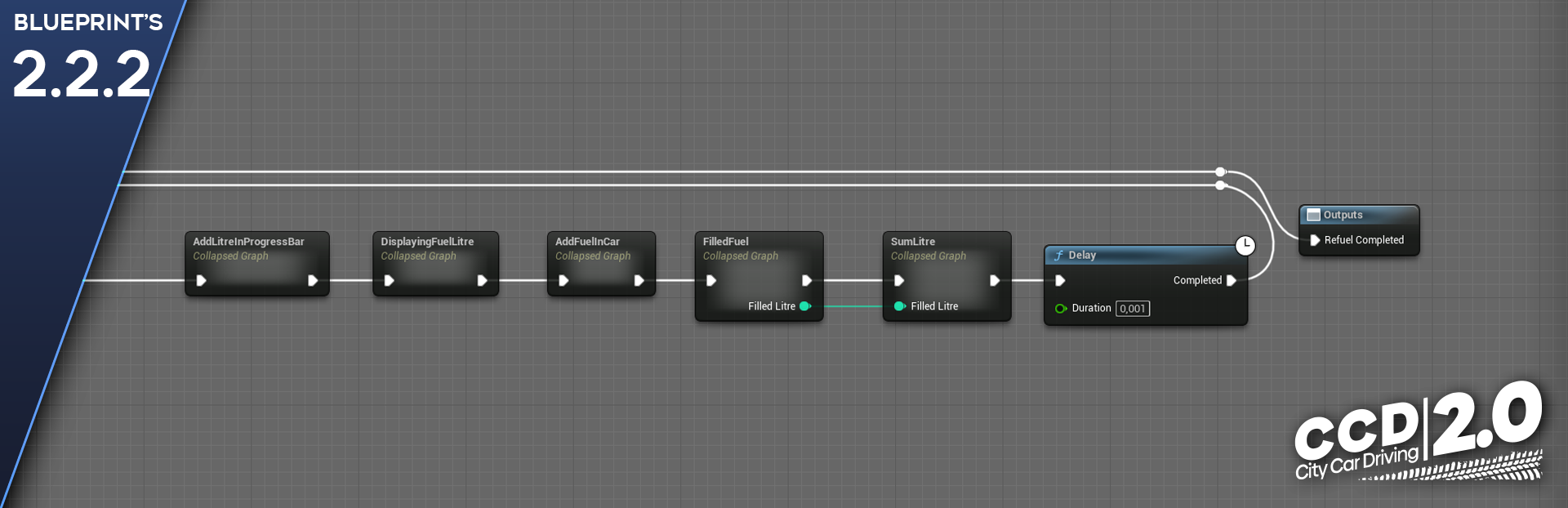
After the previous checks, a number of execution units are launched, in which pure mathematical operations occur with a calculation interval equal to 0.1 seconds.
The AddLitreInProgressBar unit animates the filling level of the tank inside the Refueling button. The current tank filling level value is summed up with the fuel supply flowrate.
The DisplayFuelLitre unit sends the amount of refueled fuel to the user interface.
The AddFuelInCar unit adds fuel to the vehicle’s tank. Every 0.1 seconds, 0.1 liters of fuel is sent to the tank level value.
The FilledFuel unit calculates how much fuel the player has filled into the tank. The value of the previously set BackupFuelLevel variable is subtracted from the current tank filling level.
The SumLitre unit generates and distributes refueling data, sends data to the refueling logic and to the logic of the car.
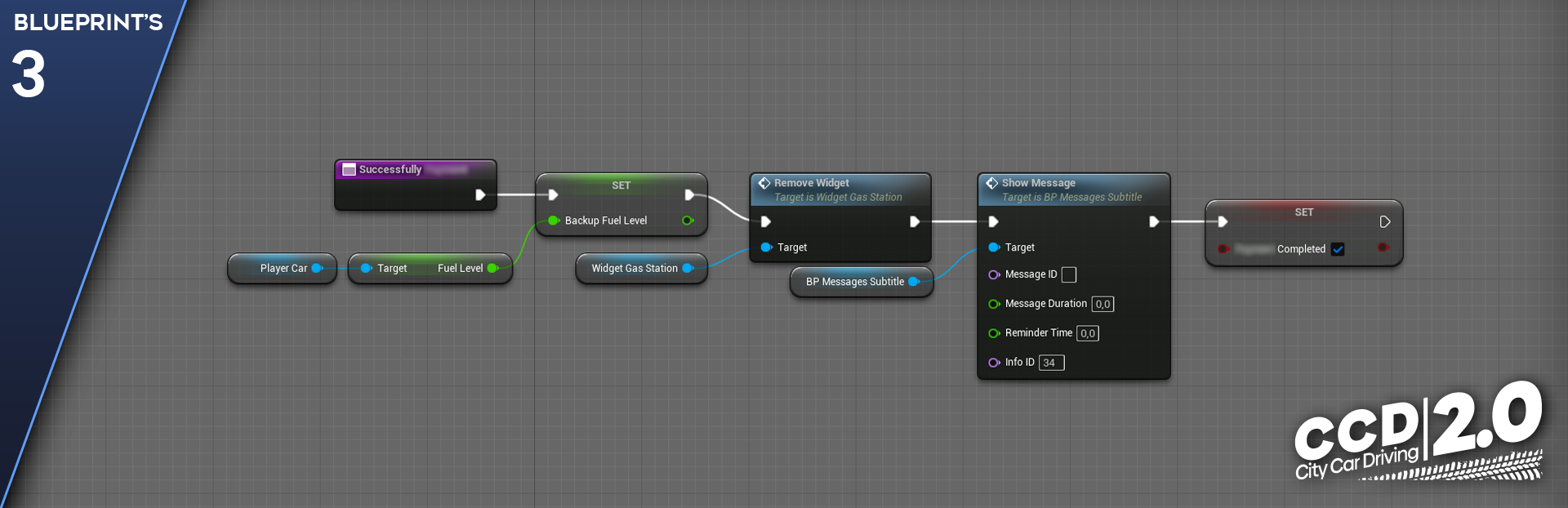
As soon as the player releases the refueling button, they have the opportunity to complete the refueling process and confirm the amount of refueled fuel. When the completion button is pressed, the confirmation logic is executed.
A new tank level value is written to the previously set BackupFuelLevel variable.
The user interface closes.
A user message about successful refueling is issued.
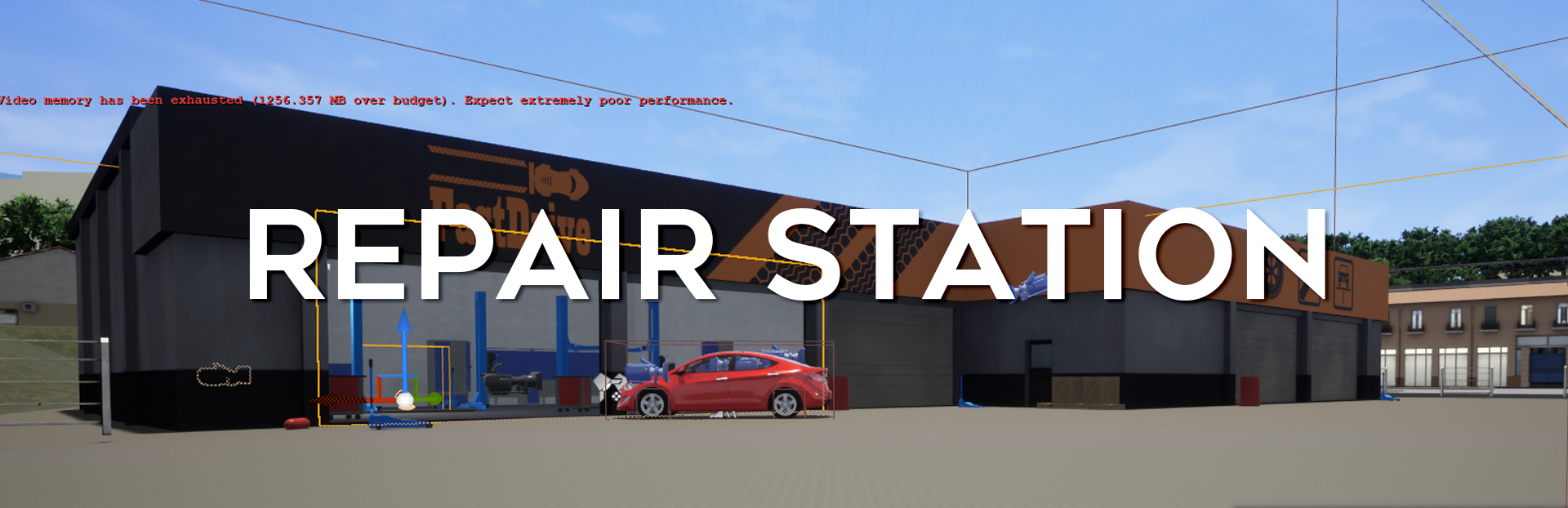
How a Repair Station Works
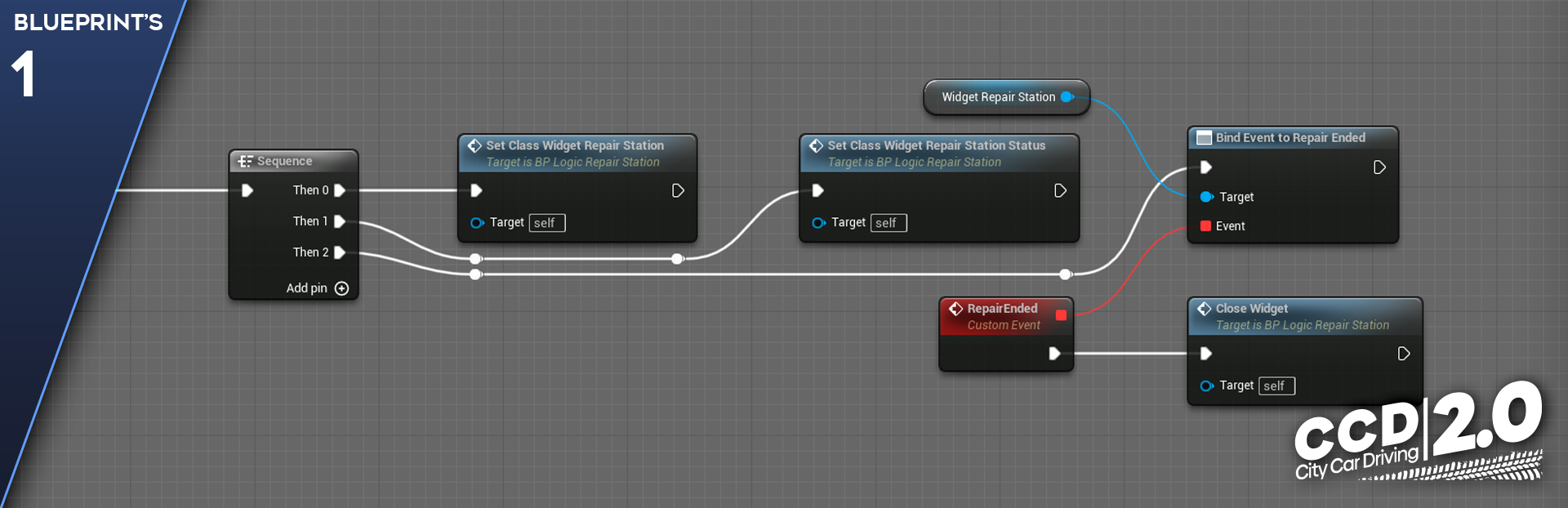
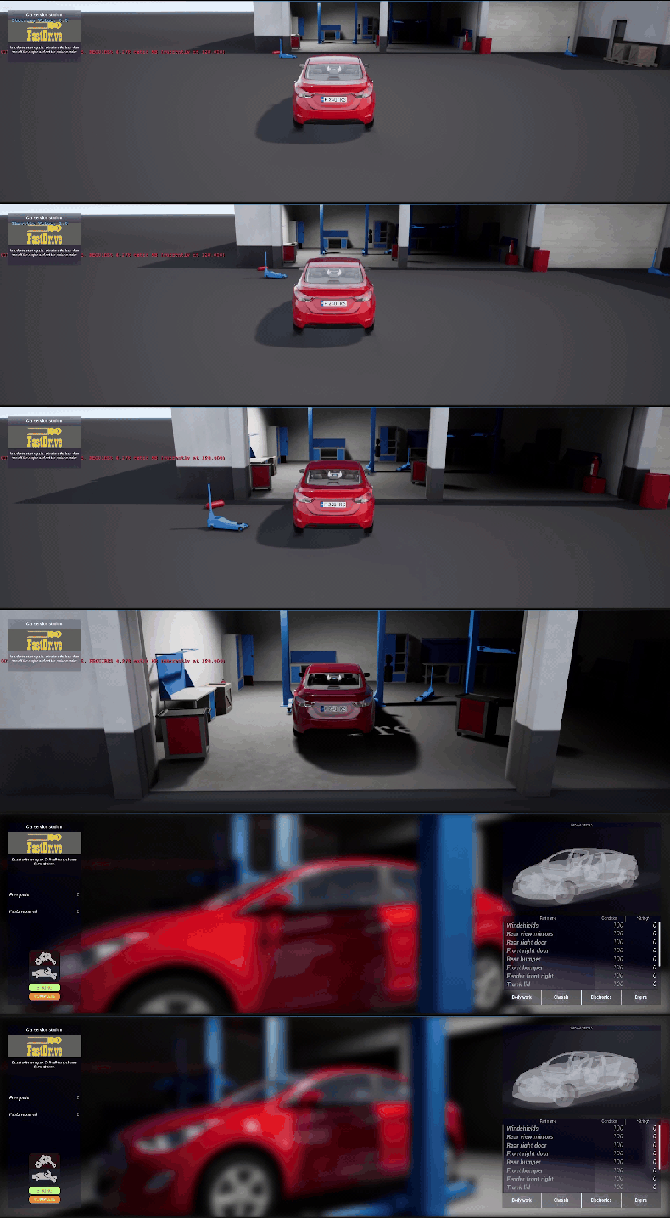
When a player enters the Service Station zone, the Service Station logic script is initialized.
The SetClassWidgetRepairStation function creates a link to the user interface class inside the Service Station.
The SetClassWidgetRepairStationStatus function creates a link to the vehicle status class.
The script subscribes to the RepairEnded event to receive the player’s exit from the service station event.
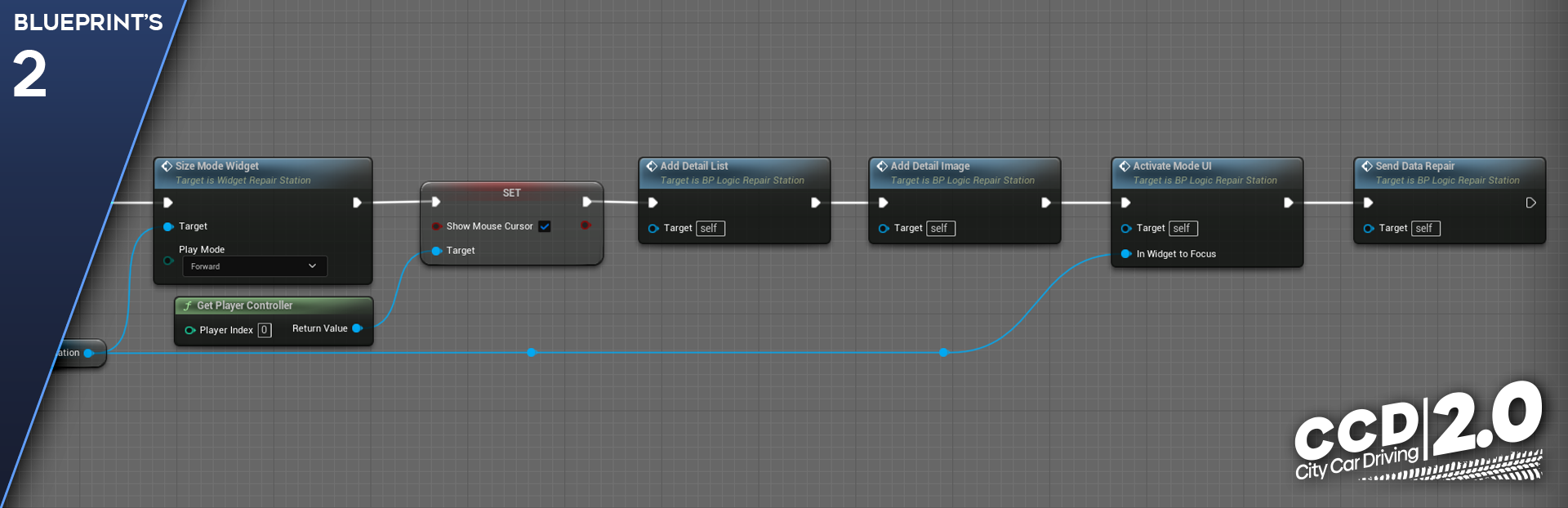
The player drove into the repair bay, the logic of collecting and generating data for use in further logic chains is triggered.
The SizeModeWidget function starts the full access mode to the Service Station functions. Then we display the mouse cursor on the screen (the ShowMouseCursor variable is responsible for this).
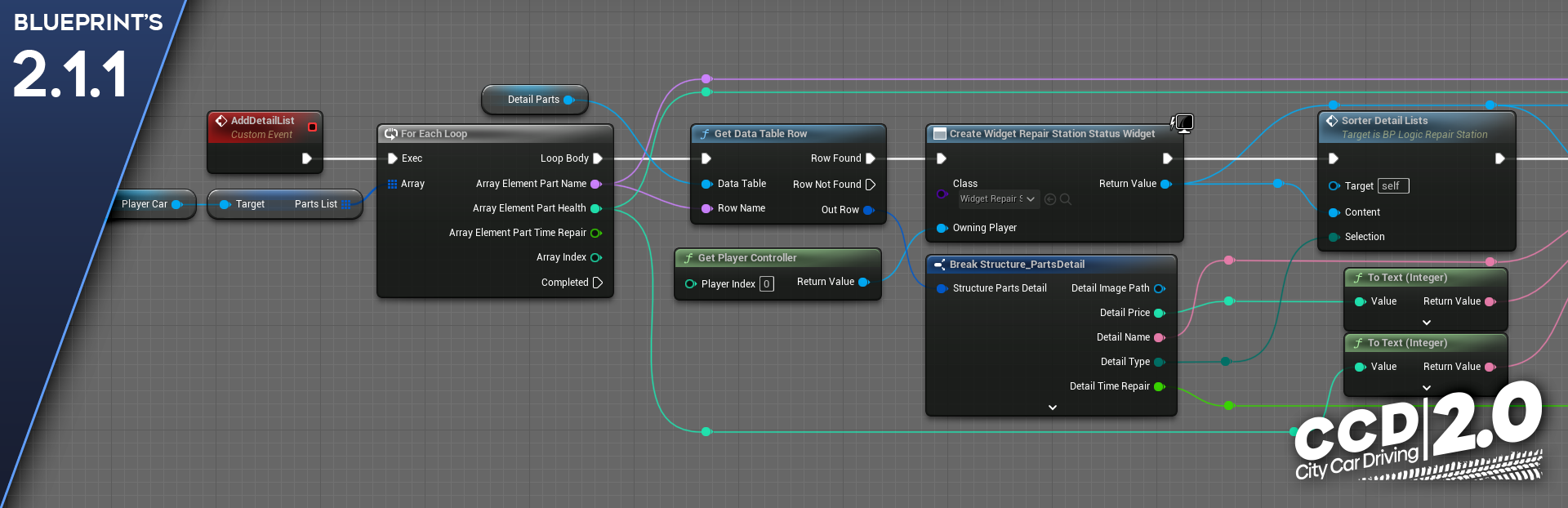
Calling the AddDetailList event triggers a logic chain that forms and sorts car parts into the user interface.
Via the ForEachLoop structure, all values from the PartsList array are sorted. This is an array that contains a list of all of the car parts.
Then, each part is divided into separate values, which in turn are sent along the required paths to the corresponding variable.
The CreateWidget function creates an interface element to which the previously received values from the parts list are passed.
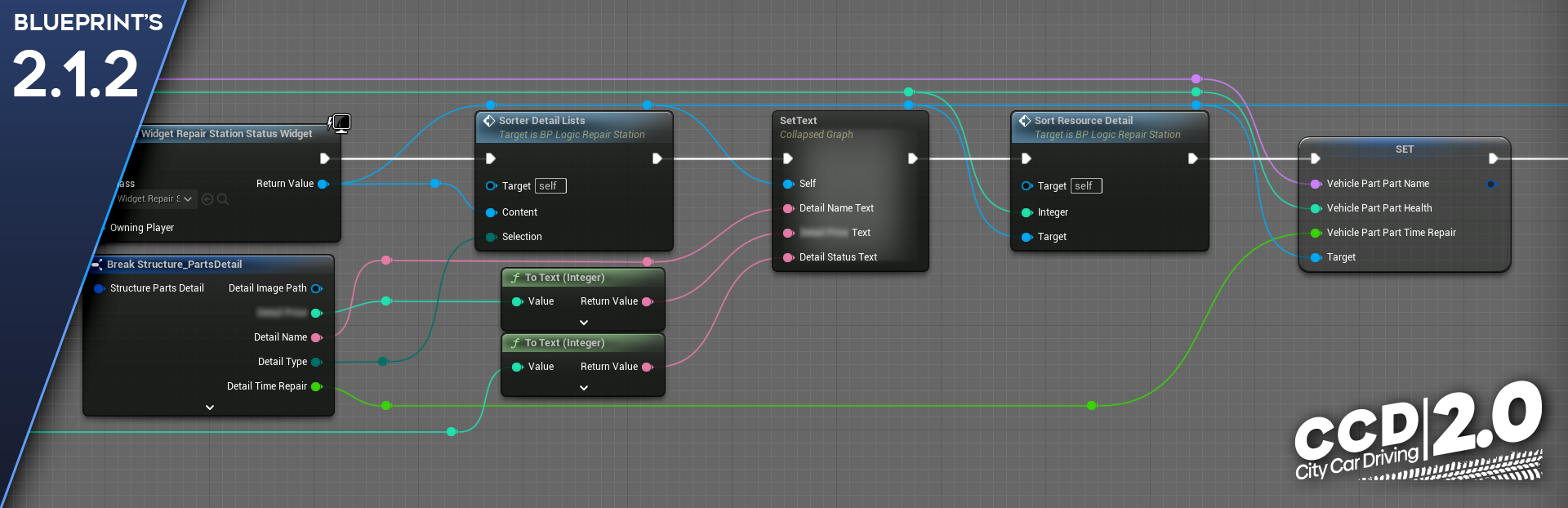
Inside the SorterDetailList function, the received parts are sorted into different functional blocks: “Body,” “Chassis,” “Electrics,” “Engine.”
The SortResourceDetail function sorts the parts list by their degree of wear.
For further calculations for each specific part, the VehiclePart variable records data on the name of the part, the degree of its wear, and the duration of repair.
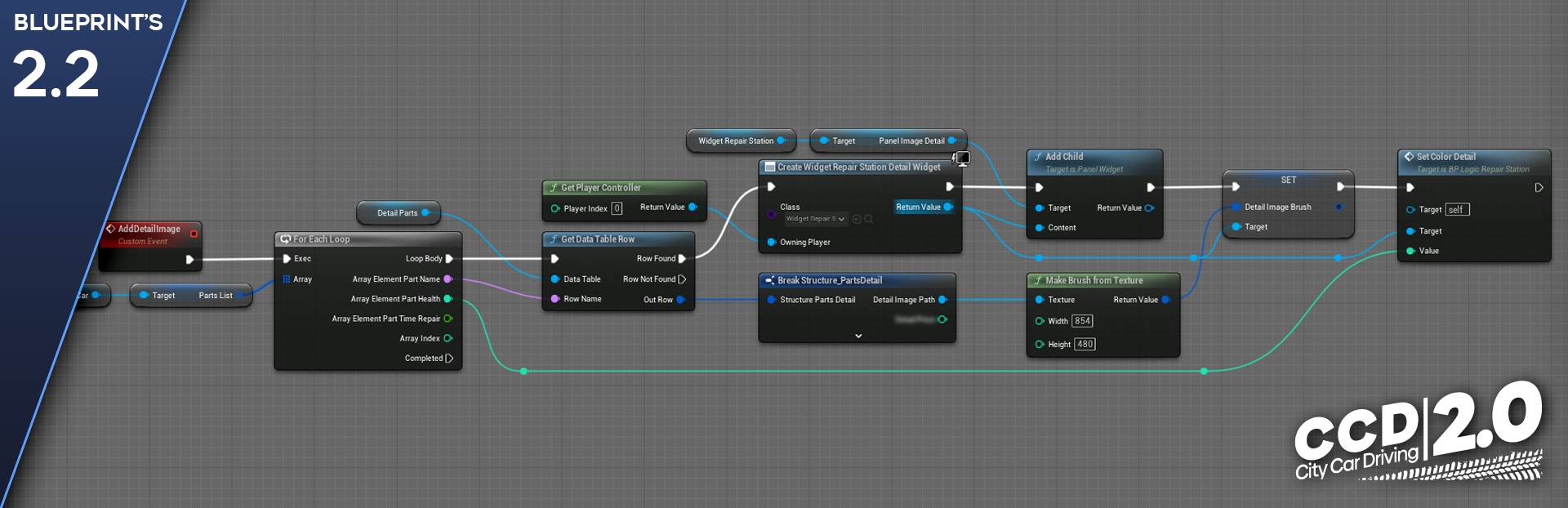
Calling the AddDetailImage event forms a unit of the car status visual display.
Via the ForEachLoop , all the values from the PartsList array are being searched again.
Then, from the data about the part, we get its image via the Break Structure_PartDetail structure.
Via the addChild function, a new location is added in the user interface block to which the image is sent.
We get the DetailImageBrush variable from the created location in the interface block, to which we send the previously received image.
The SetColorDetail function sets the color of the sent image, depending on its wear and tear.
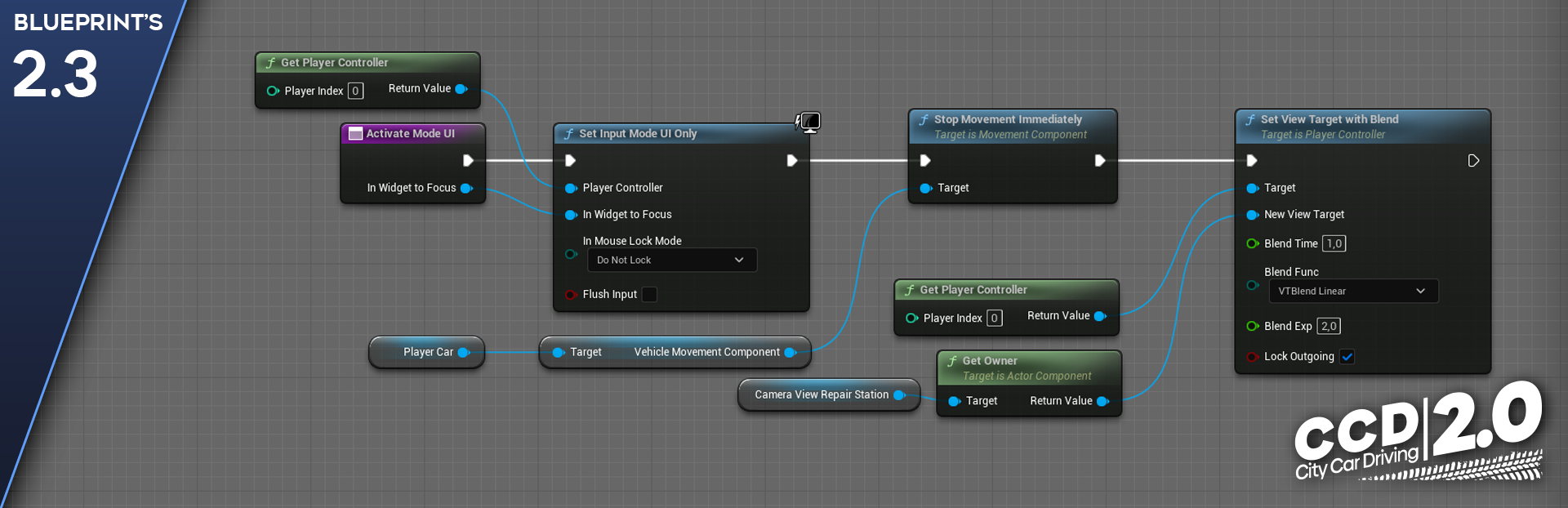
Calling the ActivateModeUI event activates the interaction mode with the Service Station.
The SetInputModeUIOnly function sets a condition under which the player can interact only with the user interface.
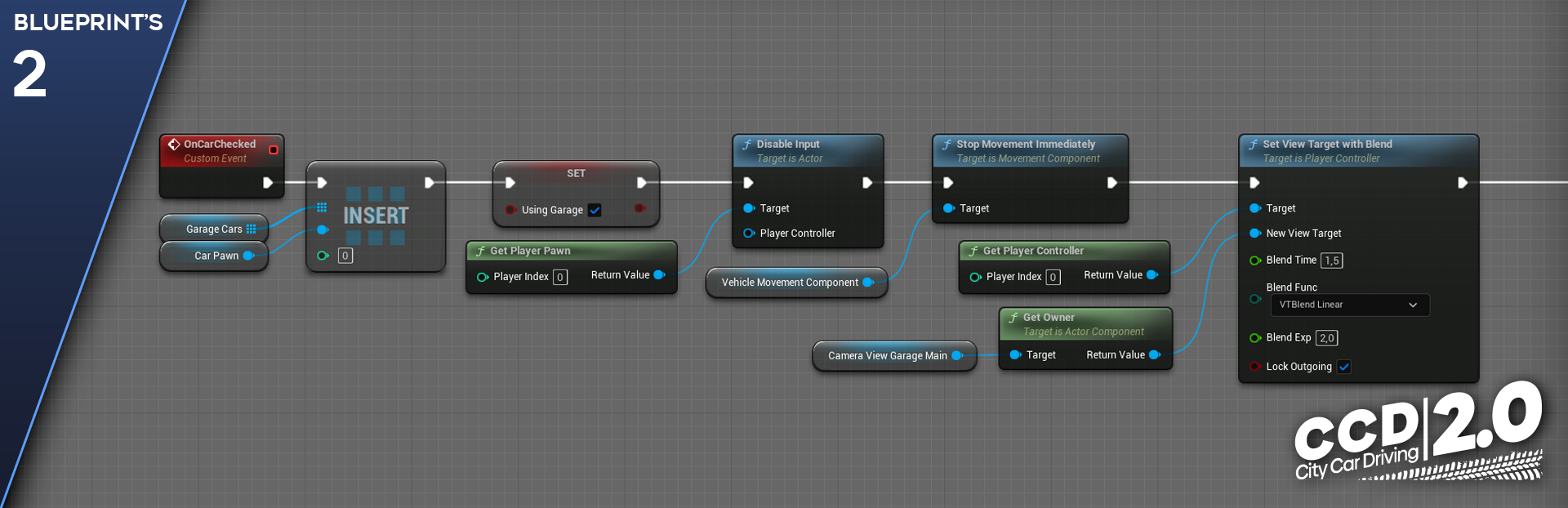
The StopMovementImmediately function stops the physical simulation of the player’s car.
The SetViewTargetWithBlend function changes the player’s surveillance camera. The current camera is turned off and switched to the Service Station camera.
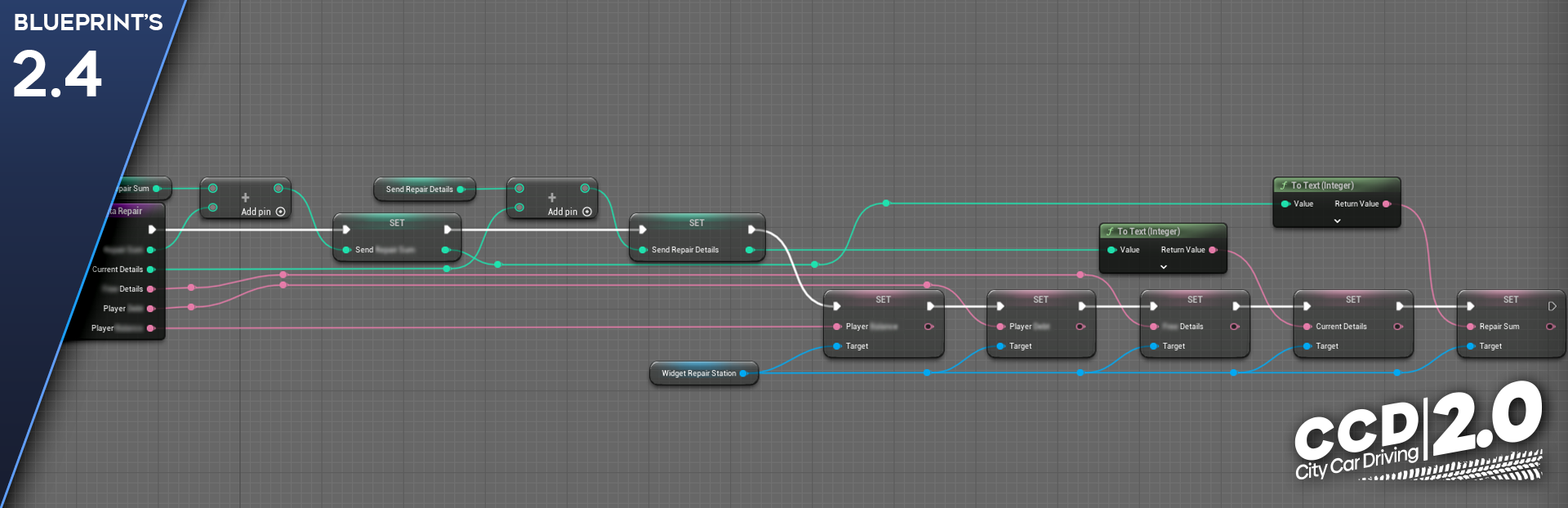
The SendDataRepair event calls the SendingDataRepair function which sends data about the player, car, and parts to the user interface.
At the current stage, the player can fully interact with the Service Station, see the status of the car, check the integrity of the parts, repair each part separately, select several parts for repair, or repair all worn parts in one click.
The ButtonRepairPressed_Event event is triggered if the player has pressed the button to select a specific part. In turn, this event triggers the logic of repairing one part. Inside the logic, the selected part is checked and repaired, the wear value is reset.
The PartSelected_Event event is triggered if the player clicked on a specific part once. The selected part will be recorded in the checklist for subsequent repair.
The ButtonRepairDetails_Event event is triggered, if the player clicked on the Fix Selected Parts button. This event checks which parts were selected by the player when the PartSelected_Event event is triggered and performs a function similar to the function of repairing one part.
The RepairFullDetails_Event event is triggered, if the player clicked on the Repair All Parts button. The logic will check all the parts and find those whose resource is below 90 %. Then all these parts are sent to the repair function.
After the repair is completed, the player can leave the Service Station. In this case, the script will execute a number of final logics:
Closes the Service Station mode. The player can no longer interact with the user interface of the Service Station.
Clears temporary variables.
Clears the part lists and parts data.
How a Car Wash Works
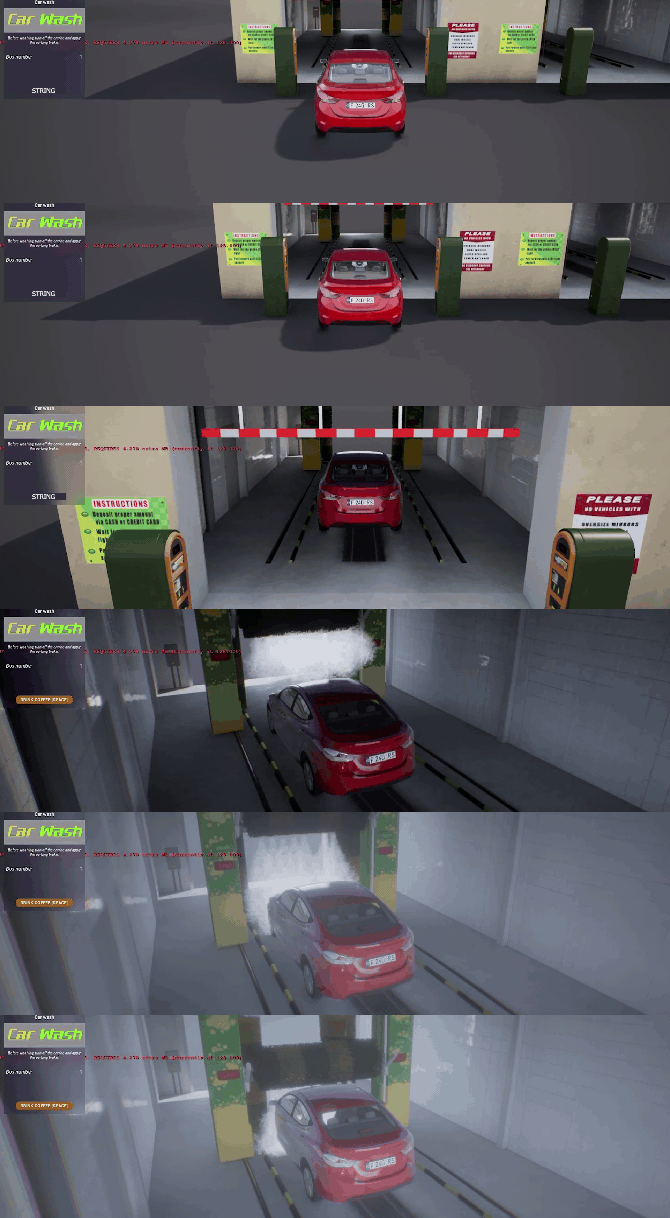
The script initialization system at a Car Wash is identical to the rest of the interactive objects. As soon as the player drives up to a Car Wash and presses the interaction confirmation button, the gate opens and the warning lights light up. At this stage, the Car Wash is waiting for the car to get into the washing bay.
We implemented a beam tracing system in the Car Wash instead of animations prepared for each car. This allows you to unify the work logic, regardless of the type and shape of the car. In fact, with this implementation, the logic works correctly with absolutely any object that gets into the washing bay. Invisible beams track the shape of the body and control the movement of all mechanisms.
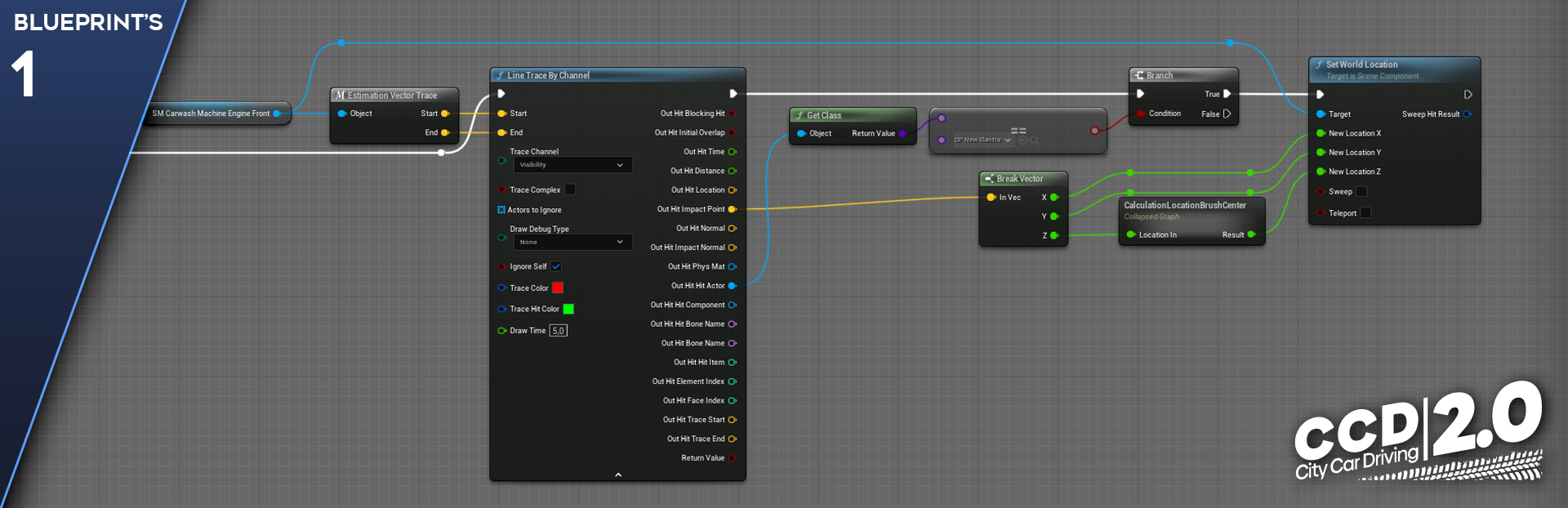
The EstimationVectorTrace macro calculates the length of the beam that will track the shape of the car body and also checks the radius of the brush so that the brush geometry does not intersect with the car geometry.
The LineTraceByChannel function “shoots” a beam to track the point of its intersection with the car body geometry, after which it sends the coordinates in which the intersection occurred further.
The SetWorldLocation function receives the intersection coordinates and moves the brush to this point.
Beam tracing is used in the logic of all movable mechanisms of the washing complex:
Washing brushes
Washing machine
Drive with washing nozzles
Also, at the Car Wash, there is an opportunity to skip the car washing process: for this, we have added the opportunity to drink coffee.
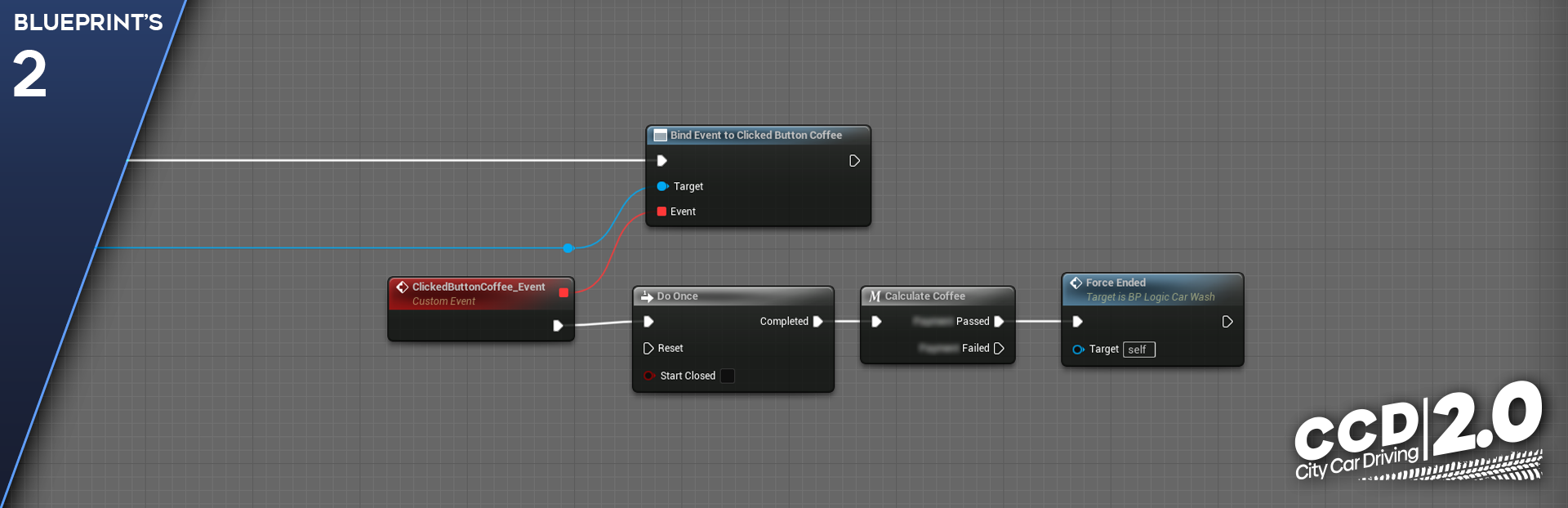
The ClickedButtonCoffee_Event event is triggered when the player clicks on the Drink Coffee button.
The DoOnce operator will execute the logic once, without being able to press the button again during the current washing session.
The CalculateCoffee macro calculates the possibility of wash skipping.
After receiving approval from the macro, the ForceEnded event is called, the execution of which starts the process of wash skipping. The screen is darkened, the brushes return to their original position, the washing bay is turned off.
After the car wash is completed, the body contamination degree is reset, the gate opens. The player can now continue the game by leaving the washing bay.
How the Garage Works
The Garage is the only place where, when entering the zone, the player must complete a full stop
of the vehicle, namely:
activate the hand-brake;
turn off the headlights;
shutdown the engine;
unfasten seat belts.
This is implemented as follows:
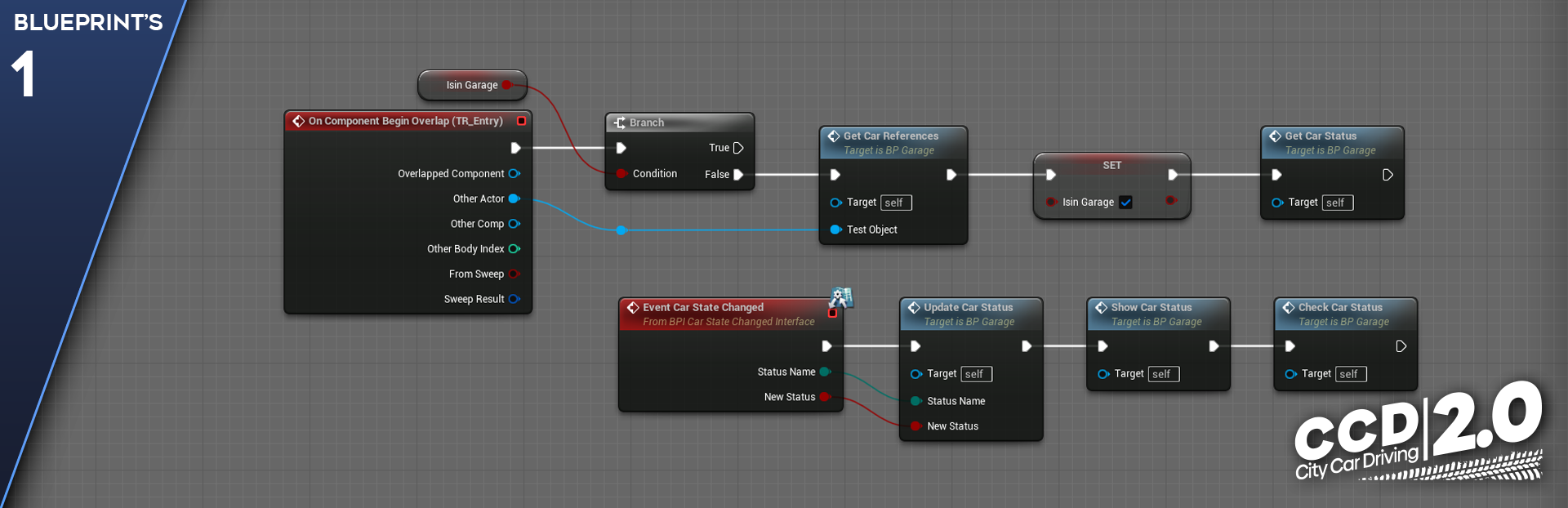
At the entrance to the Garage, the player has a widget with a list of necessary actions. Blueprint gets a link to the car and also checks its initial state.
When a car’s state changes, it transmits via the interface what parameter it has changed and to what value.
After that, the widget marks the new state of the car and checks whether the player has fulfilled all the conditions.
And if all the conditions are met, the main logic of the garage starts.
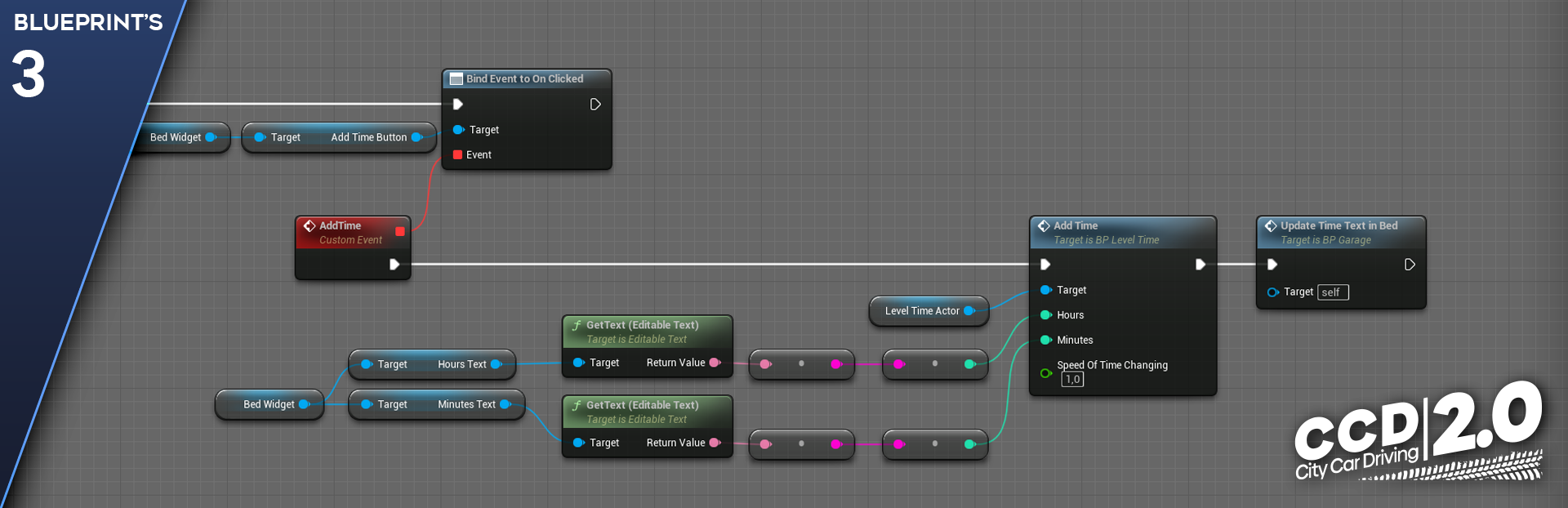
Here, the player’s car is added to the garage’s array of cars (under the zero index), and the player themselves gets the opportunity to use the garage’s functionality. Bed: allows you to rewind time by calling a function in a separate class that controls time at the level.
AddTime is a function in the LevelTime class that adds time to the current state that the player specified in the widget.
In the next issue, we will not talk much and will prepare for you a set of screenshots of the project for the entire time of its development.
Developer Diaries are published every two weeks. Don’t miss them!
This Devlog is about adding localisation to Research Story - it's a little more technical than our usual posts!
At this time, we can only confirm that we'll be localising the game to Simplified Chinese - we'll look into other languages in the future! Thank you to our Chinese fans who have been interested in the game and waiting for CN, it's on the way!~ ❤️
Localising the game - properly! 📝✨
Together with Electronic Sheep Games, who have been working on the localisation of the texts itself, I have been working on the implementation of the localised texts into the game. While our Demo has localisation, I wanted to do things in a better way for our Early Access version. This is so that when we plan to have more languages in the future, it wouldn't take as long to do so.
With over 5000 rows of texts in Excel and over 45,000 words (and counting), it's no simple task! This is a snippet of how Kipp's Dialogue data looks like: It has a unique ID (state), English texts for normal dialogue and options, and the translated columns.
All other texts, from a single word in a UI such as "Research" to Item Names and Descriptions all require similar treatment.
I had to make sure that each line was read from the Excel Sheets instead of being written directly into the game engine itself. If there were any in the engine, I had to move it to the Excel Sheet and give it a unique ID to reference in the code. Even though a large part of the game was already written in the Excel, I still spent maybe 4-5 full days (8 hr+) replacing the remaining written texts with the unique IDs. I did so much Ctrl+C, Ctrl+V and other Ctrl Shortcuts that my left pinkie started hurting even after a night's sleep 😰😰 Glad to say it's all good now, and most of the intense copy-pasting due to my prior lack of foresight have been completed 🎉🎉
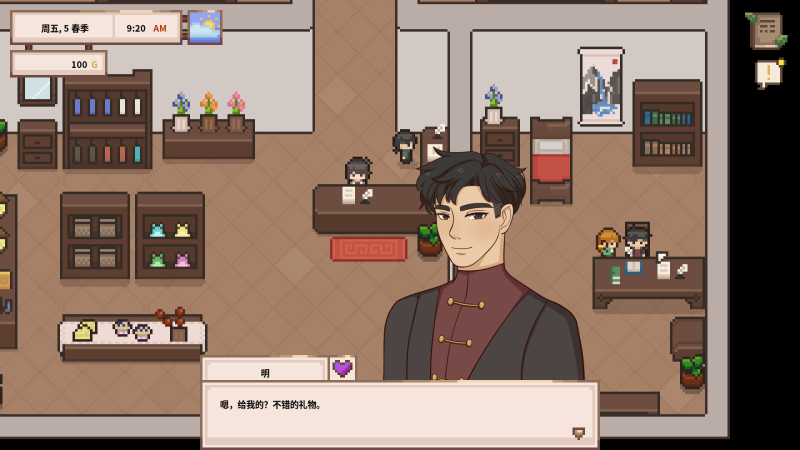
Being a Chinese Singaporean, I feel particularly excited when seeing CN in the game! Since I can read a bit of Chinese, it feels like I'm playing RS for the first time again - the texts are so refreshing. And yes, I was influenced by my Chinese roots when creating the General Store and its characters! ❤️
Other Visuals 🔍
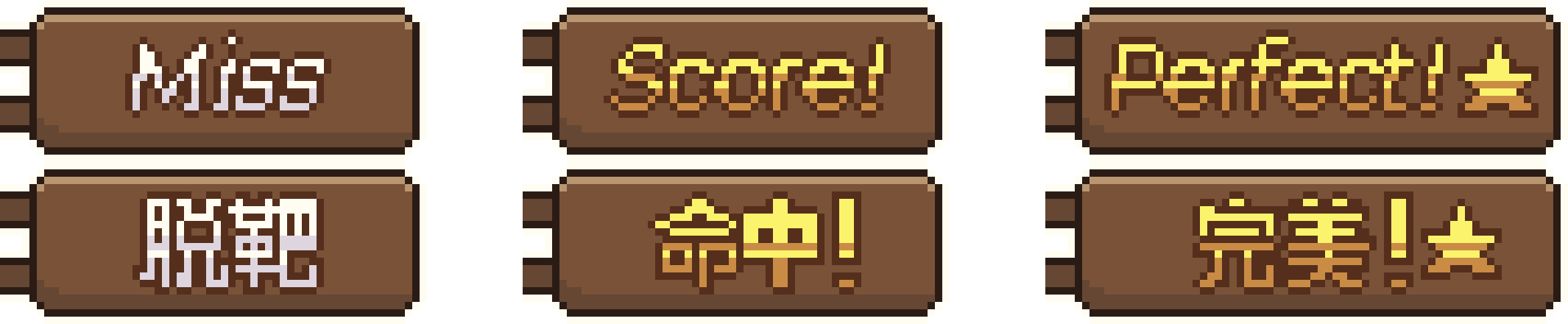
Other than the game title, there aren't many texts in-game that was drawn as an image (thankfully!). The Darts Minigame is one part of the game that has drawn texts, which would require appropriate localisation too:
Keeping optimisation in mind 💭
In our Demo, there were some optimisation issues where adding CN led to longer loading times when changing the language and when returning to the main menu. This was mainly due to the loading of fonts, and I've prevented those issues from happening in our Early Access build!
What's Next 📝
We'll be doing QA for the localised build before offering it in one of the future updates. Again, shoutout to Electronic Sheep who has been doing great work!! We're excited to share the update with you when it's ready.
I'll be going back to bugfixes + ramping up the next part of content updates, which I need some time to think about!
Hope everyone's been enjoying the v0.3 update so far!
Hi everyone, As you may or may not know, The current public version of Blockrunner 1.8.5 has some significant issues and I know that most of them are minor. some are major game-breaking bugs. I just wanted to let you all know that I am working as fast as I can to fix these issues.