It’s that time of year again. Nope, it’s not Black Friday – yet>. It’s that other> day o’deals you’ve been waiting all year for, the ever-lovely and definitely not yearly clear-out sale of junk and tat, Amazon Prime Day. While the bulk of Amazon’s Prime Day discounts will be on things like Echoes, Echo Dots, Kindles and other bits of Alexa-enabled gubbins, there’s bound to be some (hopefully) major deals on PC hardware and games as well, so I thought I’d collect the best of the best PC Prime Day deals right here to save you the hassle of trawling through them yourself.
Of course, we don’t have any deals just this second since we’re still a few weeks out of the day itself, but below you’ll find handy info such as when Amazon Prime Day 2018 is actually taking place this year, as well as the kind of deals you can expect to see. I’ll be updating this piece as we get closer to the day itself with more information, but for now, here’s everything you need to know to prep yourself for Prime Day 2018.

Building your own gaming PC isn’t too bad if you know what you’re doing, but for first-time builders it can be quite the daunting experience. Sometimes, it’s just easier to get someone else> to do all the legwork for you, especially if you’re after something small and diddy like the rather swish Zotac MEK1. Other times, though, it can be both cheaper and more satisfying to make one yourself, where you’ve got complete freedom to choose your own components and put them together exactly how you want.
In this guide, I’ll be taking you through step-by-step on how to do just that. From picking the right components to installing them in your case, by the time we’re done you’ll know everything there is to know about how to build a PC that’s great for gaming and personal computing alike. Let’s begin!

All right, our How to build a PC guide is so very nearly over. Just a couple more steps and you’ll be home free. In this article, we’ll be installing some storage for all those lovely games you’ve got waiting to play. I’ll mainly be covering traditional 2.5in SATA SSDs and 3.5in HDDs here, but fret not if you’ve gone down the fancy NVMe route – I’ll show you how to do that as well.

Hooo boy. Here comes the fun part of our How to Build a PC guide. And by fun, I mean, excruciatingly awful and needlessly fiddly. It’s time to connect up your system panel connector and all your case cables to all the teeny tiny metal prongs dotted around your motherboard. Hooray!

Congratulations! You’ve made it through our How to Build a PC guide. Now it’s time to double-check and triple-check that everything’s connected properly, put your case back together and plug in those peripherals. Let’s get started.

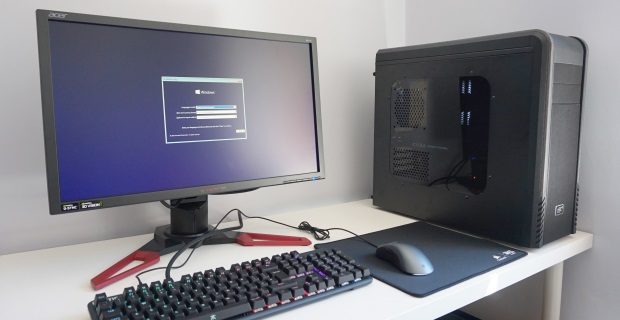
Here it is. The final step of our How to Build a PC guide. You’ve got your brand-new PC ready and waiting. All we need now is to give it an operating system. I’ll be taking you through how to install Windows 10 in this particular article (it really isn’t as bad as everyone says it is, even if it can be immensely irritating sometimes), but most of these steps should also apply to older versions of Windows as well if you’d rather stick with something like Windows 7.

The first step in our How to build a PC guide is installing your power supply, or PSU for short. Before we begin, however, we need to make sure your case is prepped and ready for it. That means taking out any lingering bits and pieces your case manufacturer might have left in there when you bought it, so get that screwdriver at the ready. It’s time to crack open that case.

You’ve just learned how to install your power supply; the next step in our How to build a PC guide is installing your motherboard. This is arguably one of the fiddliest bits of building a PC, so it’s important to take your time here. I’ll be building into an ATX-sized motherboard into a mid-tower case in this particular instance, but the same steps apply for ITX and mini-ITX builds as well – you’ll just have fewer mounting points to worry about.

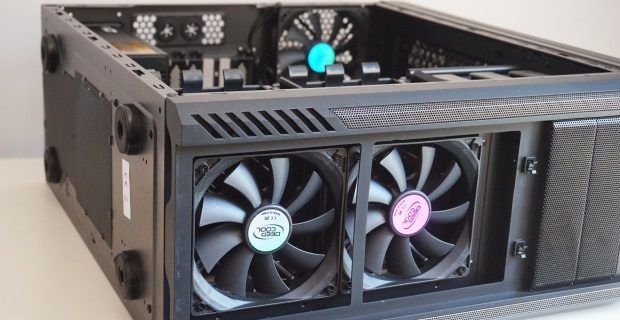
Welcome back to our How to build a PC guide. With your motherboard and power supply now firmly in place, it’s time to get those fans going. Most cases these days come with a few fans pre-installed – usually one at the front to bring cold air in and one at the back to throw hot air out – but adding more can be useful if you want a PC that runs cool and quiet.

Here comes the tricky bit in our How to build a PC guide. I know I said that earlier when we were learning how to install a motherboard, but that was just fiddly. Installing your CPU requires a delicate sense of precision, as bending one of its many pins underneath could spell disaster for your entire build. So, take a deep breath, and let’s get to it.